213
ADOBE PREMIERE 5.0
User Guide
To add an image mask as a transition:
1
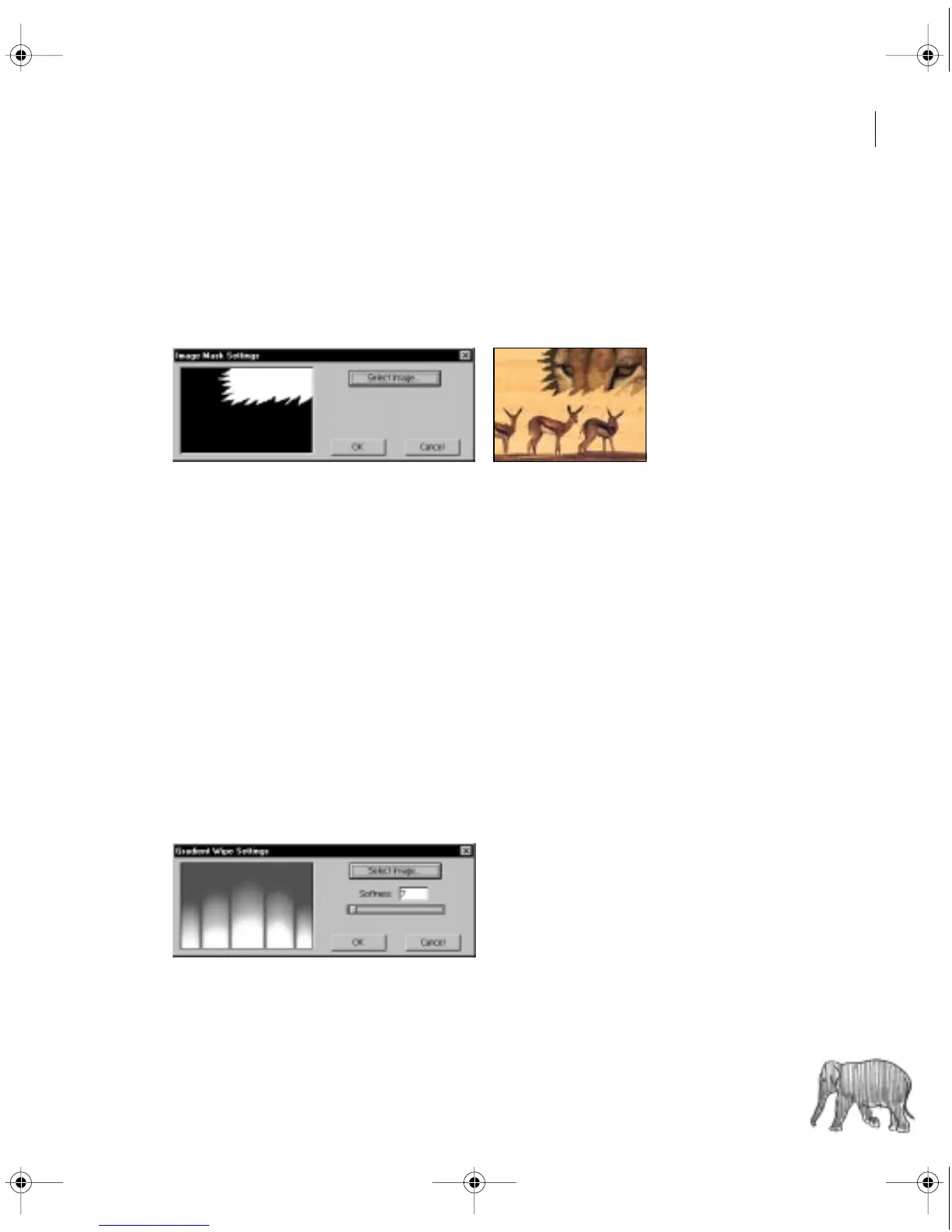
Drag the Image Mask transition from the Transitions palette to the Transition track of
the Timeline. The Image Mask Settings dialog box appears.
2
Click Select Image, and double-click the image file you want to use as a transition mask.
The image you selected appears in the Image Mask Settings dialog box.
The Image Mask transition reveals the B clip through the white pixels of a selected image
file, and the A clip through the black pixels.
3
Click OK.
Using the G
radient Wipe transition
Adobe Premiere can use any importable grayscale image as a gradient wipe. In a gradient wipe,
image B fills the black area of the grayscale image and then shows through each level of gray as
the transition progresses until the white area becomes transparent. When you create a Gradient
Wipe transition, you can specify the “softness” of the transition’s edges.
To create a Gradient Wipe transition:
1
Drag the Gradient Wipe transition from the Transitions palette to the Transition track
in the Timeline. The Gradient Wipe Settings dialog box appears.
2
Click Select Image, and then double-click the file you want to use in the wipe. The image
you select appears in the Gradient Wipe Setting dialog box.
c00.book for PS Page 213 Tuesday, March 31, 1998 1:28 PM



 To Next Page