25
ADOBE PREMIERE 5.0
User Guide
2
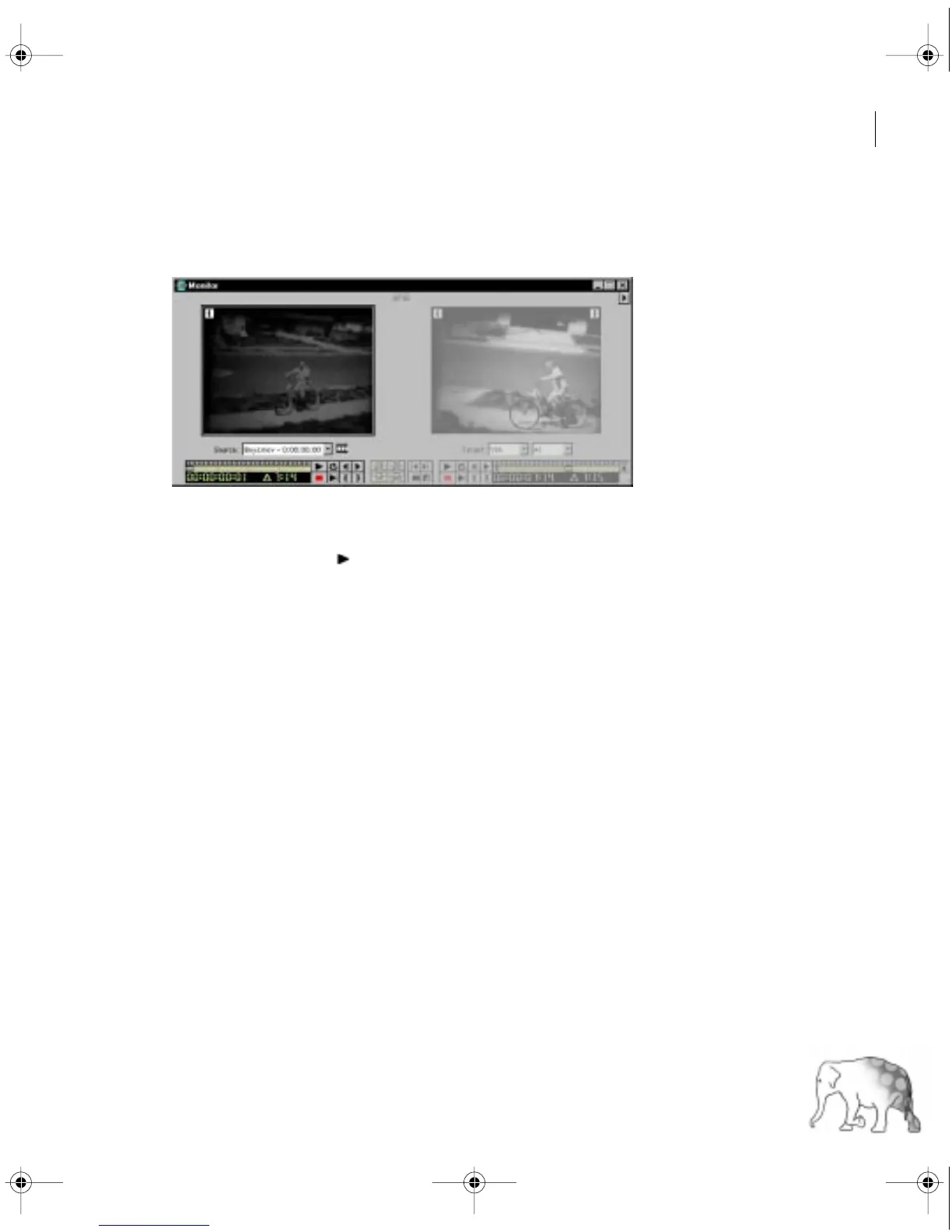
In the Video 1A track of the Timeline window, double-click the Boys.mov clip.
The first frame of the Boys.mov clip appears in the Source view of the Monitor window.
Before you trim, first play the clip.
3
Click the Play button ( ) underneath the Source view, or press the spacebar.
As it is, the clip is a little long, so you’ll trim it somewhat. Trimming a clip involves setting
a new
In point
,
Out point
, or both. An In point is the frame at which a clip begins; an Out
point is the last frame of the clip. You’ll change the Out point for the Boys.mov clip.
4
To get an idea of exactly where you’ll trim the clip, click the Play button and look for the
point at which the first bike rider stops moving forward (just over 4 seconds into the clip):
That is where you’ll set the Out point.
The controls for both views in the Monitor window also contain a shuttle slider, which lets
you
scrub
clips. Scrubbing—advancing or reversing a clip manually—lets you precisely
identify and mark events.
c00.book for PS Page 25 Tuesday, March 31, 1998 1:28 PM



 To Next Page