CHAPTER 1
26
A Tour of Adobe Premiere
5
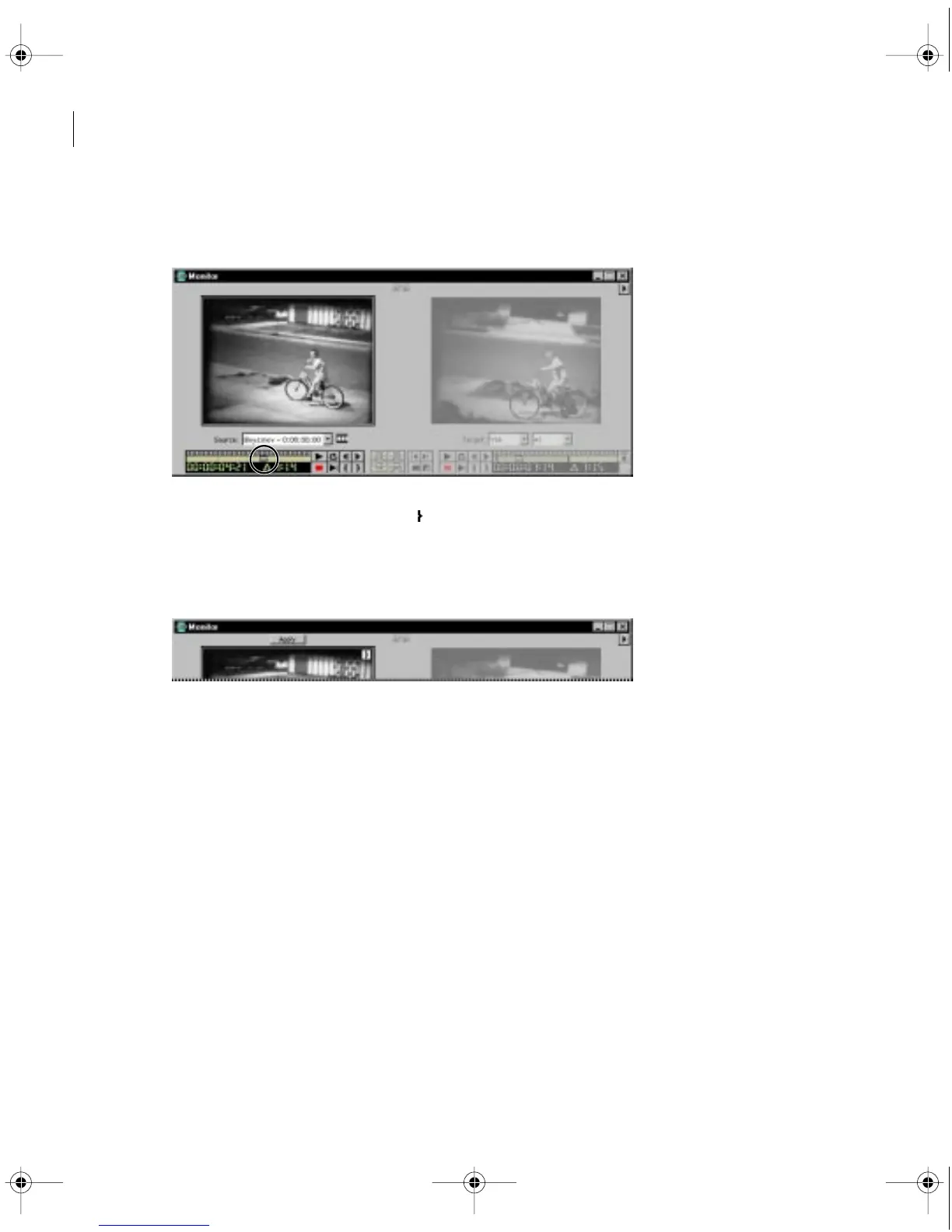
Under the Source view, drag the shuttle slider until you see the first bike rider at the end
of his ride. (The time below the shuttle slider should read between 4:20 and 5:00 seconds.)
6
Click the Mark Out point button ( ).
After you’ve positioned the Out point correctly, you need to apply the change to the clip in
the Timeline. Note that the Apply button is now visible above the Source view. This button
appears whenever you mark a new In or Out point for a clip in the Timeline.
7
To apply the trim, click the Apply button.
c00.book for PS Page 26 Tuesday, March 31, 1998 1:28 PM



 To Next Page