CHAPTER 1
44
A Tour of Adobe Premiere
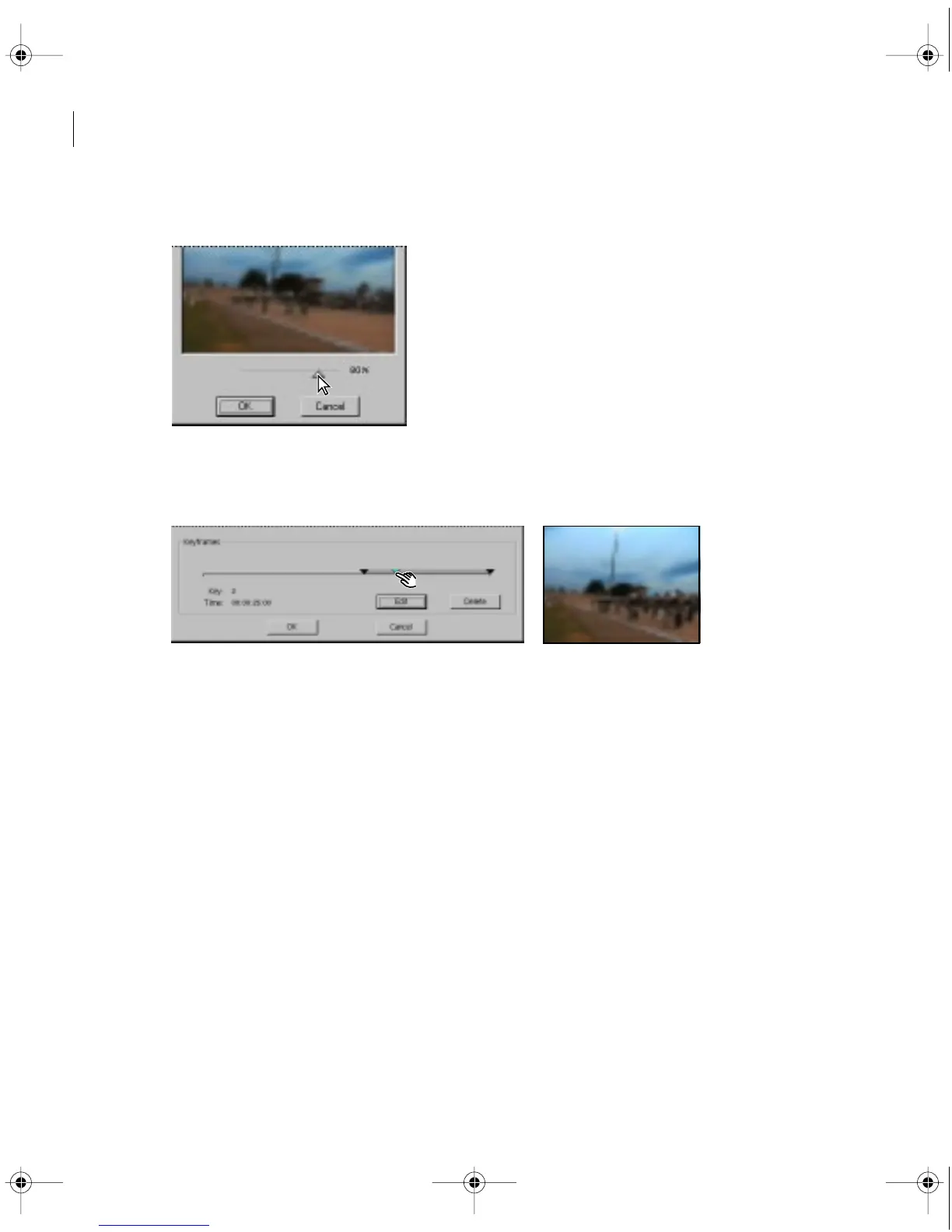
10 Drag the slider bar until the Blur is at 80%, and then click OK.
Now you’ll position this keyframe at an exact time.
11 Drag the keyframe you just created until the timecode reads 00:00:25:00 (25 seconds).
12 Now select the last keyframe (the triangle at the far right) and click Edit.
13 Once again, drag the slider bar until the Blur is at 80%. Click OK.
14 In the Filters window, click OK.
Let’s briefly review what you’ve just done. By setting three keyframes—the first at 0%, the
second at 80%, and the third at 80%—you have specified that the Camera Blur effect begins at
0% at the point in time you specified, increases to 80% at 25 seconds, and then remains at 80%
for the duration of the clip.
c00.book for PS Page 44 Tuesday, March 31, 1998 1:28 PM



 To Next Page