Advanced RF Technologies, Inc.
5. SDR WEB-GUI SETUP
The Web-GUI allows the user to communicate with the repeater either locally or remotely. To connect to the
repeater locally, you will need a laptop with an Ethernet port and a RJ-45 crossover cable. To connect to the repeater
remotely, you will need to have an active internet connection and the repeater must have either an internal modem
or an Omnibox (ADRF Modem Box) connected to the repeater.
5.1 Repeater/PC Connection Using Web-GUI
Verify that your Local Area Connection is set to Obtain an IP address automatically under the Internet Protocol
(TCP/IP) properties
- If you are connecting to the unit remotely (use of a modem), then skip steps A and B.
Connect the RJ-45 crossover cable between the laptop’s Ethernet port and the repeater’s Ethernet port
Launch an Internet Browser
Type the following IP address into the address bar of Microsoft Internet Explorer: http://192.168.63.1
- If you are connecting to the unit remotely, then type the IP address of the modem to connect to the unit
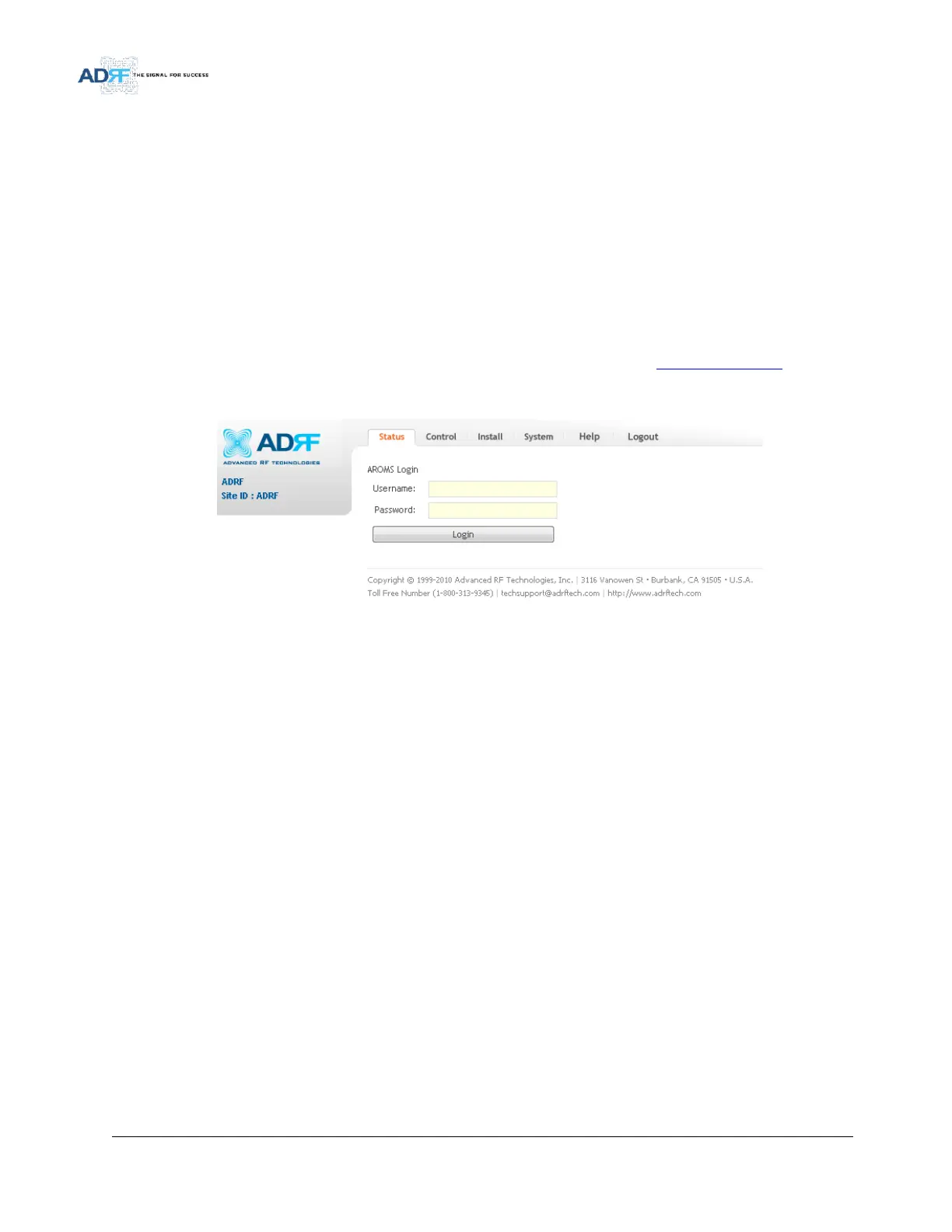
The following login screen will appear:
Figure 25 Login screen
If you are not the Administrator, please type in your assigned username & password which you should have
received from the Administrator.
The default username and password for the General User is adrf & adrf, respectively.
The default Administrator login is admin & admin, respectively.



 To Next Page