20 Gear Drive, Plymouth Ind. Park, Terryville, CT 06786
Tel: (860) 585-1254 Fax: (860) 584-1973 http://www.amci.com
103
TASK 3 (EtherNet/IP Option)
IMPLICIT COMMUNICATIONS WITH AN EDS
3.1 Obtain the EDS file
All AMCI EDS files are located on our website at the following address:
http://www.amci.com/industrial-automation-support/configuration-files/
Simply download the ZIP file and extract it to its own directory. The ZIP file contains the EDS text file and a
custom icon file for the device.
3.2 Install the EDS file
3.2.1 Start the EDS Hardware Installation Tool
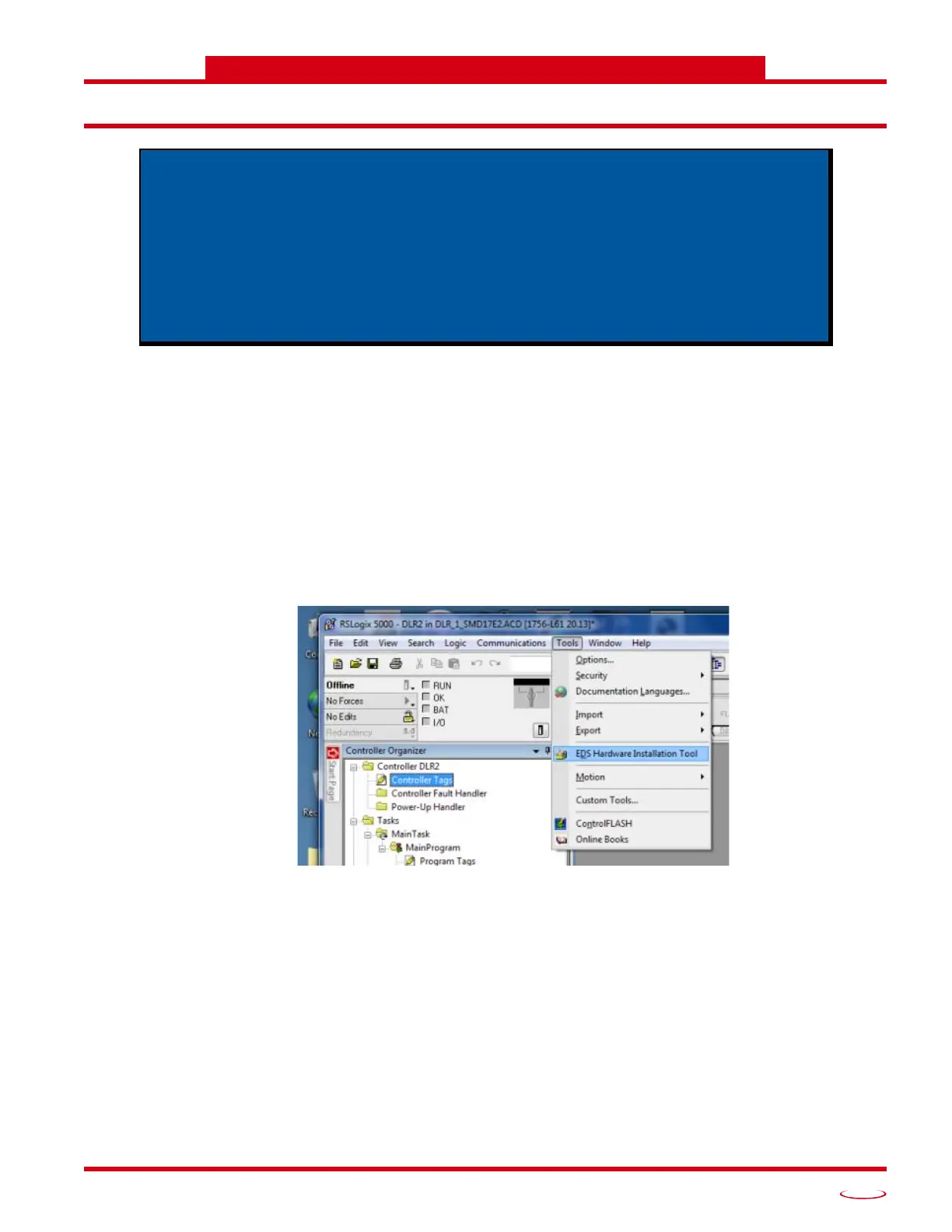
1) Once Studio 5000 is running, in the menu bar select Tools EDS Hardware Installation Tool. This will open
the EDS Wizard.
Figure T3.1 Opening the EDS Wizard
2) Click on [Next >] to advance to the Options screen.
Many EtherNet/IP platforms support the use of EDS files to simplify the addition
and configuration of devices. This chapter covers the installation and use of the
EDS file for systems that are programmed with Rockwell Automation Studio 5000
version 20 and above. Other systems will follow a similar pattern. Consult your
controller’s documentation if you need additional information.
Note: Use of an EDS file is completely optional. The SMD17E2 can always be
added to a system as a generic module. If you are using a Rockwell Automation
PLC, adding the unit as a generic module is the only option available if you are
using RSLogix 5000 version 19 and below or RSLogix 500.



 To Next Page