Getting to know your telephone
8AL91432ENAD ed01.1 21/94
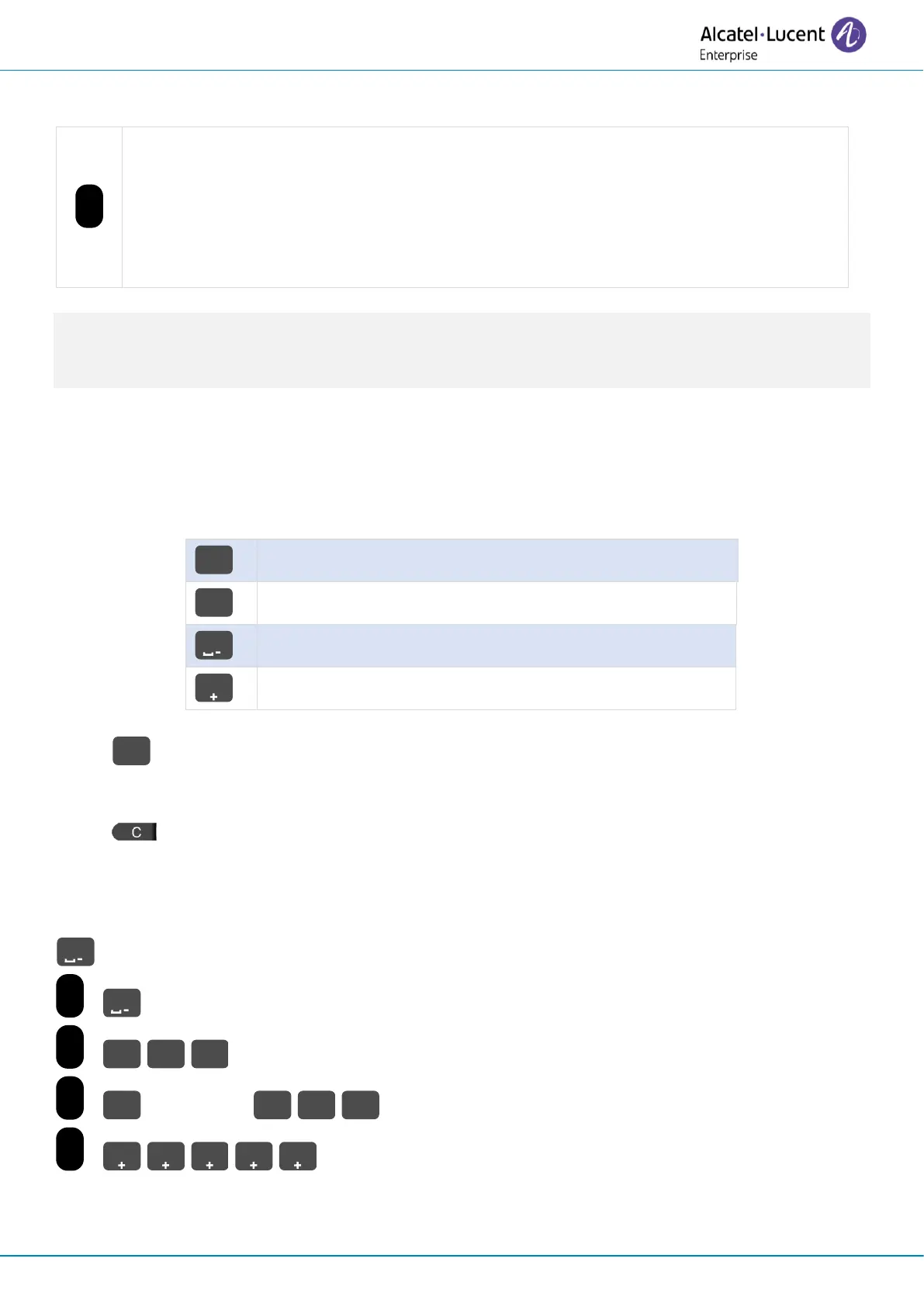
1.10 Alphanumeric keyboard
Your phone is equipped with alphanumeric keyboard. You can switch between numeric
keyboard to dial number, and alphabetic keyboard to enter text by pressing the
alphanumeric key. When you are in a text zone, you can switch to the alphabetic
keyboard by selecting this key. When activated, the key is lit blue.
Select the same key which is lit in blue to switch to the numeric keyboard (the key
switches off).
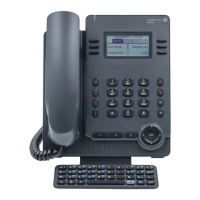
Your desk phone can also be equipped with a magnetic alphabetic keyboard: ALE-10 keypad (sold
separately). In this case, the alphanumeric key is disabled. The dedicated key can therefore be
programmed.
• Enter alphabetic characters.
The number pad keys have letters that you can display by successive presses. The number is
the last character in the series. Some special characters can be displayed by successively
pressing the key:
• Press and hold the '*' key to switch from lowercase to uppercase mode, and vice
versa.
• Use navigation keys to move the cursor into the text (except in dial by name feature).
• Use this key to delete the last entered character. The alphabetic mode remains
activated.
Use cases:
: '1' is displayed.
+ : 'space' is displayed.
+ (3 successive presses): 'f' is displayed.
+ Long press + (3 successive presses): 'F' is displayed.
+ (5 successive presses): ':' is displayed.




 To Next Page