Programming your telephone
8AL91432ENAD ed01.1 58/94
3.6 Adjusting the brightness of the desk phone
Adjust the brightness of the display of the desk phone, the connected add-on, and the LEDs of the
desk phone.
3.6.1 Auto-adjusting of the brightness
The phone can automatically adjust the display and LED brightness to suit the light conditions to
improve the user experience and save power (ambient light sensor).
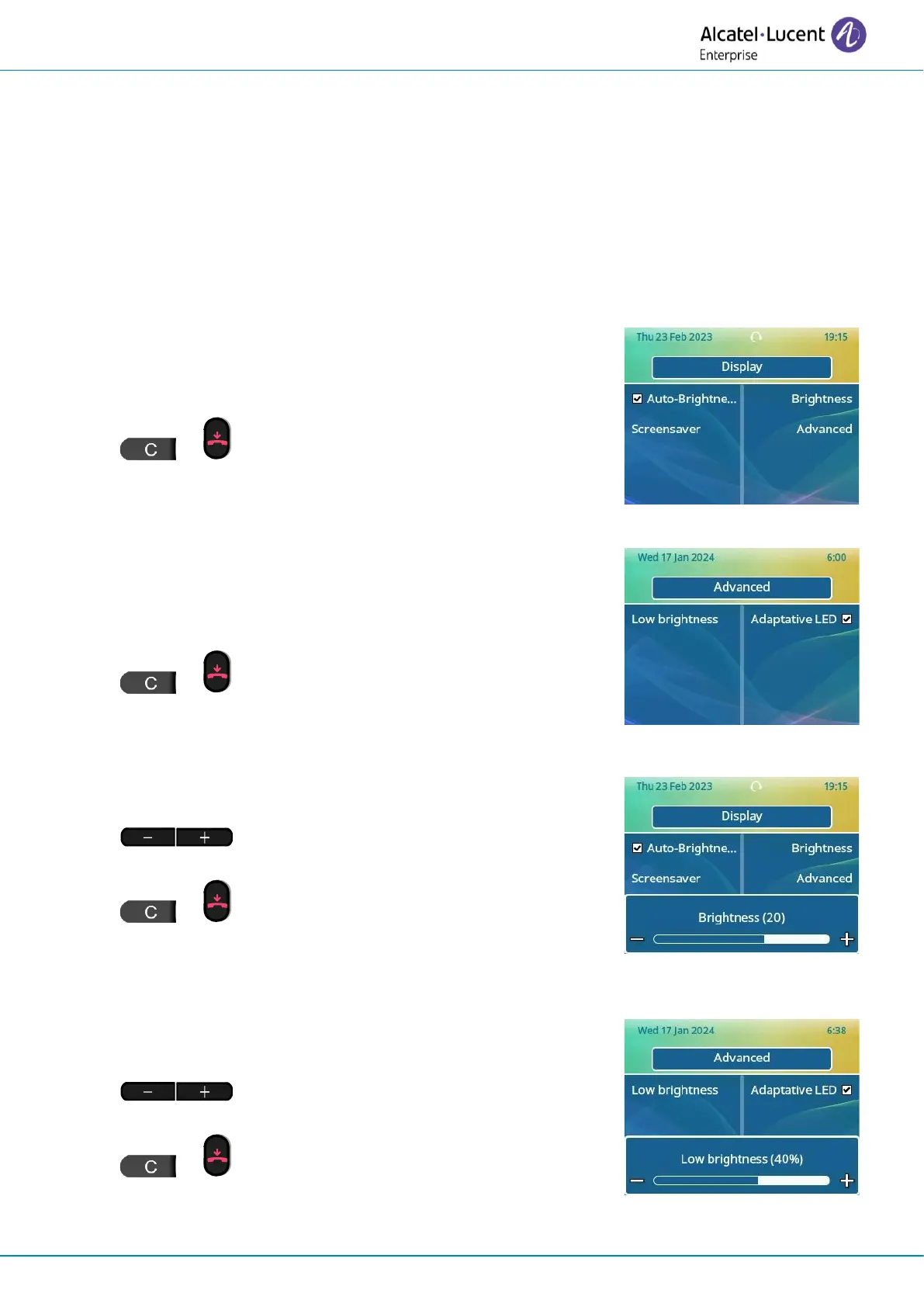
3.6.1.1 Auto-adjusting of the display brightness
• Open the user local menu: reach the 'Menu' page
→
Settings
→
Phone
→
Local Menu
→
Display
→
Auto-Brightness
• Activate or deactivate the feature.
• or Go back to the previous page or to the
homepage.
3.6.1.2 Auto-adjustment of the LED brightness level
• Open the user local menu: reach the 'Menu' page
→
Settings
→
Phone
→
Local Menu
→
Display
→
Advanced
→
Adaptative
LED
• Activate or deactivate the feature.
• or Go back to the previous page or to the
homepage.
3.6.2 Adjust the brightness when the phone is in use
• Open the user local menu: reach the 'Menu' page
→
Settings
→
Phone
→
Local Menu
→
Display
→
Brightness
• Increase or decrease the brightness
(successive presses).
• or Go back to the previous page or to the
homepage.
3.6.3 Adjust the dimmed brightness when the phone is not in use
• Open the user local menu: reach the 'Menu' page
→
Settings
→
Phone
→
Local Menu
→
Display
→
Advanced
→
Low
brightness
• Increase or decrease the brightness
(successive presses).
• or Go back to the previous page or to the
homepage.




 To Next Page