Page 86
Allied Telesis AT-8000S Switch
Web Browser Interface User’s Guide
Setting System Log Display
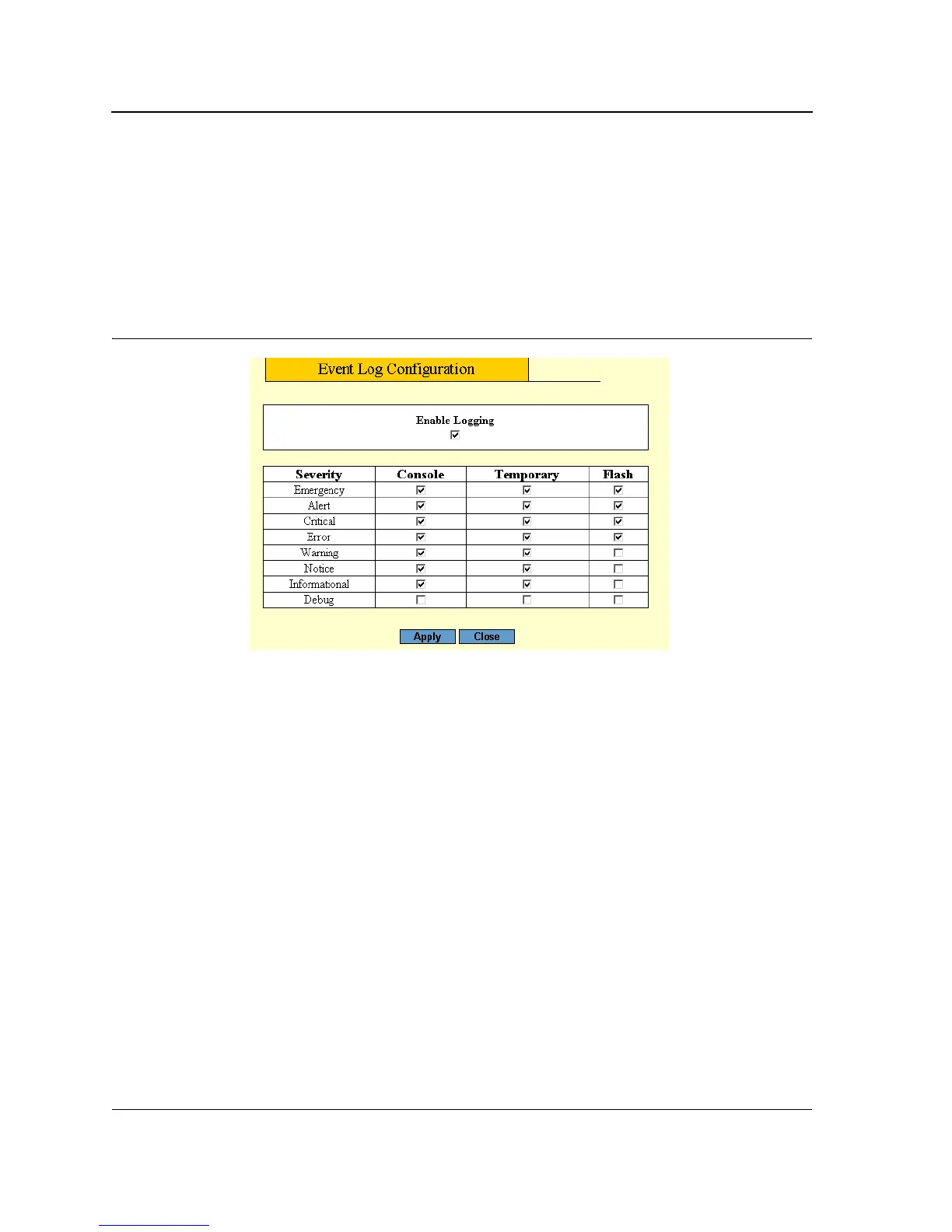
The Modify Event Log Output Page contains options to set output parameters for system logs.
To configure log output properties:
1. Click System > Event Log. The Event Log Page opens.
2. Select a Log Type in the Configure Log Outputs table.
3. Click Modify. The Modify Event Log Output Page opens:
Figure 52: Modify Event Log Output Page
The following fields are displayed in the Modify Event Log Output Page:
• Enable Logging — Defines if logging is enabled. Possible values are:
– Checked — Logging is enabled on the device.
– Unchecked — Logging is disabled on the device.
• Severity — Indicates the event severity to trigger a log. Log severities are listed from highest to lowest
severity. See Table 3, “System Log Severity Levels,” on page 83.
• Console — Indicates that the output is of a Console log.
• Memory Logs — Indicates that the output is of a Memory log.
• Log Flash — Indicates that the output is of a Flash log.
4. Check the Enable Logging option.
5. Map the log output severities to log types in the Console, Memory Logs and Log Flash columns. Checking all
Includes all severity levels in the log
6. Click Apply. The output settings are saved and the device is updated.
7. Click Save Config in the Event Log Page menu to save the changes permanently.



 To Next Page
 Loading...