In the Instant UI
To configure a CALEA profile:
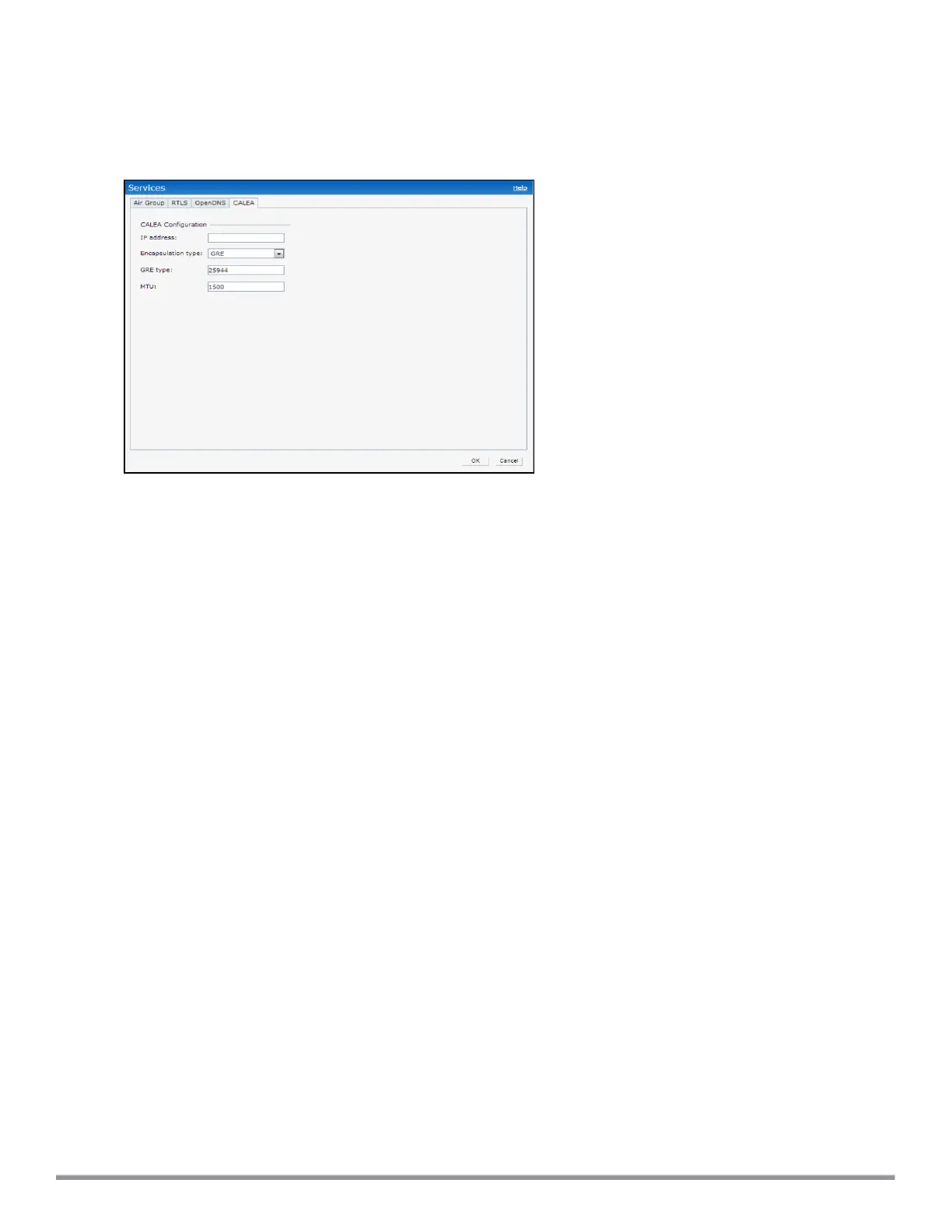
1. Click More > Services link on the Instant main window.
2. In the Services section, click CALEA. The CALEA tab details are displayed.
3. Specify the following parameters:
l IP address—Specify the IP address of the CALEA server.
l Encapsulation type—Select the encapsulation type. The current release of Instant supports GRE only.
l GRE type—Specify the GRE type.
l MTU—Specify a size for the maximum transmission unit (MTU) within the range of 68–1500. After GRE
encapsulation, if packet length exceeds the configured MTU, IP fragmentation occurs. The default MTU
size is 1500.
4. Click OK.
In the CLI
To create a CALEA profile:
(Instant AP)(config)# calea
(Instant AP)(calea)# ip <IP-address>
(Instant AP)(calea)# ip mtu <size>
(Instant AP)(calea)# encapsulation-type <gre>
(Instant AP)(calea)# gre-type <type>
(Instant AP)(calea)# end
(Instant AP)# commit apply
Creating an Access Rule for CALEA
You can create an access rule for CALEA by using the Instant UI or the CLI.
In the Instant UI
To create an access rule:
1. To add the CALEA access rule to an existing profile:
a. Select an existing wireless (Network > edit ) or,
b. Select a Wired (More > Wired > Edit) profile.
2. To add the access rule to a new profile:
a. Click New under the Network tab and create a WLAN profile or,
a. Click More > Wired > New and create a wired port profile.
Aruba Instant 6.5.0.0-4.3.0.0 | User Guide Services | 302



 To Next Page