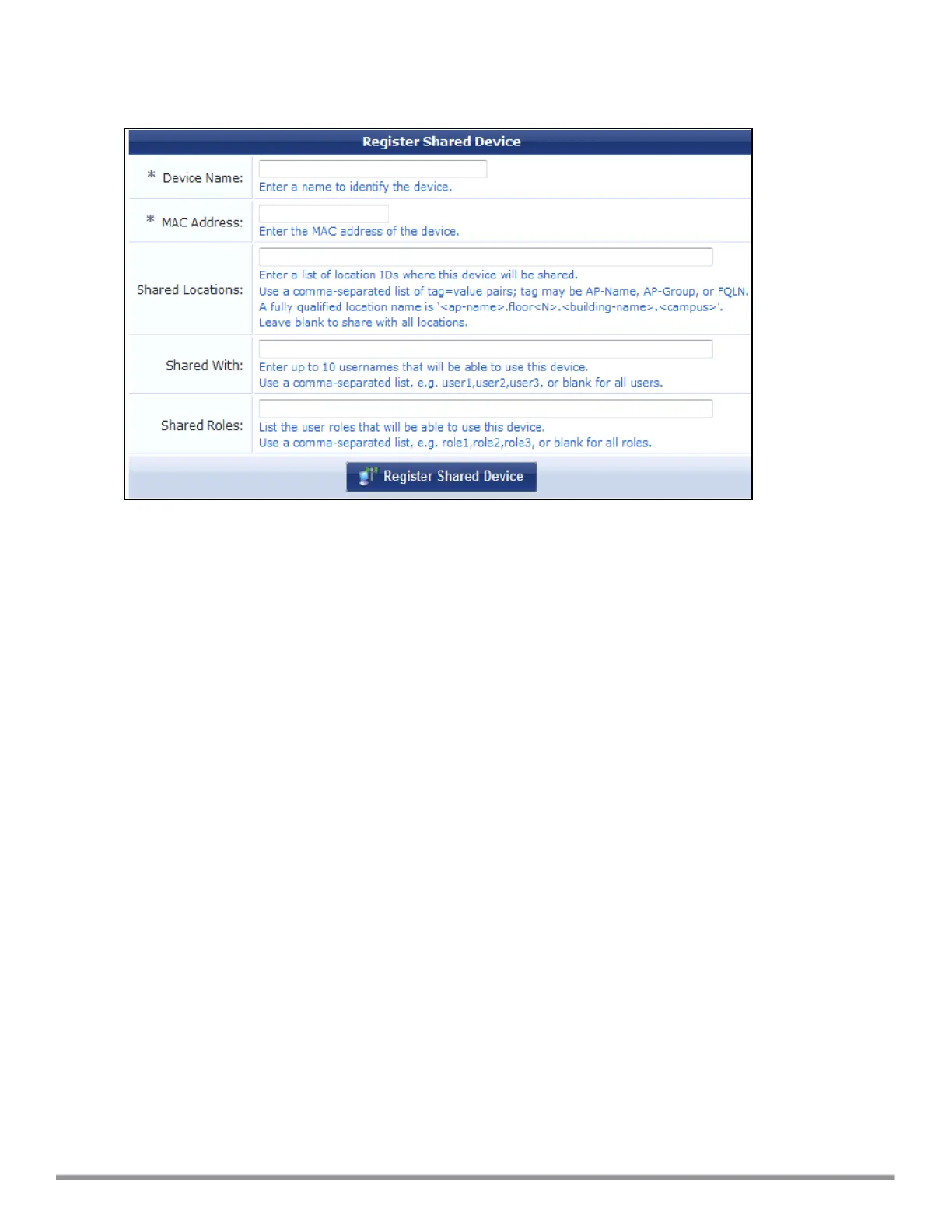
The Register Shared Device page is displayed.
Figure 122 ClearPass Guest- Register Shared Device
For this test, add your AppleTV device name and MAC address but leave all other boxes empty.
9. Click Register Shared Device.
Verifying ClearPass Guest Setup
To verify the setup:
1. Disconnect your AppleTV and OSX Mountain Lion/iOS 6 devices if they were previously connected to the
wireless network. Remove their entries from the controller’s user table using these commands:
n Find the MAC address—show user table
n Delete the address from the table—aaa user delete mac 00:aa:22:bb:33:cc
2. Reconnect both devices. To limit access to the AppleTV, access the ClearPass Guest UI using either the
AirGroup admin or the AirGroup operator credentials. Next, navigate to List Devices > Test Apple TV >
Edit. Add a username that is not used to log in to the Apple devices in the Shared With box.
3. Disconnect and remove the OSX Mountain Lion/iOS 6 device from the controller’s user table. Reconnect the
device by not using the username that you added to the Shared With box. The AppleTV should not be
available to this device.
4. Disconnect the OSX Mountain Lion/iOS 6 device and delete it from the controller’s user table. Reconnect
using the username that was added to the Shared With box. The OSX Mountain Lion/iOS 6 device should
once again have access to the AppleTV.
Troubleshooting
Table 83: Troubleshooting
Aruba Instant 6.5.0.0-4.3.0.0 | User Guide ClearPass Guest Setup | 394



 To Next Page