Chapter Four
4 - 2
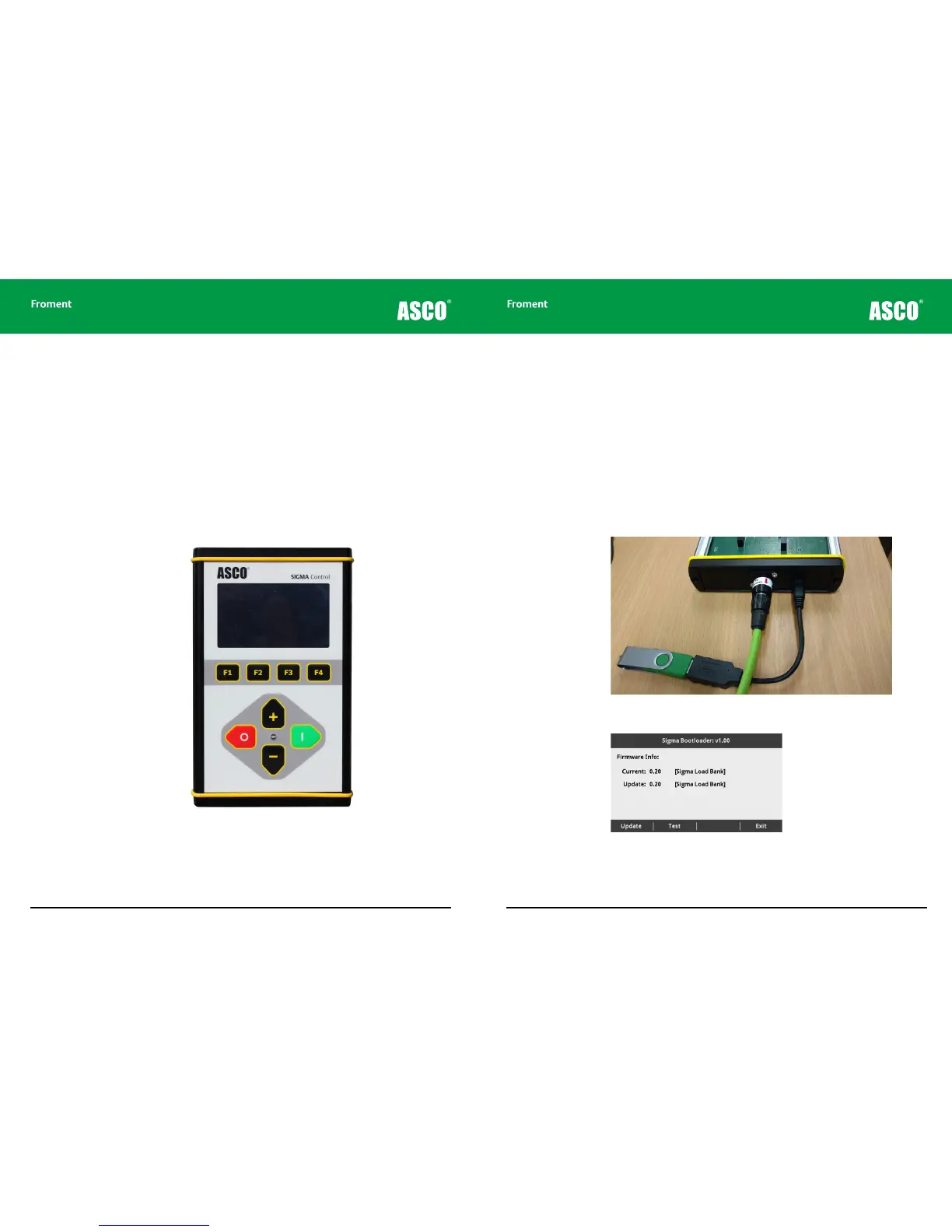
The Sigma Hand-held
The hand-held is one of a number of available user interface options for Sigma controlled
ASCO Froment load banks. It is a hand-held unit containing a purpose designed
microprocessor-based control system for Sigma-equipped load banks.
The hand-held has a IP65 rated enclosure with a custom-designed membrane keyboard and
4.3” colour TFT screen. These provide a simple control panel interface and instrumentation
to allow the progress of load tests to be monitored.
In operation, the hand-held synchronises the load events and ensures that the load is
shared proportionally between each connected load banks. Instrumentation information
from all load banks is summed and displayed on screen.
This manual describes Version 1.0 of the Hand-held software.
Figure 4-1 The Hand-held provides a simple and robust method of directly controlling
up to 14 load banks.
Hand-held Reference Guide
4 - 3
Firmware Updates
Making sure the firmware is up to date on the Sigma Hand-held is important to maximise
load testing capabilities and ensure correct operation. The Sigma Hand-held has a micro
USB port to enable firmware to be updated from a USB flashdrive. The current version of
the firmware is displayed on start up in the bottom right corner of the screen.
To update firmware ensure you have the latest firmware .sig file on a USB flash drive. This
can be downloaded from: www.froment.co.uk/firmware-updates
1. Connect Sigma Hand-held to power supply or use supply from load bank. (Hand-held
power supply can be ordered directly from froment.sales@ascopower.com).
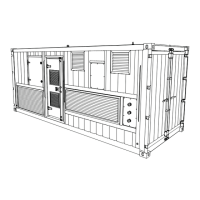
2. Connect USB drive to micro USB connector using USB-OTG Adapter (order from RS
Part: 790-3647) - see below.
3. Power on hand-held and check bootloader has been entered - see below.
4. F1 (update) will start the main application programming.
5. The current firmware version will be updated once programming is complete.
6. Remove USB adapter and press F4 (Exit) to finish the update.


 To Next Page