CHAPTER 4 REFERENCE GUIDE
EFD1000 PRO MAX PFD Pilot’s Guide
Page 4-46
091-00005-002 ()
4.7.1 Range
All of the features on the Nav Map are draw scaled to the selected range set by the pilot.
The MAP range is the distance from the Ownship to outside radius of the compass scale
on the Navigation Display. The Range can be set to 2,3,5,10,15,20,30,40,60,80,100, or 200
nm.
Change Map Range
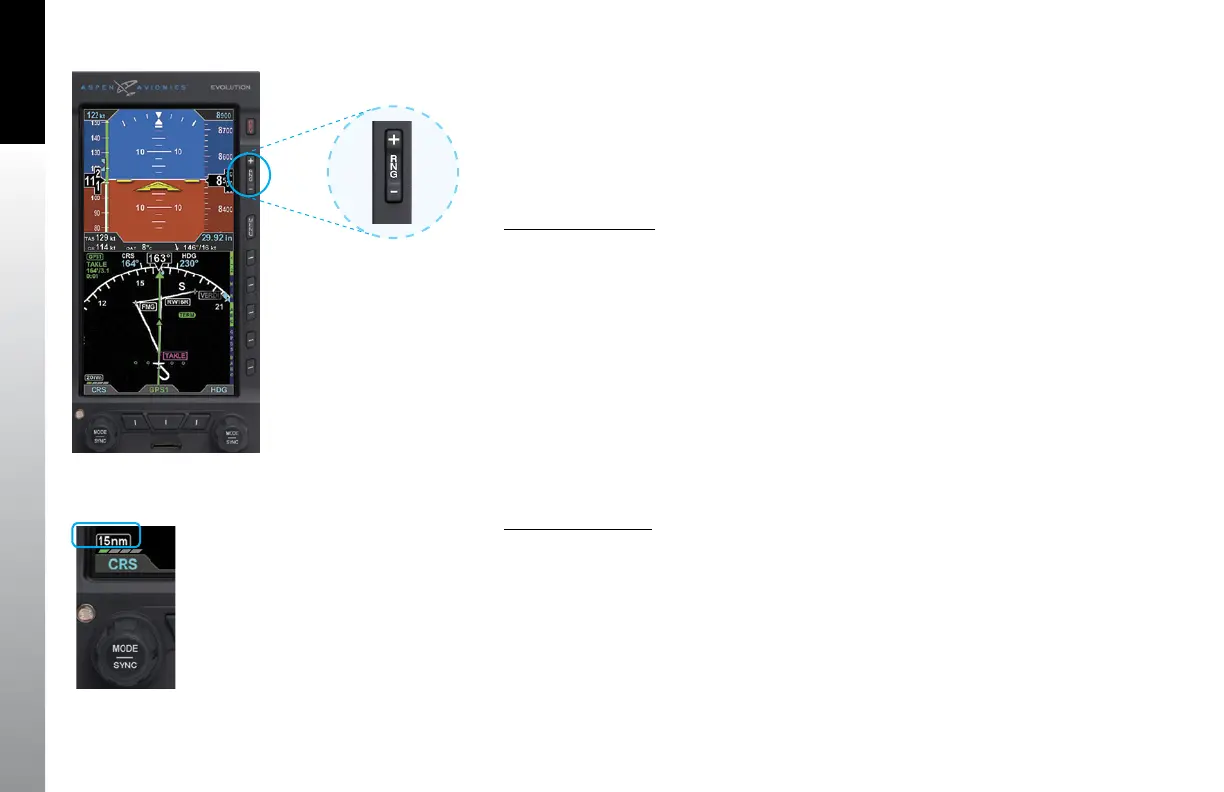
1. Press the Range Up (RNG +) or the Range Down (RNG -) Button (Figure 4-90).
until the desired range is displayed (Figure 4-91).
2. Press and Hold the RNG Button to continuously increase/decrease the range
4.7.2 Auto Range
The PFD has an Auto Range feature that automatically scales the range (to the closest
range setting) to fit the Aircraft Ownship and the active waypoint within the Navigation
Display, e.g., if the active waypoint is 84 miles away, Auto Range will select a 100nm
range (the closest range setting is 100nm). When Auto Range is active, an inverse white
A is shown next to the range value (Figure 4-92).
Enable Auto Range
1. Press the MENU Button.
2. Rotate the Right Knob to the GENERAL SETTINGS B Menu page.
3. Press the AUTO RNG Menu Key. The AUTO RNG label turns magenta
(Figure 4-93).
4. Rotate the Right Knob to the desired value, either ENABLE or DISABLE.
5. Press the MENU Button to exit.
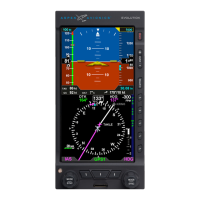
Figure 4-90
Basemap Range Buttons
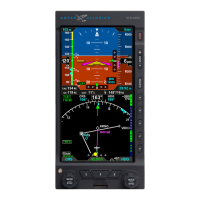
Figure 4-91
New Basemap Range


 To Next Page