21
3. Select Scan VIN/License.
4. The camera will be turned on. On the right side of the screen, from top to
bottom, three options are available: Scan QR Code/Barcode, Scan VIN, and
Scan License Number. See Figure 5-7 Scan VIN/License 1.
5. Select one of the three options and position the tablet to align the VIN, or
license number, or the barcode within the scanning window. The scan result
will display in the dialog box of the Recognition Result screen. (See Figure 5-8
Scan VIN/License 2.) Tap OK to confirm the result, and then the vehicle
information confirmation screen will display on the tablet.
6. If the VIN, or license number, or barcode cannot be scanned, you can input
manually. Tap the button on the bottom-right corner of the screen to
display the screen for manually input. After entering correct VIN or license
number, tap OK to continue.
7. Follow the on-screen instructions to complete the operation and advance to
the TPMS Service screen. See Figure 4-14 TPMS Service Screen.
4.3.4 Automatic Selection
Depending on the vehicle, the Auto VIN function is still available after a vehicle brand is
selected. You can tap Automatic Selection to automatically acquire the VIN
information or manually input the VIN.
➢ To perform Automatic Selection in TPMS application
1. Tap the TPMS application button from the MaxiTPMS Job Menu. The Vehicle
Menu displays.
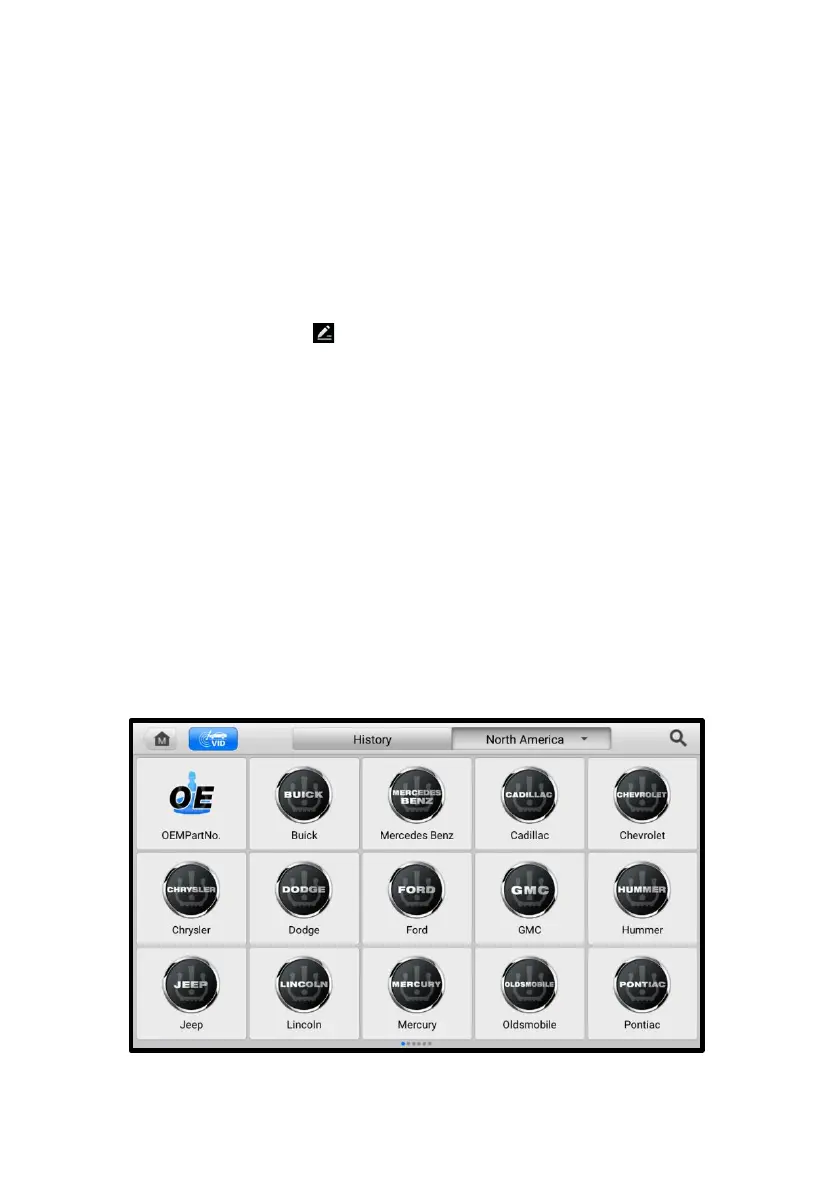
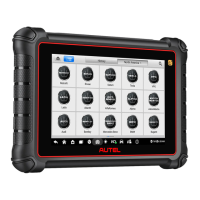
2. Select a vehicle brand from the TPMS Vehicle Menu screen.
Figure 4-6 Vehicle Manufacturer Selection



 To Next Page