97
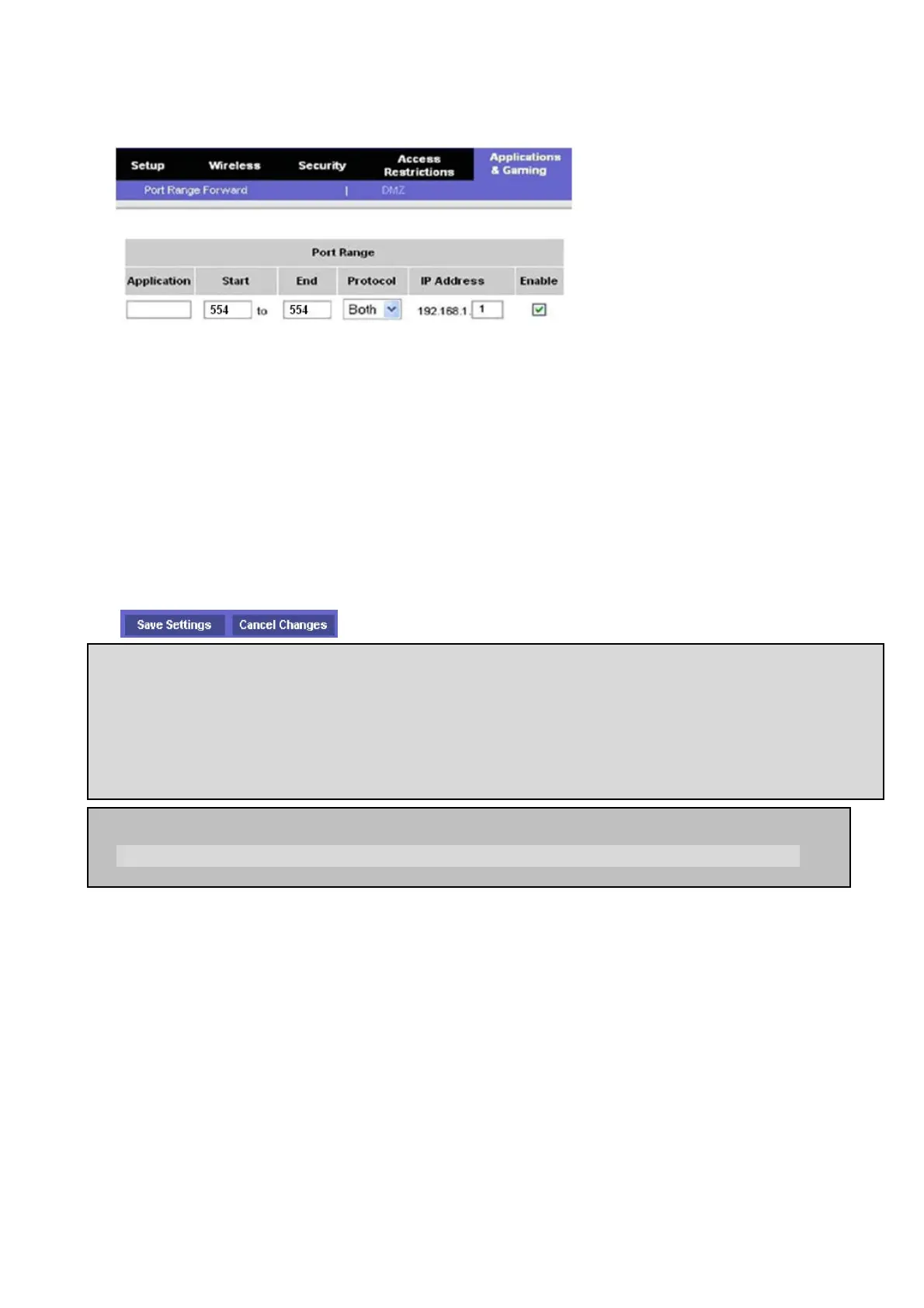
5. Select the Port Range Forwarding tab.
6. Enter the each field.
i. Application: Enter a description of the DVR (Example: store1)
ii. Start: Enter the first number of the port you need to port forward (Example: 5445)
iii. End: Enter the last number of the port you need to port forward (Example: 5445)
iv. Protocol: Select Both.
v. IP address: Enter the IP address of the DVR on SETUP>NETWORK>LAN>IP ADDRESS.
vi. Enable: Check the enable box.
7. Select the Save settings button located on the bottom of the window. Then Port forwarding is
finished.
Network access beyond a router
In order to access the DVR remotely beyond a router (firewall), the user must open TCP port for
command level, live channels and storage channels. User need to open 2ports numbers on the router;
the DVR port number 5445 and the WEB port number 80.
If this port is not opened properly, user can not access DVR beyond a router.
You can learn how to port forward many kinds of Routers from the bellow site.
http://www.portforward.com/english/routers/port_forwarding/routerindex.htm



 To Next Page