Encore Presentation System • User’s Guide 197
5. Menu Orientation
PIP Adjustment Menu
`äçåÉ=pÉíìé=jÉåì
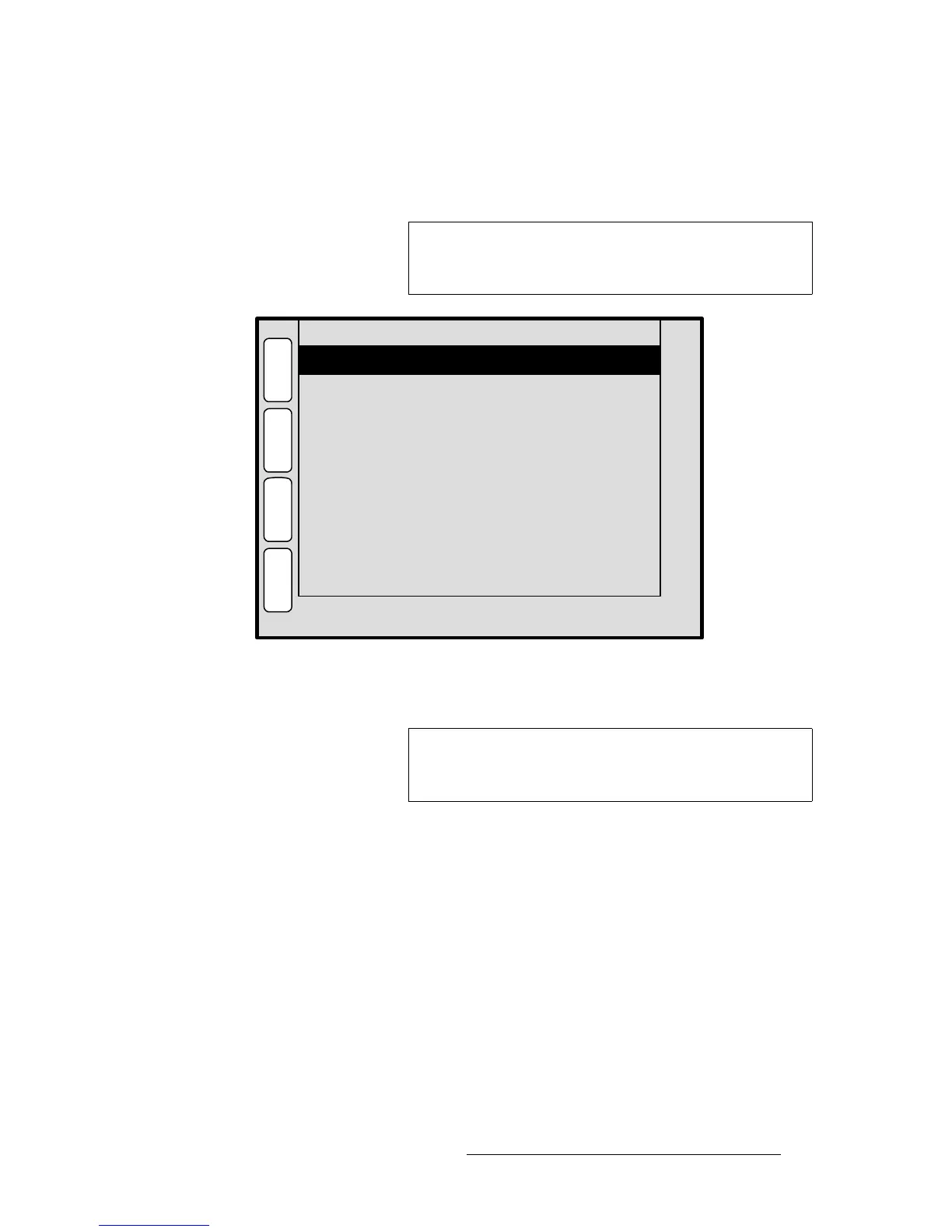
From the PIP Adjustment Menu, press {CLONE} to display the Clone Setup Menu, a
sample of which is shown below.
Figure 5-51. Clone Setup Menu (sample)
The Clone Setup Menu enables you to set parameters for a cloned layer.
Please note:
• The {CLONE} softkey only appears when a PIP (or Key) is cloned and the Clone
button is lit.
• The mode can only be enabled when a widescreen destination is selected.
• The mode cannot be enabled if the PIP or Key straddles any part of the center of
the overall widescreen. An error message “
Resource Conflict - Cannot Apply
Clone
” will appear.
• Both PIPs and Keys can be cloned.
• You can set up and perform Moves with clones.
The following functions are provided:
• Destination — displays the currently selected destination.
• Clone Type — sets the type of clone “motion.”
Note
If the cloned layer is a key (and accessed from a Key menu),
softkeys will be different: {
PIP} is replaced by {KEY}, and
{
BORDR} and {SHDOW} will not be shown.
Clone Type OFFSET
P
I
P
N
A
V
A
D
J
CLONE SETUP
E
F
X
S
H
D
O
W
Destination 1
B
O
R
D
R
Offset 704
Note
You can also access the Clone Menu from the Shadow
Menu
, the Border Menu and the Image Effects Menu by
pressing {
CLONE}.


 To Next Page