198 Encore Presentation System • User’s Guide
5. Menu Orientation
PIP Adjustment Menu
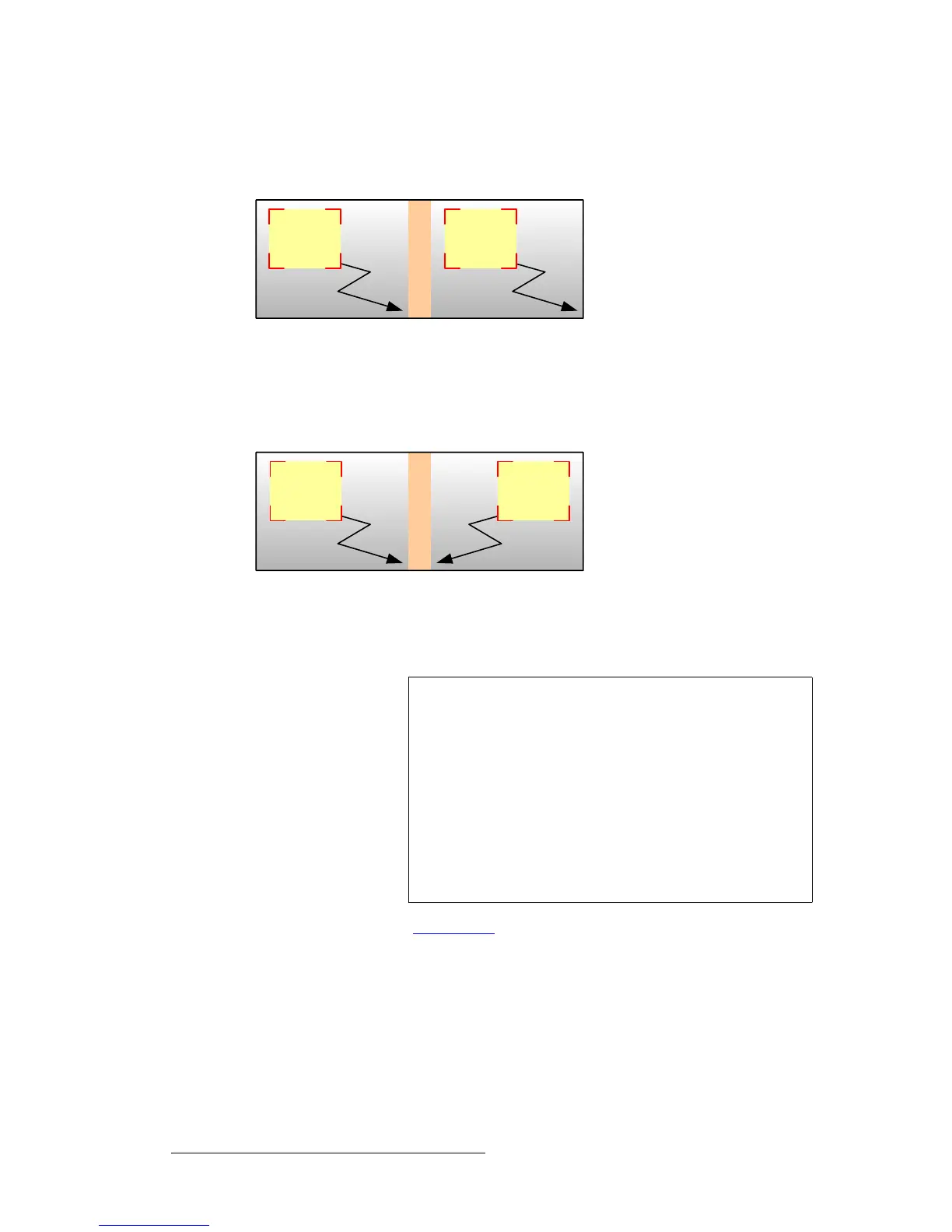
~ Offset — both cloned images move together with a fixed pixel offset.
For example, if you adjust
H Position, both images move left and right.
If you adjust
V Position, both images move up and down.
Figure 5-52. Clone Offset Mode — Sample Widescreen
~ Mirror — both cloned images move together as if a mirror is positioned
in the middle of the widescreen overlap region. For example, if you
adjust
H Position, both images move towards (and away from) the
center of the widescreen.
Figure 5-53. Clone Mirror Mode — Sample Widescreen
• Offset — if “Offset” is selected on the Clone Type line, this field enables you to
set the offset (in pixels). If “
Mirror” is selected, the field is hidden.
In Chapter 7, refer to the “
Using Clone” section on page 308 for operating instructions.
PIP A
Cloned
PIP A
PIP A
Cloned
PIP A
Important
The Clone Setup Menu also appears when the Clone button
is enabled (in the
Layer Functions Section), provided that a
widescreen destination is selected. However, if you press
Clone and the message “Resource Conflict - Cannot Apply
Clone
” appears, the PIP (or Key) is most likely positioned
within the center of the widescreen.
S In a 2 screen blend, the PIP or Key cannot be
positioned such that it sits between screens
1 and 2.
S In a 3 screen blend, the PIP or Key cannot be
anywhere within the screen 2 space.


 To Next Page