Encore Presentation System • User’s Guide 199
5. Menu Orientation
PIP Adjustment Menu
_çêÇÉê=jÉåì
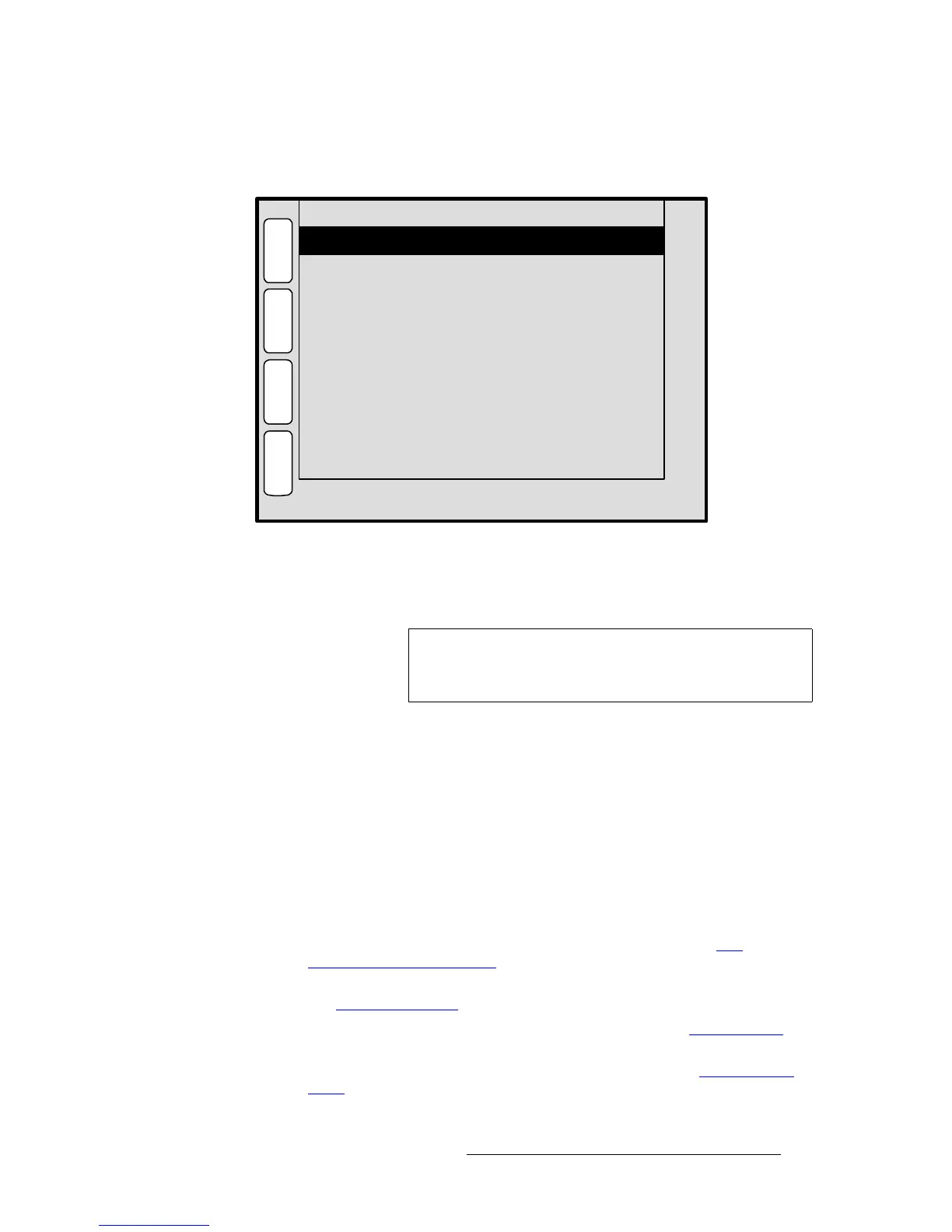
From the PIP Adjustment Menu, press {BORDR} to display the Border Menu.
Figure 5-54. Border Menu (sample)
The Border Menu enables you to add a border to a PIP, and adjust its shape, style and
color as desired.
The following functions are provided:
• Mode — enables or disables the PIP’s border.
• Style — select one of ten border styles, including single color and dual color with
various combinations of soft edge.
• Color — adjusts the border’s Red, Green and Blue attributes as desired.
• Size Specified In — select the method by which you want to specify the border
size, either as a percentage of the PIP size or in pixels.
• Size — adjust’s the border size, using the method selected on the “Size
Specified In
” line. Note that if “% of PIP” is selected and you switch to “Pixels,”
the system auto converts one display method to the other.
• Press {PIP} to return to the PIP Adjustment Menu. Refer to the “PIP
Adjustment Menu Functions” section on page 195 for details.
• Press {CLONE} to display the Clone Setup Menu (if Clone is enabled). Refer to
the “
Clone Setup Menu” section on page 197 for details.
• Press {SHDOW} to display the Shadow Menu. Refer to the “Shadow Menu”
section on page 200 for details.
• Press {EFX} to display the Image Effects Menu. Refer to the “Image Effects
Menu” section on page 201 for details.
Color: Red
Style
Size Specified In
5
609
% of PIP
P
I
P
N
A
V
A
D
J
BORDER
E
F
X
600
S
H
D
O
W
Mode On
531
Size < % of PIP > 10.2
Green
Blue
C
L
O
N
E
Note
You can access the Border Menu from the Shadow Menu,
the
Image Effects Menu and the Clone Setup Menu by
pressing {
BORDR}.


 To Next Page