Encore Presentation System • User’s Guide 223
5. Menu Orientation
Background Input Setup Menu
_~ÅâÖêçìåÇ=E~åÇ=aphF=jÉåì=cìåÅíáçåë=Ô=^å~äçÖ=qóéÉ
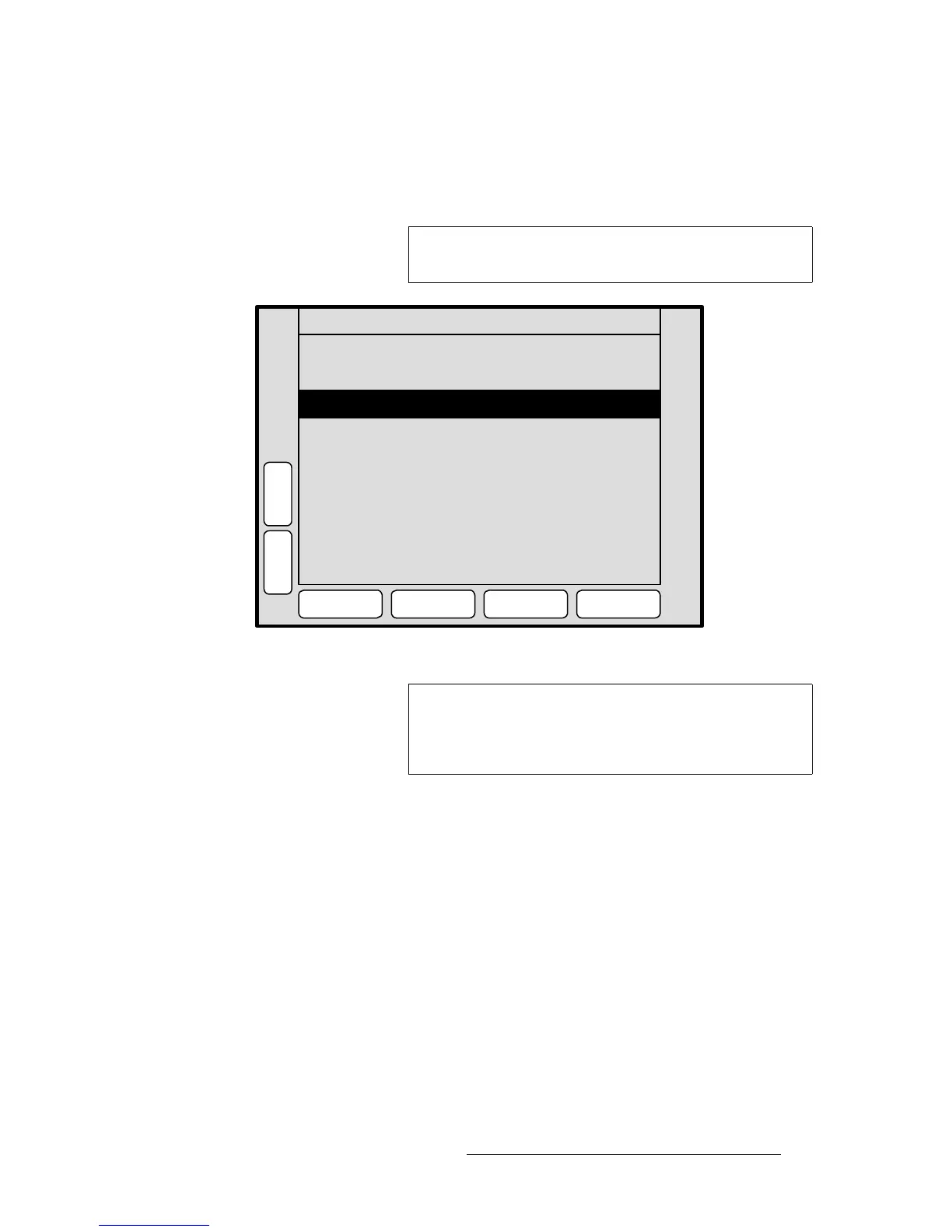
The figure below illustrates a sample BG Input Setup Menu when “Analog” is selected as
the background type.
Figure 5-70. BG (and DSK) Input Setup Menu — Analog Type (sample)
The following functions are provided for an Analog background or DSK source:
• Format — this line performs two functions:
~ Displays the resolution that is automatically determined by the FORCE
ACQUIRE
function.
~ Manually sets the resolution of the incoming source. Once the format is
selected, press
{APPLY FORMAT} to “accept” and activate the format.
• For the two Crop settings:
~ If the source’s input resolution matches output resolution, or if output
resolution is
larger than input resolution, Crop settings will be bracketed.
~ If input data is smaller than output resolution, the area around the active
data is set to black, and input data is centered in the screen.
~ If the input resolution is larger than the output resolution, the H Offset
and V Offset values can be used to choose which portion of the
background you want to display.
~ Press {RESET} to reset the H and V offsets to 0.
Note
The functions described below also apply to the DSK Input
Setup Menu
, when “Analog” is selected as the DSK type.
ID ALL
N
A
V
A
D
J
BG INPUT SETUP BG_A
S
A
V
E
Destination [ 1 ]
Type Analog
R
E
S
E
T
FORCE
ACQUIRE
Format 1024 x 768 @ 59.94
Crop: [ 0 ]H Offset
[ 0 ]V Offset
APPLY
FORMAT
Contrast ( % ) 100.0
Brightness ( % ) 100.0
SIZING
COLOR
BALANCE
Note
When you select Analog as the background type, the
following message appears:
Warning! Using analog
background in edge-butted mode could possibly cause
seams, and is not recommended!


 To Next Page