9.2.10 Menu functions
In some menus, one or multiple menu functions are offered in the
bottom line.
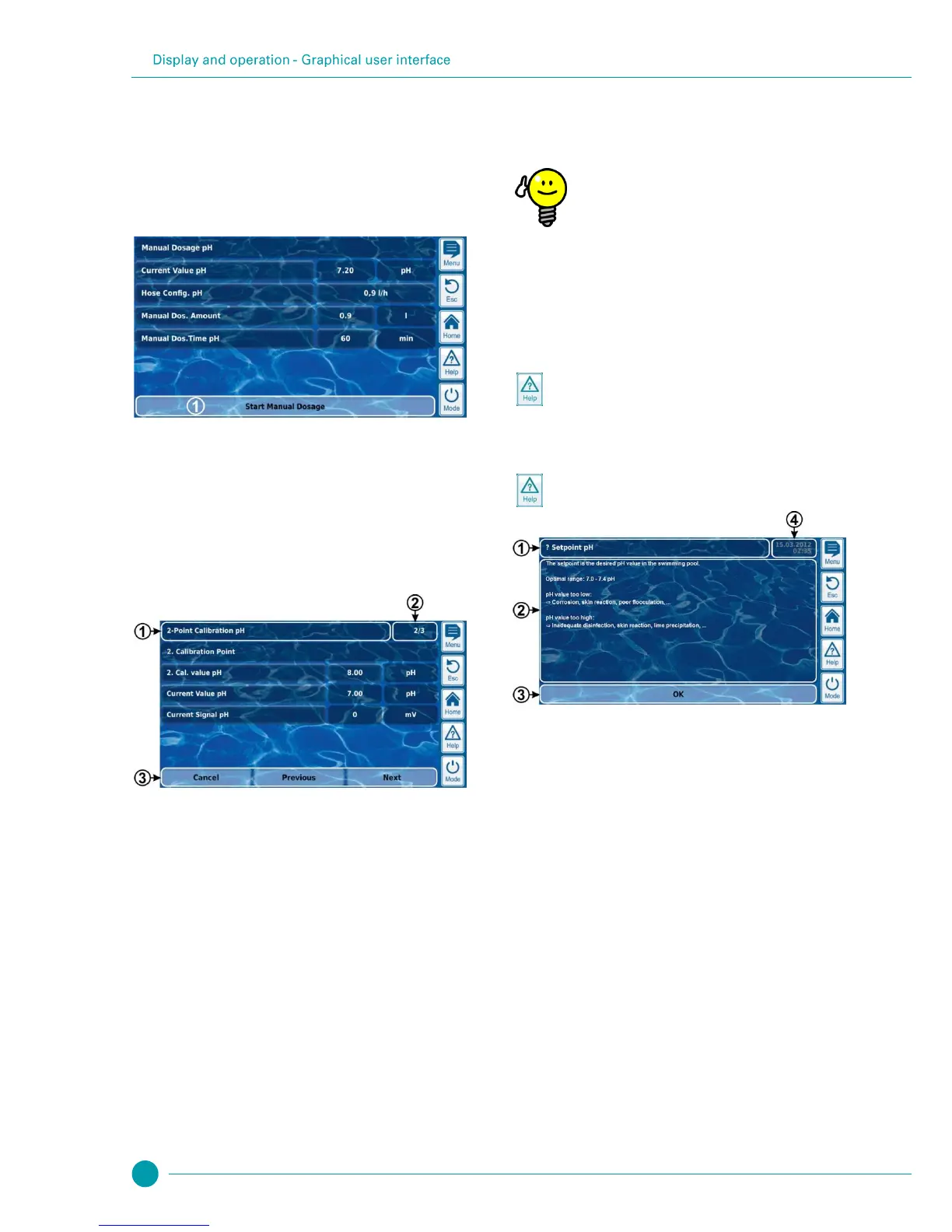
Each menu function is represented by a button. Pressing the button
calls up the corresponding function.
Example: Function for starting a manual dosage:
Calls up the corresponding function
9.2.11 Menu sequences
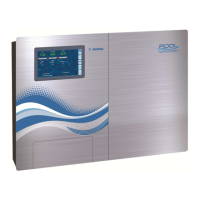
There are several functions that are realised via menu sequences, i.e.
via a series of menus that are run through one after another step-by-
step.
Example: Calibration
Name of menu sequence (text field)
Menu no. within the menu sequence (text field)
Example: 2/3 means that the current menu is the second of a
total of three within the menu sequence.
Navigation buttons (buttons)
Buttons for navigating within the menu sequence (calling up
the next menu and/or the previous menu) and for cancelling
the menu sequence.
9.3 Help
Help text is available for each menu and each parameter.
Active use of the help function
The integrated help function is the easiest way to
receive further contextual information on a certain
menu, parameter, or function. One touch of key is
sufficient.
That is why it is recommended to use the help function
actively and often.
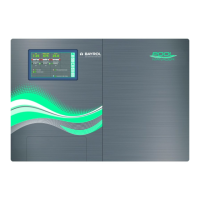
Calling up the help function:
For menus
Tapping on the parameter name in a standard menu, or
pressing the Help hotkey in the entry screen of a
parameter
Name of the parameter or menu that the help text refers to
(text field)
Display of the current system time (text field)
All help menus show the current system time and the system
date.



 To Next Page