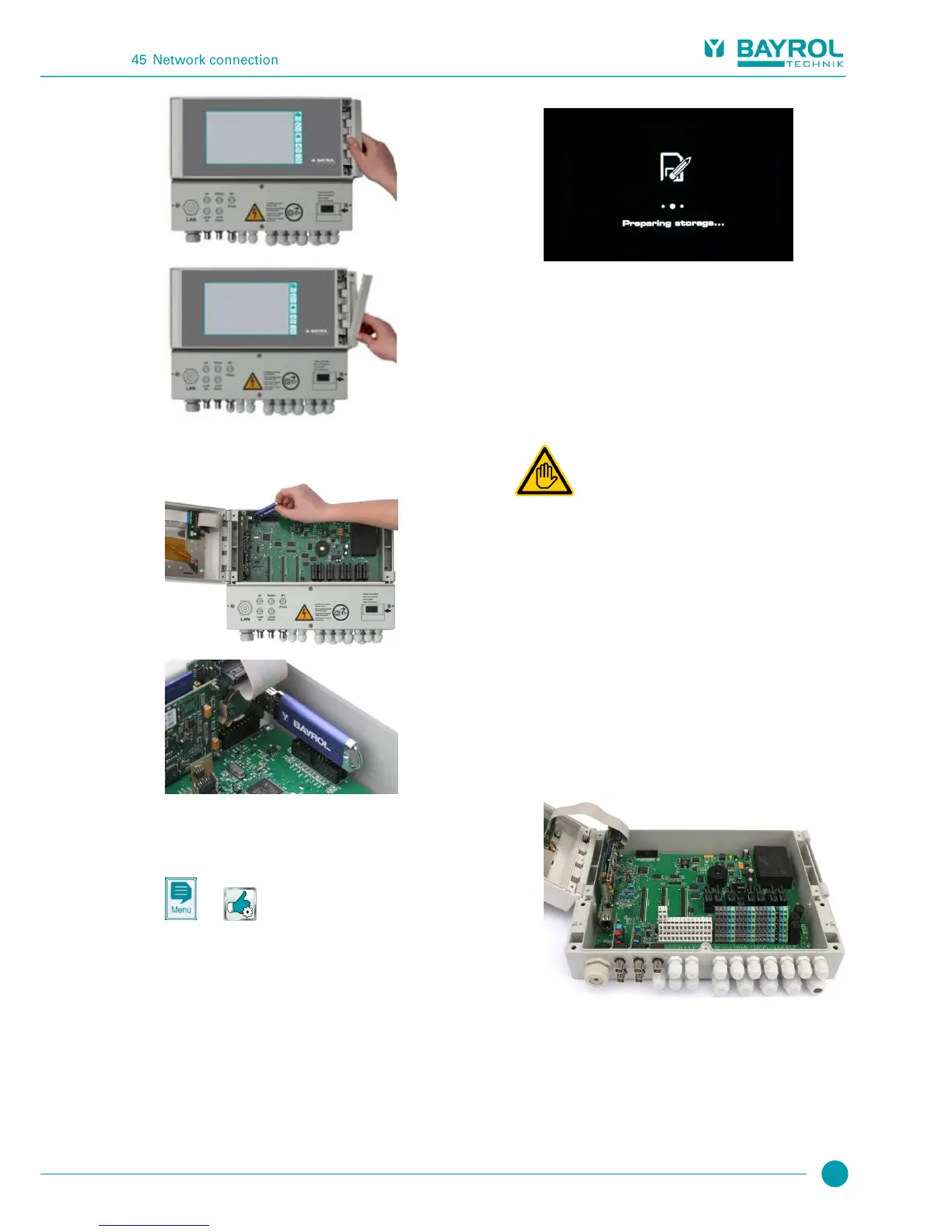
4. Please the US memory stick with the software update into
PoolManager
®
internal USB slot.
5. Close the front of the casing and turn the power supply back on.
6. Wait until the boot procedure is complete.
This takes approx. 1 - 2 minutes.
7. Select the software update function in the menu as follows:
Service functions
Software update (from USB stick)
8. Press the button Start software update
9. PoolManager
®
automatically performs a restart in order to
launch the software update
10. The screen background is black throughout the update. There
are various icons and text messages to inform you about the
software update's progress.
11. The updating process takes about 5 minutes.
Once competed, PoolManager
®
will perform an automatic
restart and will boot with the updated software.
12. You can then remove the USB stick. To do so, turn off
PoolManager
®
voltage supply.
45 Network connection
PoolManager
®
offers comprehensive and very easy opportunities for
remote access from a local network or from the Internet.
In order to use these opportunities, PoolManager
®
has to be
connected to a TCP/IP network (TCP/IP is the transmission protocol
used on networks and the Internet).
In the PoolManager
®
terminal box, there is a standard Ethernet slot
(RJ45). A standard network cable (Cat5 or Cat6) can be plugged
into that slot.
The network cable is fed through a special large cable fitting into the
terminal box in order to maintain IP65 rating.
45.1 Step by step
1. Turn off PoolManager
®
power supply.
2. Loosen the four screws on the terminal box cover and remove
it.
3. Loosen the large cable fitting on the far left.



 To Next Page