9.4 Informational text
During menu navigation, informational text is shown in many areas
that, for example, provide you with information on a function or on
potential hazards.
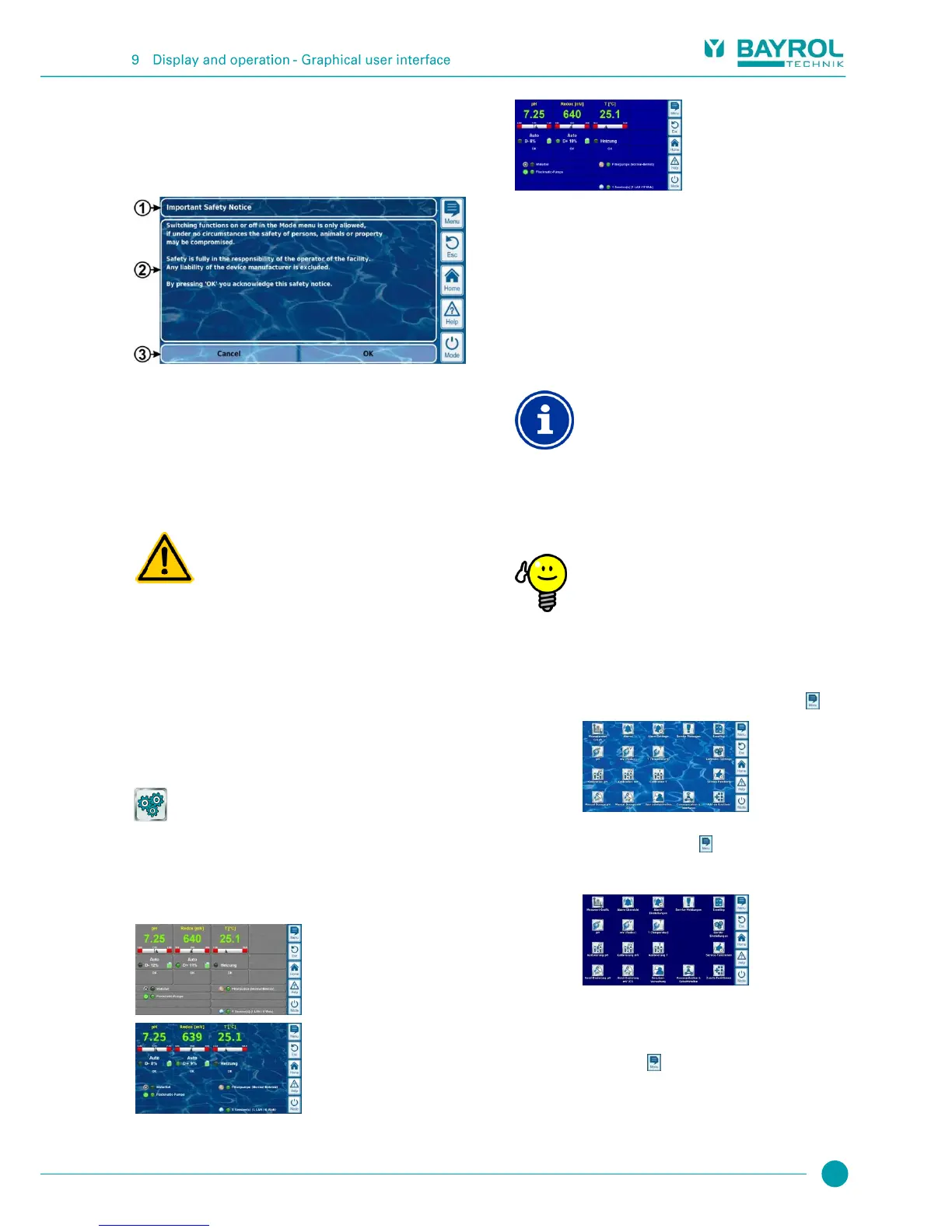
Informational text (text field)
Pressing a function button will close the informational text.
Most informational text is confirmed with OK. For some
informational text, especially safety advices, you have the
option to continue a process by pressing OK or to cancel it.
Non-compliance with informational text
There is a great deal of informational text indicating
hazards and their avoidance. Not observing
informational text may lead to hazards.
Potential consequence: Death or the gravest
degree of injury, heavy material damage.
Read all informational text carefully.
Cancel the process if you are unable to exclude all
potential hazards.
9.5 Individualisation
The user interface provides numerous opportunities for
individualisation. The various individualisation options can be found in
the following menu:
Controller settings
9.5.1 Menu style
There are several attractive menu styles to choose from: Menu styles
provide consistent and harmonious presentation of all PoolManager
®
menus in the visualisation style chosen.
Transparent style
(with selectable
background image)
Note: The menu styles available may change and further styles may
be added. The menu style setting in the controller settings menu
provides you with all styles currently available:
9.5.1.1 Transparent style
The transparent style offers particularly attractive display possibilities.
Buttons and other menu elements are designed in a partially
transparent manner. Thus, a freely selectable background image can
be used in transparent style that shines through the semi-transparent
menu elements in all menus.
Menu transitions in transparent style
Menu transitions take a bit longer when using
transparent style because the extensive transparency
calculations require a great deal of computing power.
This is only noticeable when operating the
PoolManager
®
locally. In remote access, display is
realised on the remote device and therefore does not
require the PoolManager’s
®
computing resources.
Turning off the background image
If you would like to ensure menu transitions occur as
quickly as possible, then you can change to style other
than transparent style.
If you would like to use transparent style with its
attractive display options, then there is the following
option for optimising menu transitions:
Enter main menu by pressing the Menu hotkey .
Press the menu hotkey again. This deactivates the
background image temporarily and replaces it with a
mono-colour background.
The mono-colour background provides for faster menu
transitions. You can reactivate the background image
later by calling up the main menu and pressing the
Menu hotkey again there.
It is particularly sensible to use this function if you want
to make extensive configurations in the menus.



 To Next Page