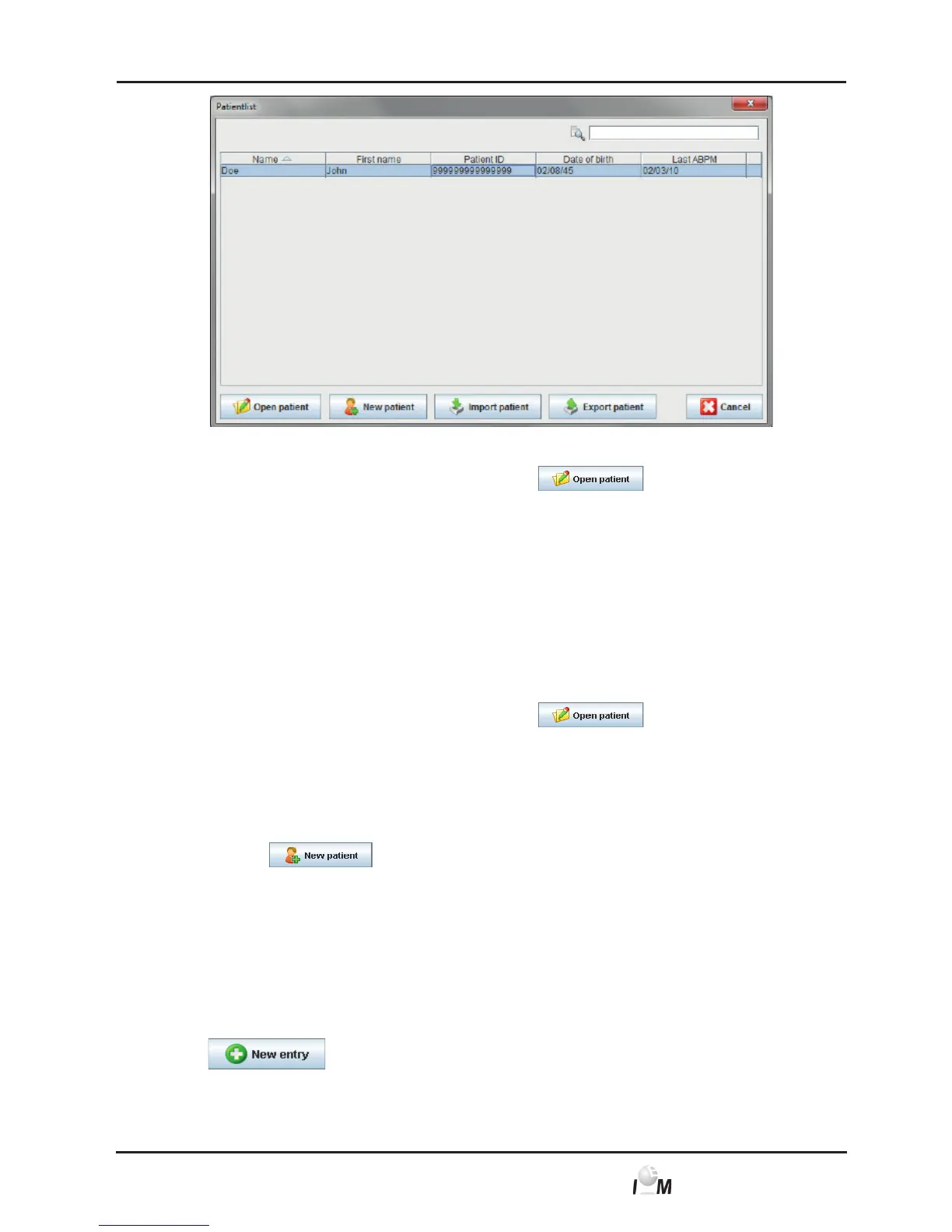
When you see the desired patient in the window,
► click on the respective list entry and then on
.
Tip: It’s quicker to just double-click the list entry.
You will return to the working window (further procedure see 4.6.3, Edit or chan-
ge patient data).
In order to find the patient among all the others
► go to the search field in the upper right corner and enter Last Name, First
Name or Patient ID.
Even during entering of the data the HMS CS searches the database and dis-
plays the found patients.
► click on the respective list entry and then on
.
Tip: It’s quicker to just double-click the list entry.
You will return to the working window (further procedure see 4.6.3, Edit or chan-
ge patient data).
If you can’t find the desire patient
► click on
.
The New Patient window appears (further procedure see 4.6.1, Create new
patient).
4.6.3 Edit or Change Patient Data
► In order to change the address or the patient data enter the new information
into the fields.
► In order to add emergency contacts, medical history and medication, click on
.
An additional window appears.
► Enter the information into the fields.



 To Next Page