10
Software Tools
Basic Screen Elements
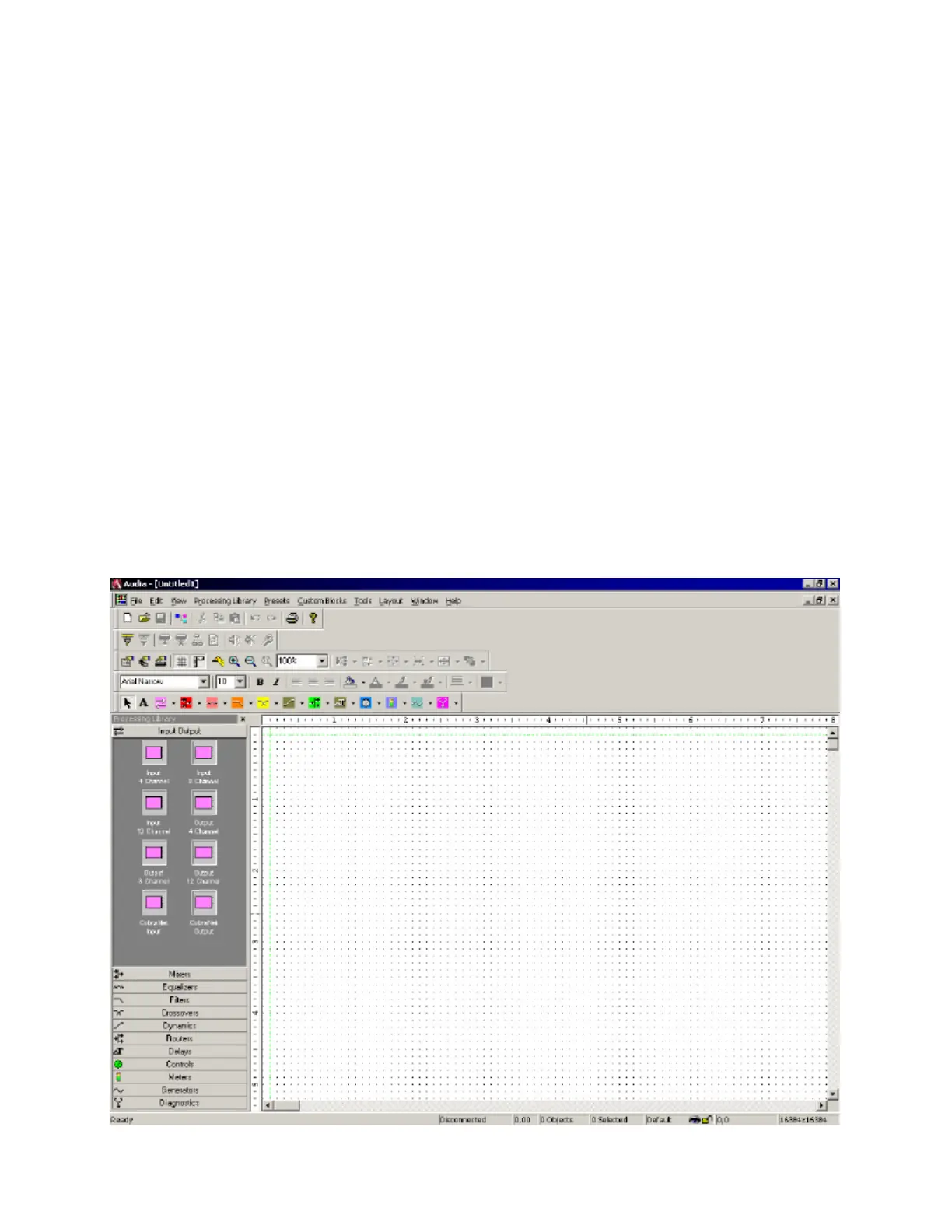
The main screen of the Audia
®
software has several sections. The Layout occupies the largest portion of
the main screen, at the lower-right. This is the area where system design actually occurs, with the
placement & connection of Component Objects. Component Objects represent the individual audio
devices (processing blocks) within the system. Other objects include Lines (for connecting components)
and Text (for labeling the system). If a system becomes too big to fit the Layout, a Bird's Eye View is
available to aid navigation. A Processing Library of available Component Objects is displayed, at the
lower-left of the main screen, for drag & drop placement into the Layout. However, the Processing Library
can be closed, increasing the width of the Layout, and Component Object selection can then be
accomplished using the Object Toolbar, located directly above the Layout. The Object Toolbar also
provides the option of either a select or a text cursor. Above the Object Toolbar is the Format Toolbar,
which allows customizing of text & colors used in the Layout and associated objects. Above the Format
Toolbar is the Layout Toolbar, which affects certain aspects of Layout, such as the grid, rulers, zooming, &
alignment of Component Objects. The Layout Toolbar can also open editing/information sheets for
properties, objects, & layers. Above the Layout Toolbar is the Network Toolbar, with functions related to
communications, configuration, maintenance, and testing of the system network. Above the Network
Toolbar is the Standard Toolbar, with file functions such as new, open, & save, plus additional functions
such as cut, copy, paste, print, & help. The Standard Toolbar also includes the Compile function, which
will generate a new configuration file, while checking system layout/connections & determining DSP
resource allocation. Above the Standard Toolbar are the Main Menus, which provides all of the toolbar
functions mentioned above, with several more in-depth editing functions. Along the bottom edge of the
main screen is a Status Bar, which gives indication of object quantity, location, & size, as well as layer
name, visibility, & locking. The location and shape of all toolbars, including the Processing Library, may be
changed to fit the user's preference.


 To Next Page