61
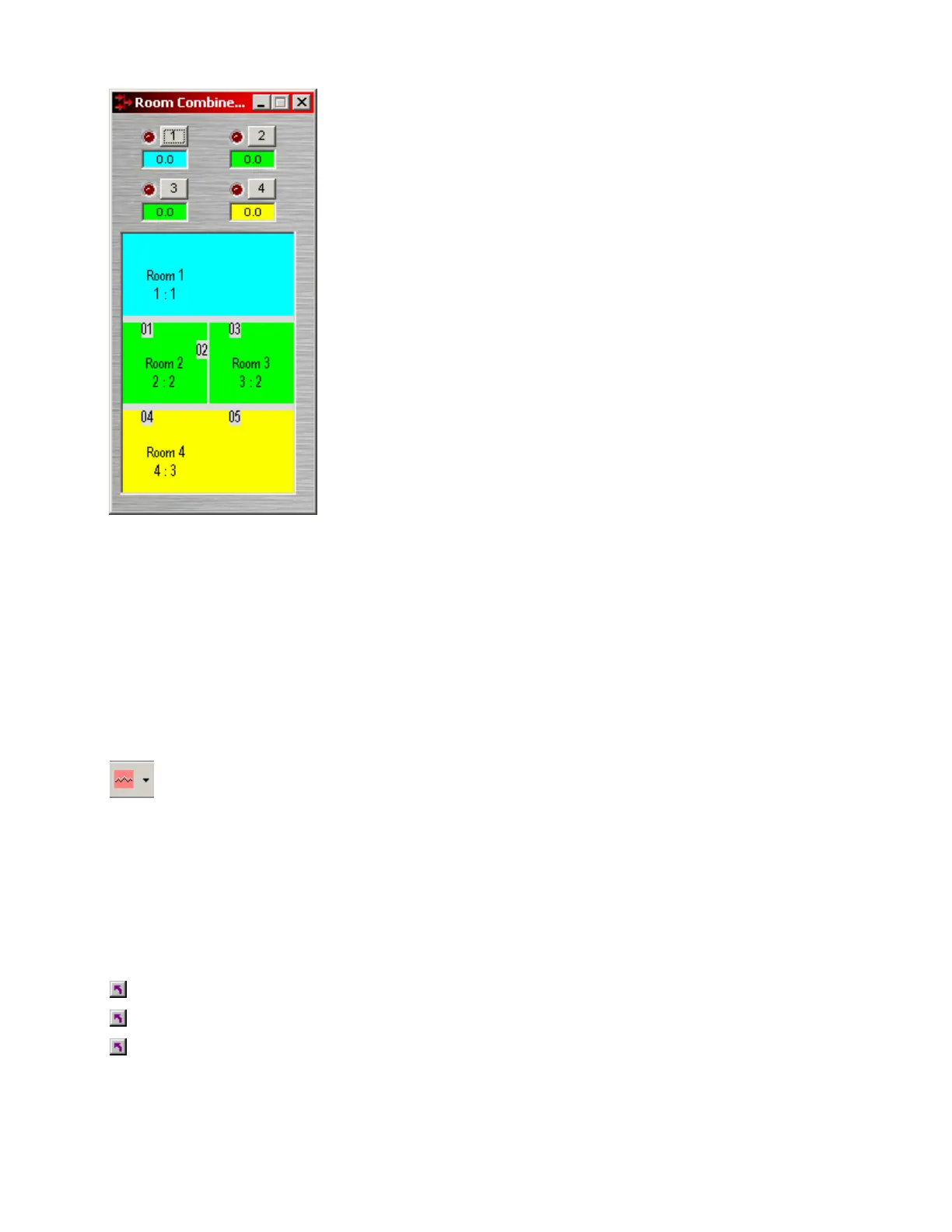
Once a Room Combiner is placed, the Control Dialog Box is
available, which displays the overall space, including zones,
partitions, levels, and mutes. Moveable partitions are numbered
relative to control input nodes on the block. Combining may be
accomplished 'automatically' by manipulation of these partitions.
Moveable partitions can be opened/closed by means of external
controls (see Controls & RS-232/Telnet). Combining can instead
be accomplished by recalling stored preset configurations. Preset
configurations must first be created, then recalled through either a
Software User Interface or external controls (see Controls & RS-
232/Telnet).
The Room Combiner dialog box allows rooms to be combined in
groups, which are color-coded and numbered for identification.
This can be used for real-time software control, or to generate
various configurations to be stored as presets. Rooms can be
grouped by manipulating partitions (using the mouse), or by
selecting multiple rooms while holding Shift or Ctrl. This last
approach allows non-contiguous and isolated rooms to be included
in combined groups. Right-clicking on a room provides a menu of
sixteen available groups. Level and mute adjustments become
ganged for all rooms combined in the same group.
Right-clicking over certain settings will provide a menu of additional options. Control Dialog Boxes for
Room Combiner components can be minimized to create user control surfaces (see Customizing
Component Objects).
Equalizers
These Component Objects provide both graphic and parametric equalization, as well as feedback
suppression. Equalizers may be connected between any components within the Layout, for applications
which require room equalization, tone adjustment, or feedback control. Equalizers are available in pre-
defined configurations, however, the configuration may be customized when being placed from the Object
Toolbar.
Once a Component Object is placed into the Layout, all available settings can be accessed by double-
clicking over the object. This produces a Control Dialog Box, which displays the component controls in a
more conventional user interface.
see Graphic Equalizer Control Dialog
see Parametric Equalizer Control Dialog
see Feedback Suppressor Control Dialog
Right-clicking over the object provides a pop-up menu of options.


 To Next Page