BradyPrinter S3700 User Manual 34
Formatting Labels
Font
Changing Fonts
You can change the font for the entire text element on a specific label or on just a few characters within
the text element.
To change the font:
1. In the text element, select the text (characters, words, or entire text) on which to change the
font.
2. In the Control Panel touch the Font icon.
3. In the list of available fonts, touch the desired font.
4. Touch the Size: data field and enter the desired point size for the selected font.
5. Choose whether to bold, italicize or underline the text element.
6. When finished, touch OK.
Importing Fonts
Import your own fonts using a USB drive.
Note: Only True-Type fonts can be imported.
To import fonts:
1. Copy the fonts to import into the root directory of a USB drive.
2. Plug the USB drive into any available USB port on the printer.
3. On the printer, touch the Menu button.
4. Under System, touch the Import icon.
5. Touch the Fonts icon.
6. Under External USB:, touch the font file name that you want to import.
7. Touch the Import icon.
8. When ready, touch OK.
If there is not enough space available to store the imported font(s), you will have to clear some space
on the printer before you can import any new fonts. You can clear space by deleting saved files. There
is approximately 56MB of storage space available.
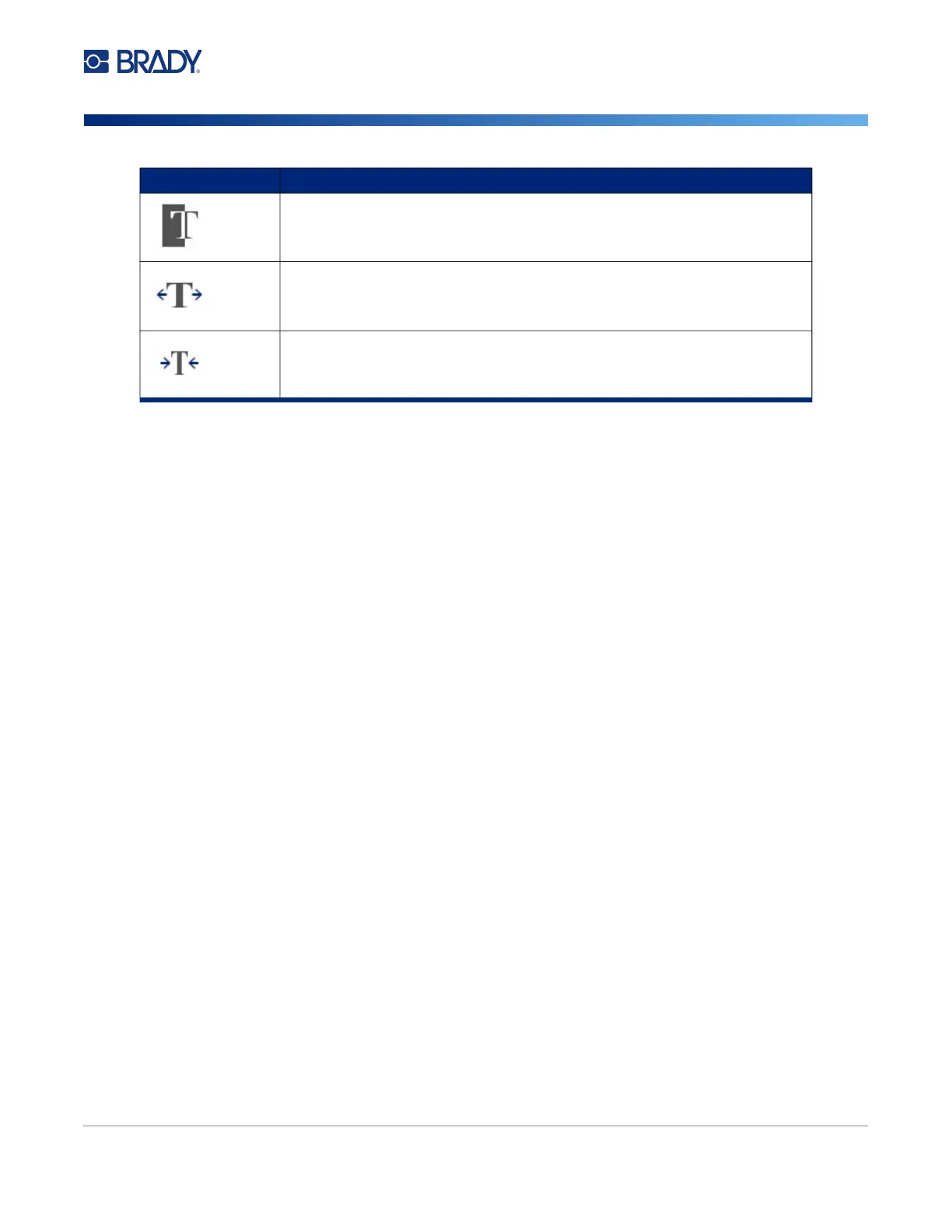
Applies or removes reverse formatting.
Expands text.
Condenses text.
Icon Function











 To Next Page