BradyPrinter S3700 User Manual 37
Formatting Labels
Font
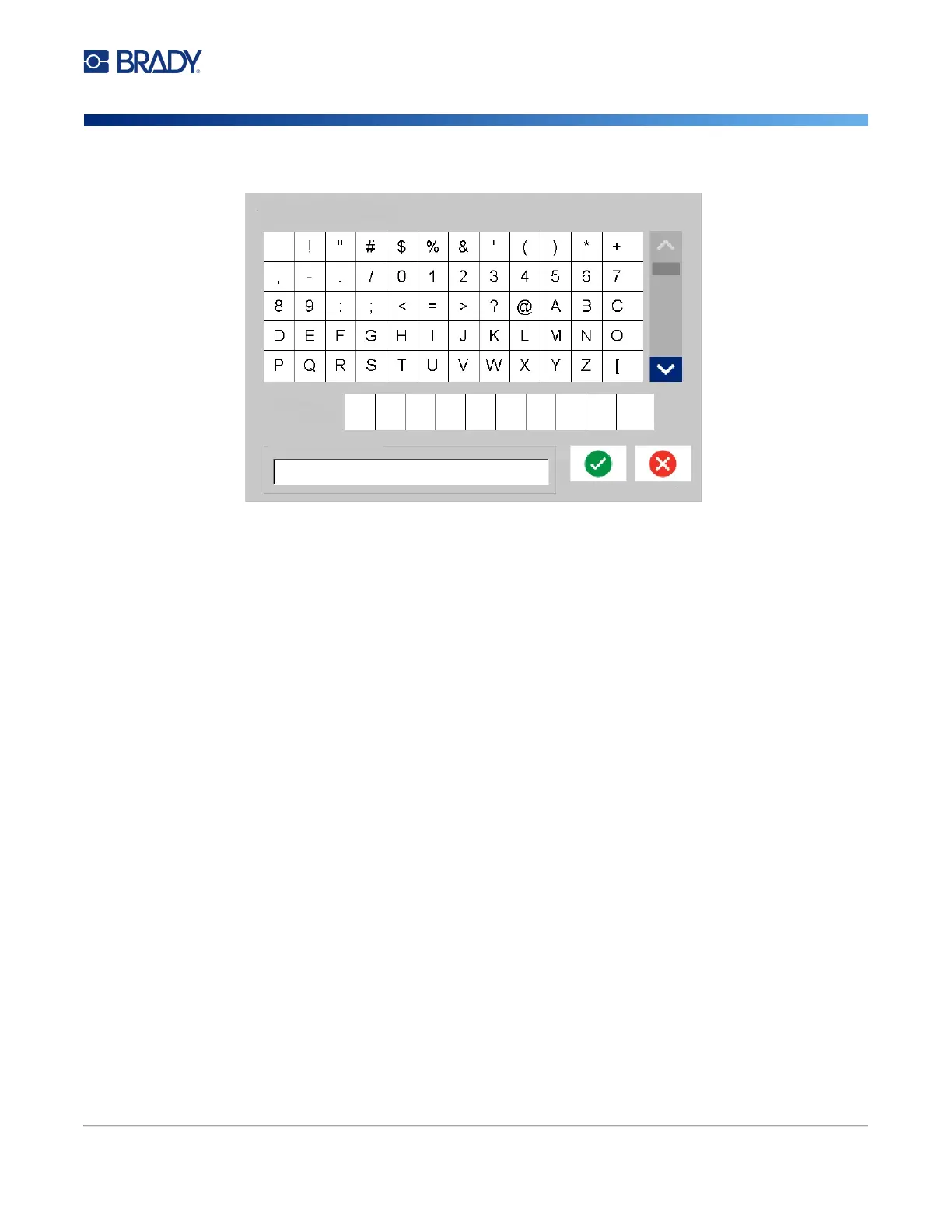
3. On the Special Characters screen, touch the scroll arrows to move through the list of available
characters.
4. Touch the character(s) you want to enter. (You can select more than one character at a time.)
The selected character(s) immediately display in the Characters to insert area at the bottom of
the screen. You can also type in the Characters to Insert area.
Previously used special characters are displayed in the Recent: field. These characters remain in the
Recent: field as long as the printer remains turned on. To re-use these characters:
5. In the Recent: field, touch the desired character.
6. When finished touch OK.
The special character displays at the indicated position in the text element.
Accented Characters
As with standard PC keyboards, each character key supports multiple characters when used in
combination with the <Shift> and <Alt Gr> keys.
Keycaps show characters in one of four positions (see figure on the following page). The character
position on the physical key indicates how to access the characters with the <Shift> and <Alt Gr>
keys.
Characters that require two keystrokes are not differentiated in any way, however, they respond
differently when selected. For example, when an accented character is typed, it does not display until
the letter to be modified is also typed. The accented character is then displayed with the letter.
Example 1 shows how to access characters in normal operation (caps lock and Alt-GR keys not
activated).
Example 2 shows how to access characters when caps lock is on.
Example 3 shows how to access characters using the Alt-GR key.
Special Characters
Recent:
Characters to insert











 To Next Page