BRAILLO
l
B 650 SF
45
ASCII tables:
Main Menu - Printer Setup - ASCII tables
An ASCII table is the same as a character set. When the Printer receives
a character from the computer, it goes to an ASCII table to nd out
which dot pattern is corresponding to this character.
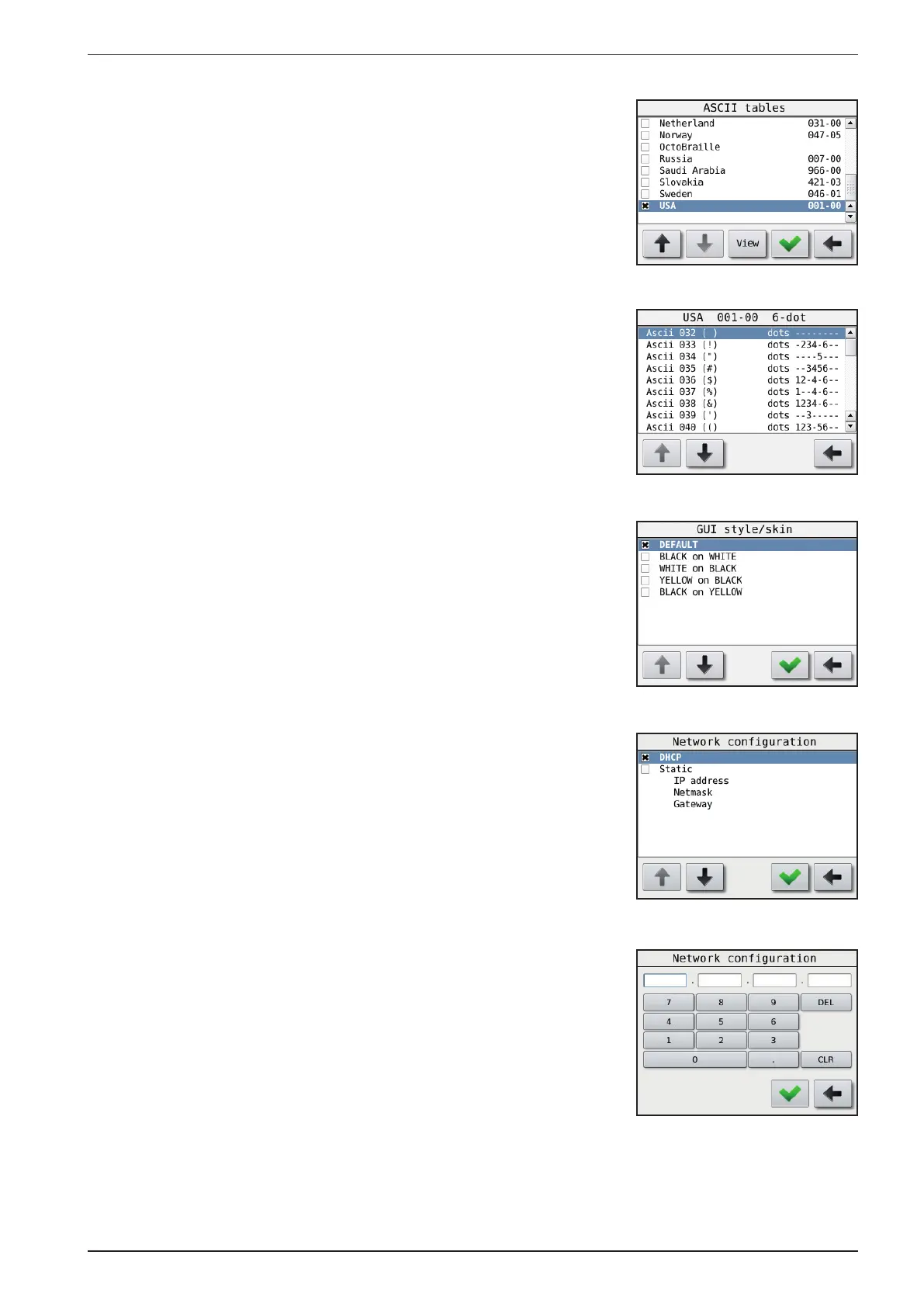
This Printer has a number of ASCII tables, and they are listed like
shown in the gure to the right. To select another table, use the up or
down arrow and press the green “OK” button. Now this has become the
current table.
It is also possible to view the translation between characters and dots
in the different ASCII tables by pressing the “View” button.
Then a list like shown on the right will appear. Use the up and down
arrows to scroll the list.
GUI style/skin:
Main Menu - Printer Setup - GUI style/skin
If any users of this Printer has low vision and/or nd it a bit difcult
to read the operator panel, it is possible to change the background and
text colours to get better contrasts.
Network conguration:
Main Menu - Printer setup - Network conguration
This menu choice gives you the possibility to choose between regular
DHCP IP address and a static IP address. With static IP you have to set
all three network parameters manually. DHCP is the default choice.
Note! All three parameters must be set to activate the static IP setting.
The three different settings for the static IP is set using the buttons as
shown in the gure to the right. Type the numbers into the rst text cell,
then tap the next cell to move to it. When all four numbers are set, press
the green Accept button to go back to the Network conguration menu.



 To Next Page