EasyManua.ls Logo

Burkert ME43 - User Manual

Burkert ME43
67 pages
Print Icon
To Next Page IconTo Next Page
Loading...
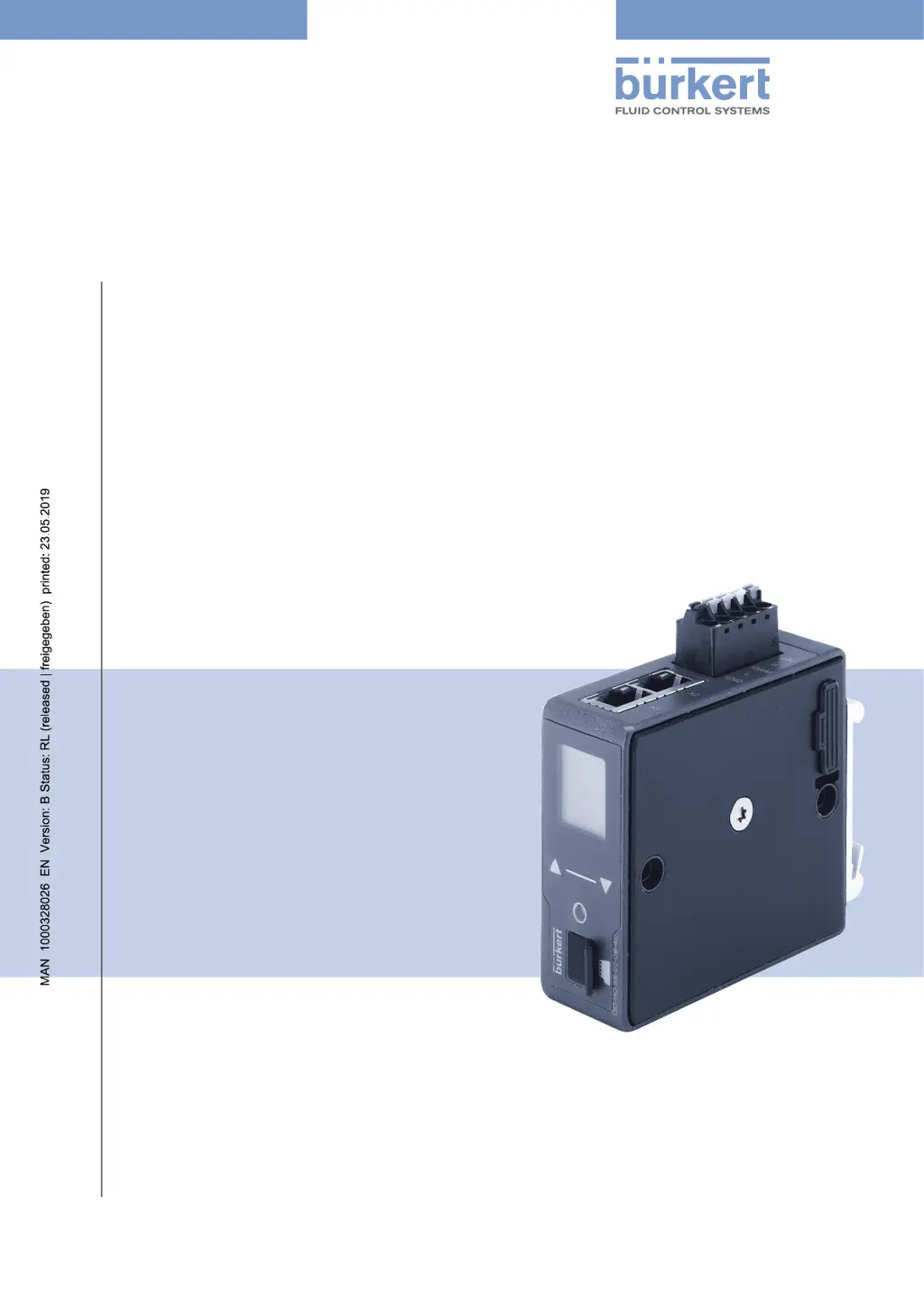
Operating Instructions
Type ME43
Fieldbus gateway büS to Industrial Ethernet for
PROFIBUS DPV1, PROFINET, EtherNet/IP,
EtherCAT, Modbus TCP, CC-Link,

Table of Contents

Questions and Answers

  • T
    Tina LeachAug 18, 2025
    What to do if no process values are transferred between Industrial Ethernet and büS on Burkert Gateway?
    • J
      John HoustonAug 18, 2025
      If no process values are being transferred between Industrial Ethernet and büS in your Burkert Gateway, there are several potential causes: * There may be no cable connection. Ensure that both the Ethernet and büS cables are securely connected. * The PLC may not be allowing the reading and writing of values in the control object. You should allow reading and writing of the values in the control object of the device. * The process values might be configured incorrectly. Double-check the configuration of the process values. * The process values may have been allocated incorrectly. Verify the allocation of the process values to the büS devices.
  • C
    Corey JenkinsAug 20, 2025
    Why does the NAMUR-LED on my Burkert Gateway go out periodically?
    • A
      abradyAug 20, 2025
      If the NAMUR-LED on your Burkert Gateway goes out periodically, it could be due to: * The power supply collapsing periodically, causing the device to reset. To resolve this, use a power supply with adequate power. * Excessive voltage drop in the connection cable. To fix this, increase the cable cross-section or reduce the cable length.
  • J
    John SanchezAug 22, 2025
    What to do if replacement Burkert Gateway fails to take over values from Micro SD card?
    • A
      Ashley AllenAug 23, 2025
      If a replacement Burkert Gateway device fails to take over values from the Micro SD card of the defective device, it could be because: * The device ID numbers of the replacement device and the defective device are different. Values can only be transmitted between devices having the same Ident number. * The Micro SD card is defective, meaning the device was unable to write any values on it. Replace the Micro SD card and try again to transmit the parameters of the defective device to the Micro SD card.
  • S
    Sandra WeberAug 25, 2025
    How to fix process values allocation to büS devices on Burkert Gateway?
    • J
      Jessica LambertAug 26, 2025
      If the process values cannot be allocated to the büS devices on your Burkert Gateway, consider the following: * The process values may not have been configured. In this case, check the configuration of the process values. * The import of the configuration must be completed by restarting the device. Restart the device after configuration. * The process values may have been allocated to different classes. Check the allocation to ensure that büS devices are working with process values of the same class. * Verify that direction of input and output is correct.
  • D
    David FarmerAug 27, 2025
    Why replacement Burkert Gateway fails to take over all values from Micro SD card?
    • J
      Jay ConradAug 28, 2025
      If a replacement Burkert Gateway device fails to take over all values from the Micro SD card of the defective device, it's possible that the EDS device description between the replacement device and the defective device differs. Only the existing values of the defective device can be transferred to the replacement device. New values of the replacement device must be parameterized using the “Bürkert Communicator” software.
  • T
    Tom SheltonAug 30, 2025
    What to do if Burkert Gateway transmits incorrect or zero value?
    • J
      jonesjoshuaAug 30, 2025
      If an incorrect value is transmitted or the value is zero on your Burkert Gateway, it might be because the process values have not been allocated or have been allocated to the wrong devices. Check the allocation of the process values.
  • T
    Todd TaylorSep 2, 2025
    What to do if no process values are transmitted between Industrial Ethernet and büS on my Burkert Gateway?
    • M
      mhowellSep 2, 2025
      If no process values are being transmitted, here's what you can check: * First, ensure that the Ethernet and büS cabling are correctly connected. * Second, verify that the reading and writing of values has been enabled by the PLC in the control object of the device. * Third, review the configuration of the process values and their assignment to the büS participants to ensure they are correctly set up.
  • C
    Charles PrattSep 4, 2025
    Why can't I assign process values to the büS participants on my Burkert Gateway?
    • R
      Randy RobinsonSep 4, 2025
      If you're having trouble assigning process values, consider the following: 1. Check the configuration of the process values to ensure they are correctly set up. 2. Reboot the device after making configuration changes, as the transfer of the configuration must be ended with a restart of the device. 3. Verify that the büS participants are using process values of the same class. 4. Ensure that the direction of the input and output is correct.
  • J
    Jonathan HernandezSep 6, 2025
    What to do if an incorrect value is applied or the value is zero on my Burkert Gateway?
    • A
      Anthony DelacruzSep 7, 2025
      If you observe an incorrect value or a zero value being applied, check the assignment of the process values to ensure they are correctly assigned to the appropriate participants.
  • A
    alicia95Sep 9, 2025
    Why does the NAMUR LED on my Burkert Gateway go out periodically?
    • E
      edwardsjenniferSep 9, 2025
      The NAMUR LED may go out periodically due to: * The power supply dropping out periodically, causing the device to reset each time. Use a power supply with adequate power. * Excessive voltage drop in the connection cable. Increase the cable cross-section or reduce the cable length to mitigate this.

Summary

Operating Instructions

Manual Symbols and Warnings

Explains symbols and warning types used throughout the manual for safety.

Key Term Definitions

Defines key terms and abbreviations used in the operating instructions.

Intended Use of the Device

Basic Safety Instructions

General Product Information

Bürkert Contact Address

Official contact information for Bürkert Fluid Control Systems.

Product Warranty Details

Details regarding the conditions for the device's warranty validity.

Online Product Information

Links and guidance on finding product information on the internet.

Product Description ME43

Technical Specifications

EU Conformity

States the device's compliance with relevant EU Directives.

Applicable Standards

Lists standards used to demonstrate conformity with EU Directives.

Operating Environment Conditions

Specifies permitted ambient temperature range and operating altitude.

Mechanical Specifications

Details device dimensions and housing material.

Electrical Specifications

Provides information on supply voltage, power, and protection class.

Device Labeling and Type Plate

Industrial Ethernet Protocols

Technical specifications for PROFINET and EtherNet/IP.

PROFIBUS DPV1 Specifications

CC-Link Specifications

Device Installation Guide

Installation Safety Precautions

Crucial safety measures and warnings during the installation process.

Mounting on DIN Rail

Step-by-step instructions for mounting the device on a standard rail.

Electrical Connection Procedures

Industrial Ethernet Connection Setup

Steps for establishing a connection via Industrial Ethernet.

PROFIBUS Connection Setup

CC-Link Connection Setup

Device Start-Up and Configuration

Start-Up Safety Precautions

Essential safety precautions before starting up the device.

Initial Base Settings

Basic configuration steps required for initial device operation.

Fieldbus Protocol Selection

Guide on choosing the appropriate fieldbus protocol for the device.

Fieldbus Gateway Configuration

Maximum Data Values (Objects)

Table showing maximum data value limits per protocol.

Gateway General Settings

Configuration of general parameters for the fieldbus gateway.

Declaring Inputs and Outputs

Defining device inputs and outputs for gateway configuration.

Fieldbus Address Mapping

Mapping addresses for specific fieldbus protocols.

Gateway Configuration Storage and Download

Saving and loading gateway configuration files.

BüS Network Configuration

Steps and procedures for setting up the büS network.

PLC Network Protocol Settings

Setting PROFIBUS Address

Procedure for setting the PROFIBUS address on the device.

Setting CC-Link Address

Procedure for setting the CC-Link address on the device.

Setting EtherCAT Address (Station Alias)

Procedure for setting the EtherCAT Station Alias.

Ethernet Parameter Configuration

Configuring Ethernet parameters for various industrial protocols.

Device Operation

Operation Safety Precautions

Critical safety measures and warnings during device operation.

Device Operating Elements

Identifies the physical controls and indicators on the device.

Operation via Device Display

Operating the device via its front panel display and buttons.

Key Functions Description

Explains the function of each control key on the device.

Operation via Bürkert Communicator Software

Operating and configuring the device using the PC software.

Connecting with Bürkert Communicator

Steps to establish communication between the software and the device.

Micro SD Card Data Management

Using the Micro SD card for data transfer and settings backup.

Device Display Elements

Overview of the device's display and status indicators.

Network Connection LEDs

Explanation of LEDs indicating network status and connectivity.

Device Status LEDs (NAMUR)

Explanation of device status LEDs according to NAMUR NE 107.

Setting Up the BüS Network

Industrial Ethernet to BüS Conversion

How the fieldbus gateway converts Industrial Ethernet data to büS.

BüS Device and Value Selection Principles

Principles for selecting büS devices and process values.

BüS Network Configuration Steps

Step-by-step instructions for configuring the büS network.

Downloading Gateway Configuration File

Procedure for loading a pre-existing configuration file to the device.

Web Server Access and Configuration

Connecting to the Web Server

Steps to establish a connection to the device's web server.

Accessing the Web Server Interface

How to access and navigate the device's web interface.

Ethernet Device Configuration

Detailed configuration steps for the Ethernet device via web interface.

Additional Device Settings

Settings via Device Display

Configuration options adjustable directly on the device's display.

Settings via Bürkert Communicator Software

Advanced settings and options configurable via the PC software.

Device Maintenance

Maintenance Safety Precautions

Essential safety measures and warnings for maintenance tasks.

Fieldbus Gateway Replacement

Step-by-step guide for replacing the fieldbus gateway.

Troubleshooting Guide

Error Code Descriptions

Comprehensive list and explanation of all device error codes.

Status Indicators and Actions

Interpreting status indicators and necessary actions to resolve issues.

Available Accessories

Device Disassembly

Packaging and Transport Guidelines

Storage Recommendations

Device Disposal Procedures

Burkert ME43 Specifications

General IconGeneral
Device TypeGateway
CommunicationEthernet
Fieldbus protocolsPROFINET, EtherNet/IP, Modbus TCP
Power supply24 V DC
Housing materialPolycarbonate
Protection classIP65