>.
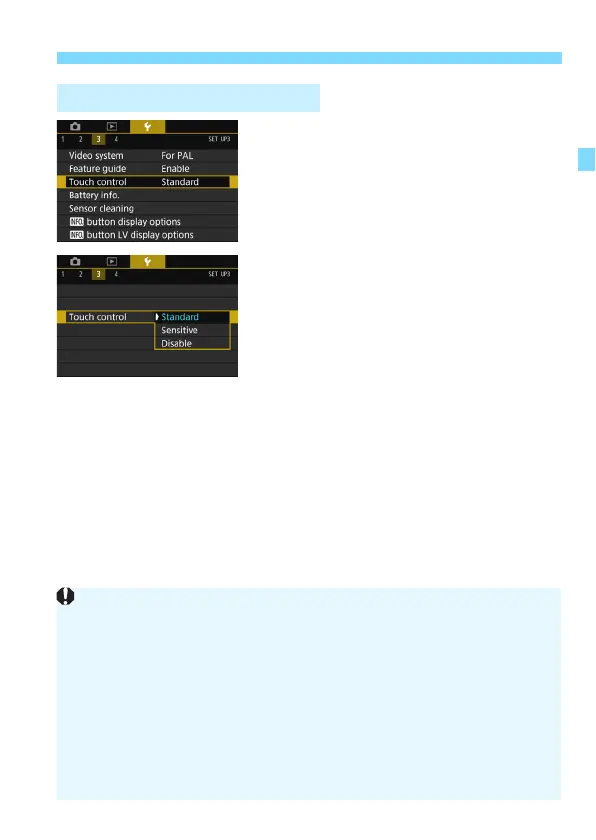
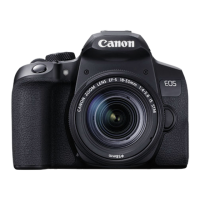
Set the touch control setting.
>.
] is the normal setting.
]. Try
].
Cautions for Touch Screen Operations
Since the LCD monitor is not pressure sensitive, do not use any sharp
objects, such as your fingernail or a ballpoint pen, for touch operations.
Do not use wet fingers for touch screen operations.
If the LCD monitor has any moisture or if your fingers are wet, the touch
screen may not respond or misoperation may occur. In such a case, turn
off the power and wipe the LCD monitor with a cloth.
Attaching a commercially-available protective sheet or sticker on the
LCD monitor may make the touch operation response slow.
If you quickly perform touch operation when [Sensitive] is set, the touch
response may be slower.


 To Next Page