74
If you set this function, <
G
> will appear in the viewfinder when
the camera detects flicker caused by the blinking of the light source. By
default, flicker detection is set to [
Show
].
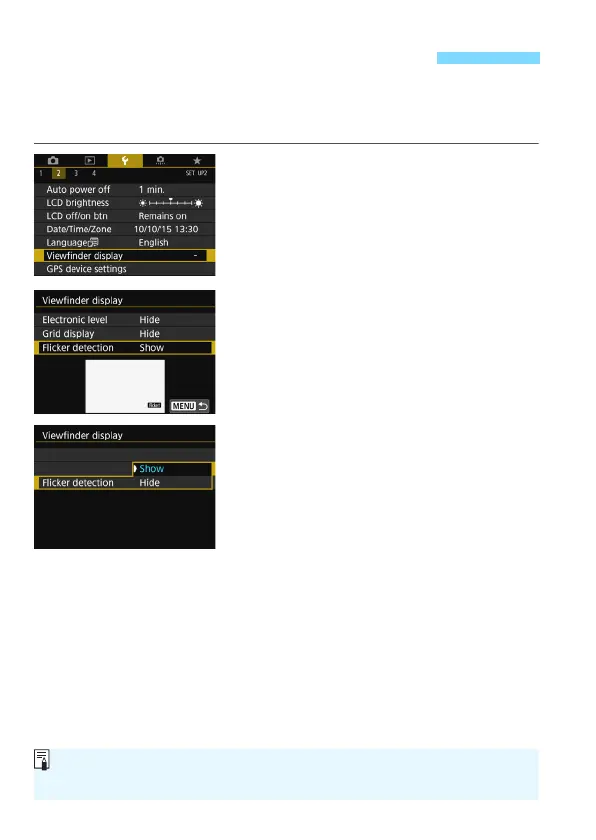
1
Select [Viewfinder display].
Under the [
52
] tab, select
[
Viewfinder display
], then press
<
0
>.
2
Select [Flicker detection].
3
Select [Show].
Displaying the Flicker DetectionN
If you set [z4: Anti-flicker shoot.] to [Enable], you can shoot with
reduced unevenness of exposure caused by the flicker (p.179).


 To Next Page