110
Advanced Guide
Basic Guide
1
Camera Basics
2
Auto Mode /
Hybrid Auto Mode
3
Other Shooting Modes
Tv, Av, and M Mode
6
Playback Mode
7
Wi-Fi Functions
8
Set-Up Menu
9
Accessories
10
Appendix
Index
4
P Mode
5
Tv, Av, M, and C Modes
Before Use
Cropping
Still Images
Movies
You can specify a portion of an image to save as a separate image le.
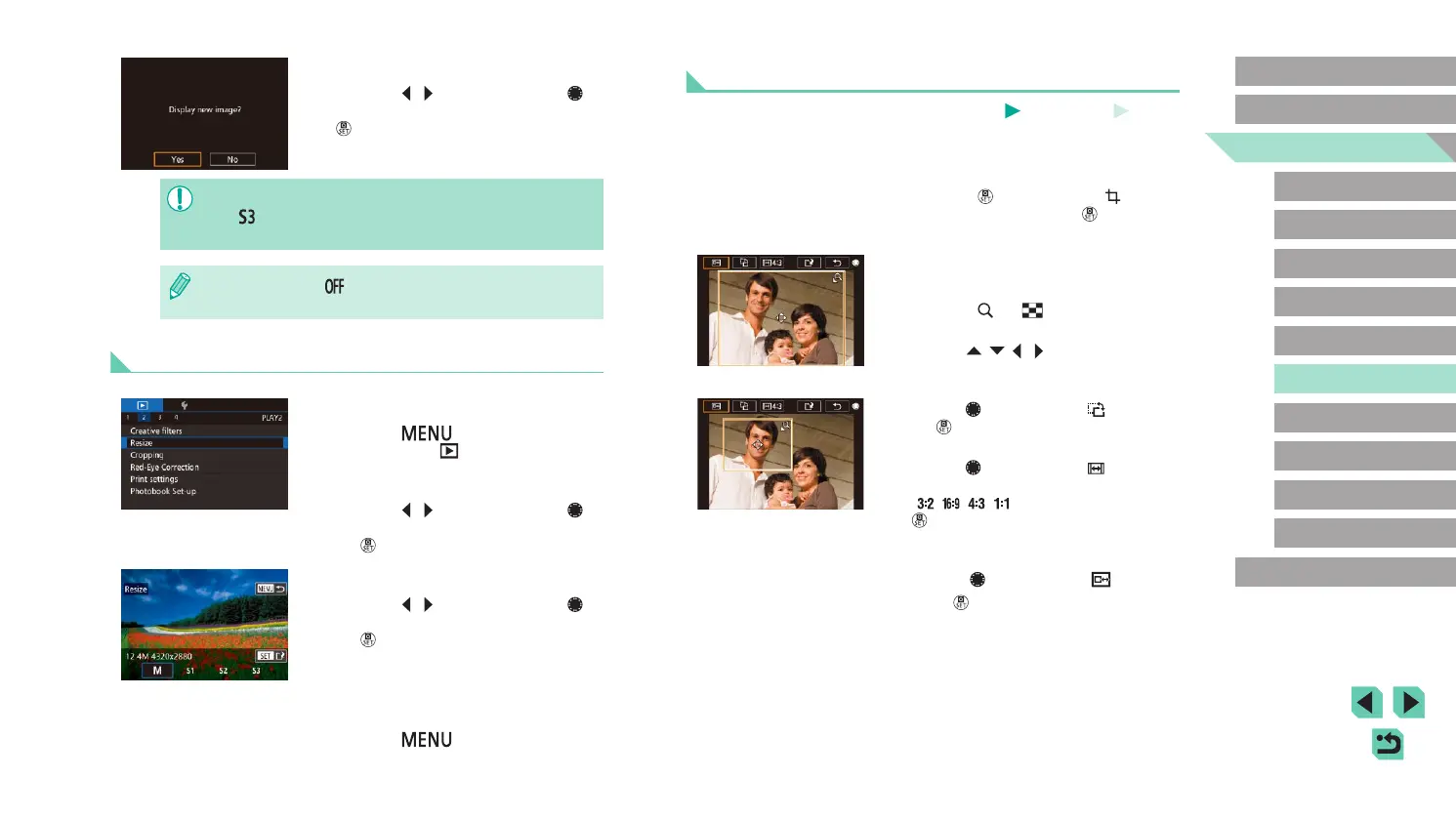
1
Access the setting screen.
● Press the [ ] button, choose [ ] in the
menu, and then press the [ ] button
(
=
31).
2
Set the cropping frame size,
position, and aspect ratio.
● Press the [ ] or [ ] button to change
the size of the frame.
● Use the [
][ ][ ][ ] buttons to move
the frame.
● To change the orientation of the frame,
turn the [
] dial to choose [ ] and press
the [ ] button.
● To change the frame’s aspect ratio,
turn the [
] dial to choose [ ].
The aspect ratio will switch between
([ ][ ][ ][ ]) with each press of the
[ ] button.
3
Check the cropped image.
● Turn the [ ] dial to choose [ ].
● Press [
] to toggle the screen between
the cropped image and the cropping
frame display.
3
Review the new image.
● Press the [ ][ ] buttons or turn the [ ]
dial to choose [Yes], and then press the
[ ] button.
● The saved image is now displayed.
● Editing is not possible for images shot at a recording pixel setting
of [
] (
=
43).
● RAW images cannot be edited.
● In step 1, choose [ ] to stop resizing the image.
● Images cannot be resized to a higher number of recording pixels.
Using the Menu
1
Choose [Resize].
● Press the [ ] button and choose
[Resize] on the [ 2] tab (
=
32).
2
Choose an image.
● Press the [ ][ ] buttons or turn the [ ]
dial to choose an image, and then press
the [ ] button.
3
Choose an image size.
● Press the [ ][ ] buttons or turn the [ ]
dial to choose the size, and then press
the [ ] button.
4
Save as a new image and review.
● Follow step 2 in
“Resizing Images”
(=
109)
.
● Press the [
] button, and then
follow step 3 in
“Resizing Images”
(=
109)
.










 To Next Page