44
Advanced Guide
Basic Guide
1
Camera Basics
2
Auto Mode /
Hybrid Auto Mode
3
Other Shooting Modes
Tv, Av, and M Mode
6
Playback Mode
7
Wi-Fi Functions
8
Set-Up Menu
9
Accessories
10
Appendix
Index
4
P Mode
5
Tv, Av, M, and C Modes
Before Use
Using the Menu
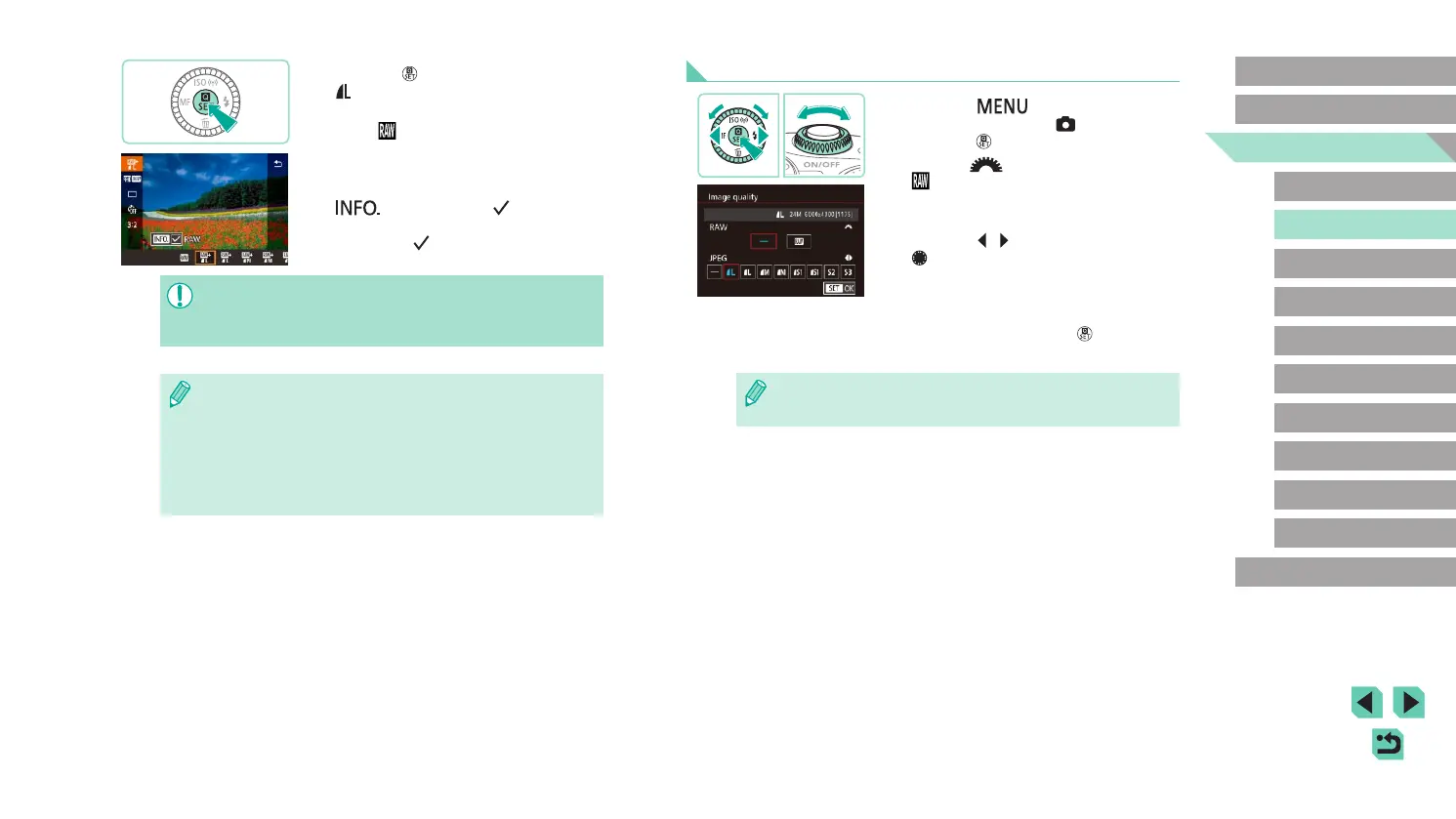
● Press the [ ] button, choose
[Image quality] on the [ 1] tab, and then
press the [ ] button (
=
32).
● Turn the [
] dial to choose
[ ] in [RAW]. This will save a RAW le
alongside the JPEG le. Select [–], and
the camera will only save the JPEG le.
● Press the [
][ ] buttons or turn the
[ ] dial to change [JPEG], selecting
your preferred save resolution and
compression ratio. Select [–], and the
camera will only save the RAW le.
● When nished, press the [
] button to
return to the menu screen.
● You cannot set both the [RAW] and [JPEG] image setting to [–] at
the same time.
● Press the [ ] button, and then choose
[ ] in the menu (
=
31).
● If you want to save only the RAW image,
select [
].
● To save both a JPEG and a RAW image,
select your desired image quality in
the setting screen and then press the
[
] button to add a [ ] to [RAW].
To go back to the original save method,
remove the [ ] from [RAW].
● When transferring RAW images (or RAW and JPEG images
recorded together) to a computer, always use the dedicated
software “EOS Utility” (
=
158).
● For details on resolution and the number of shots that will t on a
card, see “Number of Shots per Memory Card” (
=
195).
● The le extension for JPEG images is .JPG, and the extension for
RAW images is .CR2. JPEG and RAW images recorded together
will have the same image number in their lenames.
● Consult “Software” (
=
158) to learn more about the Digital
Photo Professional and EOS Utility software.










 To Next Page