68
Advanced Guide
Basic Guide
1
Camera Basics
2
Auto Mode /
Hybrid Auto Mode
3
Other Shooting Modes
Tv, Av, and M Mode
6
Playback Mode
7
Wi-Fi Functions
8
Set-Up Menu
9
Accessories
10
Appendix
Index
4
P Mode
5
Tv, Av, M, and C Modes
Before Use
1
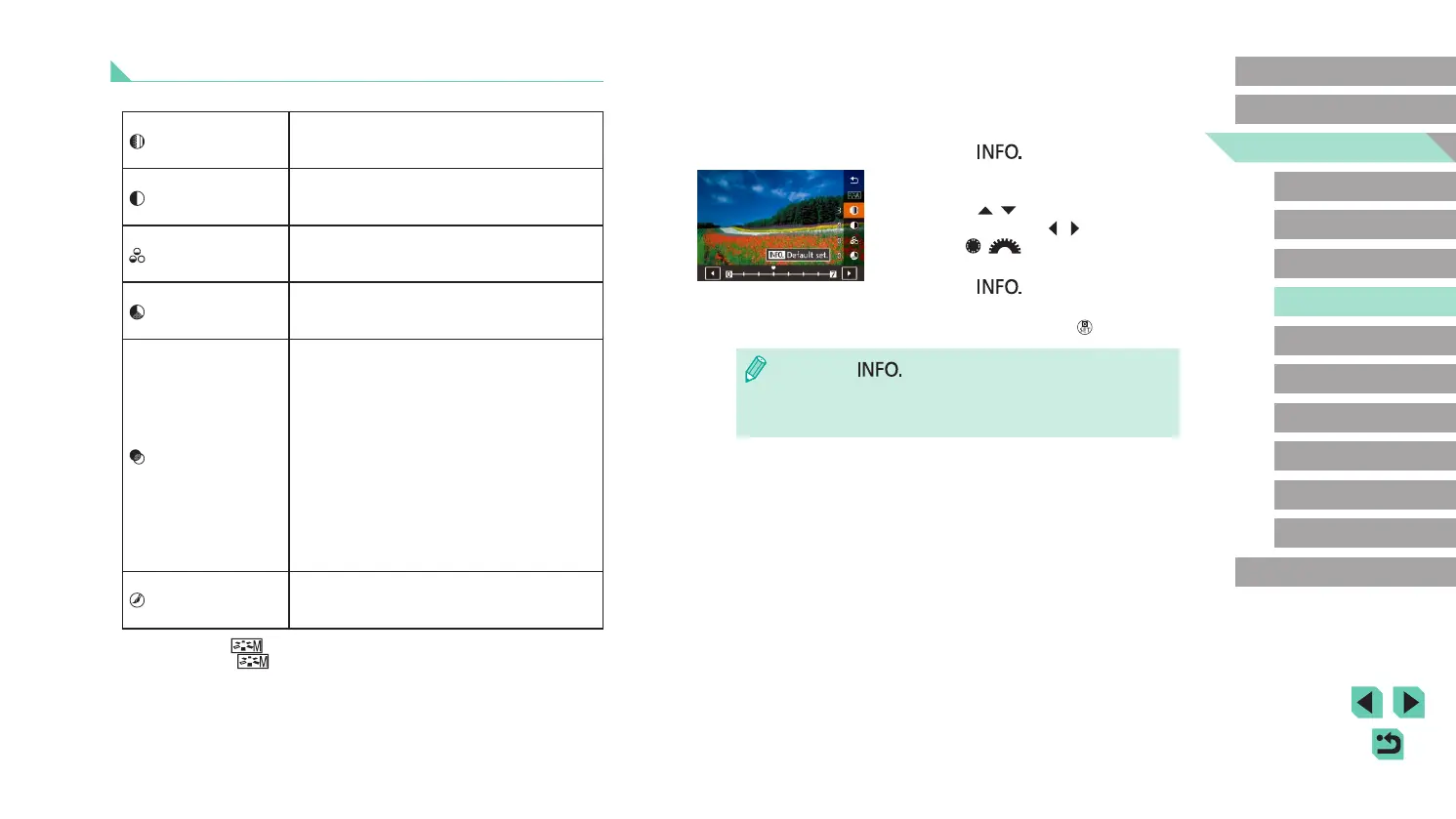
Access the setting screen.
● Follow the steps in “Using Your Favorite
Shades (Picture Styles)” (
=
67) to
select the Picture Style you want.
● Press the [
] button.
2
Congure the settings.
● Press the [ ][ ] buttons to choose an
item; then, press the [ ][ ] buttons or
turn the [ ][ ] dials to choose an
option.
● Press the [
] button to undo any
changes.
● When nished, press the [
] button.
● Press the [ ] button in step 2 to revert the Picture Style to
its defaults.
● Increasing the [Contrast] will make the [Filter effect] more
pronounced.
Adjusting Picture Styles
The following settings can be adjusted for each Picture Style.
Sharpness
Adjusts the sharpness of the subject. Lower
values produce softer (more blurred) effects;
higher values produce sharper results.
Contrast
Adjusts the contrast. Lower values produce
weaker contrast; higher values produce
stronger contrast.
Saturation*
1
Adjusts the color saturation in the image.
Lower values produce shallower colors;
higher values produce deeper colors.
Color tone*
1
Adjusts skin color tone. Lower values
produce redder hues; higher values produce
colors that are more yellow.
Filter effect*
2
Emphasizes white clouds in monochrome
images, or the greens of trees.
N: Normal black-and-white image with no
lter effects.
Ye: The blue sky will look more natural, and
the white clouds will look crisper.
Or: The blue sky will look slightly darker.
Sunsets will look more brilliant.
R: The blue sky will look quite dark. Fall
leaves will look crisper and brighter.
G: Skin tones and lips will appear muted.
Green tree leaves will look crisper and
brighter.
Toning effect*
2
The following monochrome colors can be
selected: [N:None], [S:Sepia], [B:Blue],
[P:Purple] or [G:Green].
*1 Not available in [ ] mode.
*2 Only available in [
] mode.










 To Next Page