129
Advanced Guide
Basic Guide
1
Camera Basics
2
Auto Mode /
Hybrid Auto Mode
3
Other Shooting Modes
Tv, Av, and M Mode
6
Playback Mode
7
Wi-Fi Functions
8
Set-Up Menu
9
Accessories
10
Appendix
Index
4
P Mode
5
Tv, Av, M, and C Modes
Before Use
4
Send an image.
● Turn the [ ] dial to choose an image to
send, press the [ ][ ] buttons to choose
[Send this image], and then press the [ ]
button.
● Image transfer will begin. The screen
darkens during image transfer.
● [Transfer completed] is displayed after
the image is sent, and the image transfer
screen is displayed again.
● To end the connection, press the
[
] button, choose [OK] on the
conrmation screen (either press the
[ ][ ] buttons or turn the [ ] dial), and
then press the [ ] button.
● Connections require that a memory card be in the camera.
● Once you have connected to devices via the Wi-Fi menu, recent
destinations will be listed rst when you access the Wi-Fi menu.
You can easily connect again by pressing the [
][ ] buttons to
choose the device and then pressing the [
] button. To add a
new device, display the device selection screen by pressing the
[
][ ] buttons, and then congure the setting.
● If you prefer not to display recent target devices, choose MENU
(
=
32) > [ 4] tab > [Wi-Fi Settings] > [Target History] > [Off].
● You can also send multiple images at once and change the image
size before sending (
=
130).
Sending Images to Another
Camera
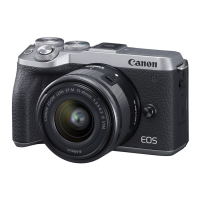
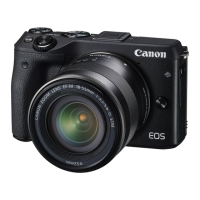
Connect two cameras via Wi-Fi and send images between them as
follows.
● Only Canon-brand cameras equipped with a Wi-Fi function can be
connected to wirelessly. Even Canon-brand cameras that support Eye-
Fi cards cannot be connected to if they do not have a Wi-Fi function.
You cannot connect to PowerShot SD430 DIGITAL ELPH WIRELESS/
DIGITAL IXUS WIRELESS cameras with this camera.
1
Access the Wi-Fi menu.
● Access the Wi-Fi menu as described in
step 2 of “Adding a Smartphone Using
the Wi-Fi Menu” (
=
118).
2
Choose [ ].
● Press the [ ][ ][ ][ ] buttons or turn
the [ ] dial to choose [ ], and then
press the [ ] button.
3
Choose [Add a Device].
● Press the [ ][ ] buttons or turn the [ ]
dial to choose [Add a Device], and then
press the [ ] button.
● Follow steps 1 – 3 on the target camera
too.
● Camera connection information will be
added when [Start connection on target
camera] is displayed on both camera
screens.










 To Next Page