33
Advanced Guide
Basic Guide
1
Camera Basics
2
Auto Mode /
Hybrid Auto Mode
3
Other Shooting Modes
Tv, Av, and M Mode
6
Playback Mode
7
Wi-Fi Functions
8
Set-Up Menu
9
Accessories
10
Appendix
Index
4
P Mode
5
Tv, Av, M, and C Modes
Before Use
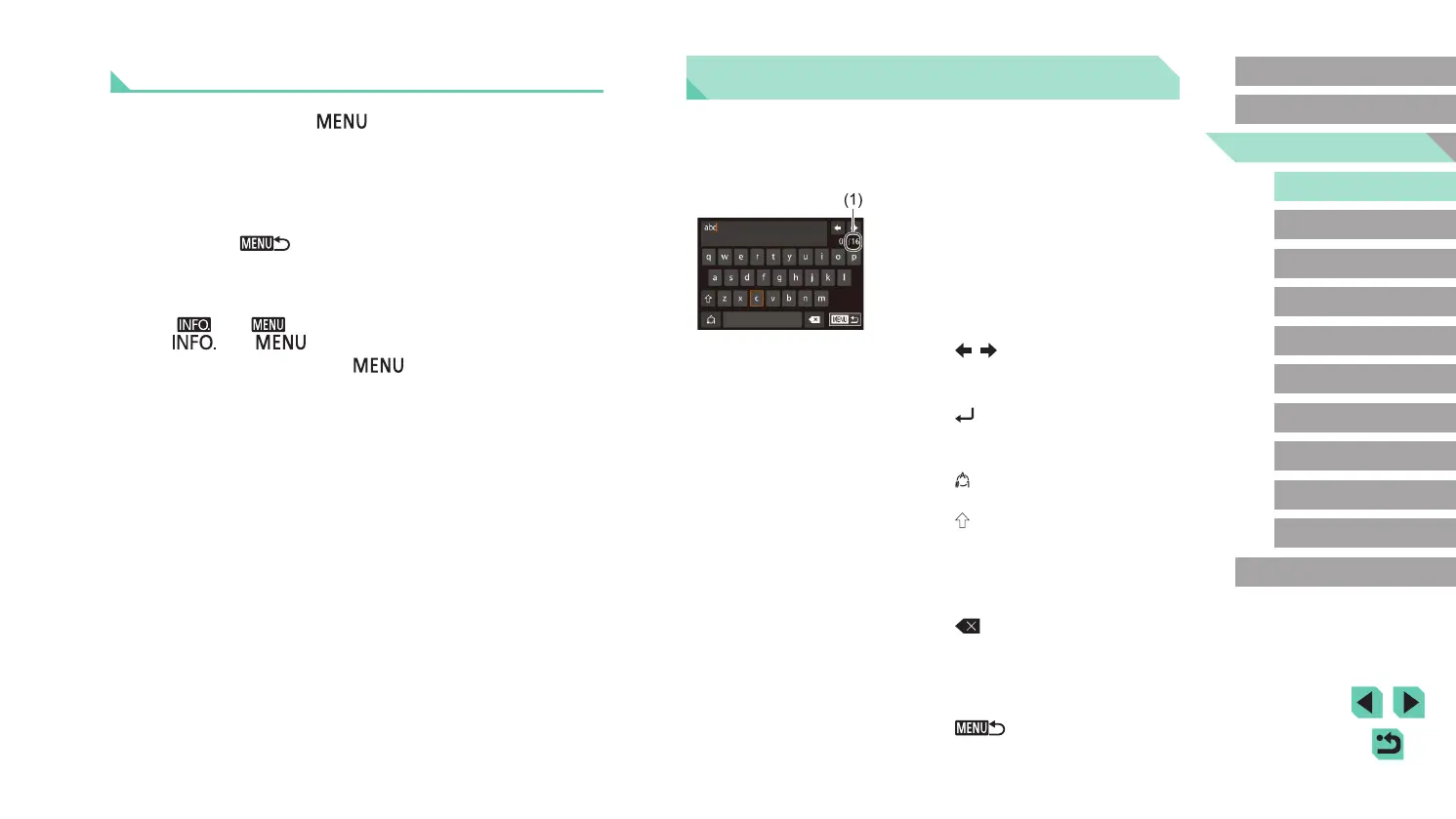
On-Screen Keyboard
Use the on-screen keyboard to enter information for Wi-Fi connections
(
=
115). Note that the length and type of information you can enter
varies depending on the function you are using.
Entering Characters
● Touch the characters to enter them.
● The amount of information you can enter
(1) varies depending on the function you
are using.
Moving the Cursor
● Touch [ ][ ].
Entering Line Breaks
● Touch [ ].
Switching Input Modes
● Touch [ ] to switch between numbers
and symbols.
● Touch [
] to enter capital letters.
● Available input modes vary depending on
the function you are using.
Deleting Characters
● Touch [ ] to delete the previous
character.
Conrming Input and Returning to the
Previous Screen
● Touch [ ].
Touch-Screen Operations
● To access tabs, press the [ ] button to access the menu, touch a
system tab, and then a page tab to select a menu tab.
● Touch the desired setting to select it and then touch it again.
● When nished, touch the option to return to the menu screen.
● To congure menu items for which options are not shown, rst touch
the menu item to access the setting screen. To return to the previous
screen, touch [
].
● You can also touch input elements (such as check boxes or text elds)
to select them, and you can enter text by touching the on-screen
keyboard.
● The [
] and [ ] on-screen buttons have the same functions as
the [ ] and [ ] buttons.
● To dismiss the menu, press the [
] button again.










 To Next Page