3
Click [Preview].
The preview of the image is displayed.
4
Select the purpose of the scan for [Select Purpose].
● [Print (300dpi)]
● [Image Display (150dpi)]
● [OCR (300dpi)]
" Setting Resolution
(P. 150) "
5
Select the output size of the scanned image.
The options displayed in the window vary depending on the purpose of the scan specied in Step 4(P
. 134) .
Click [ ] to choose the orientation of the output size between landscape and portrait.
6
Adjust the cropping frames as needed.
" Dening a Scan Ar
ea (Cropping Frame)(P. 148) "
7
Select [Fading Correction] as needed.
● It can only be selected when color documents ar
e scanned.
● It cannot be specied when the image is not displayed in the preview area.
8
Click [Scan].
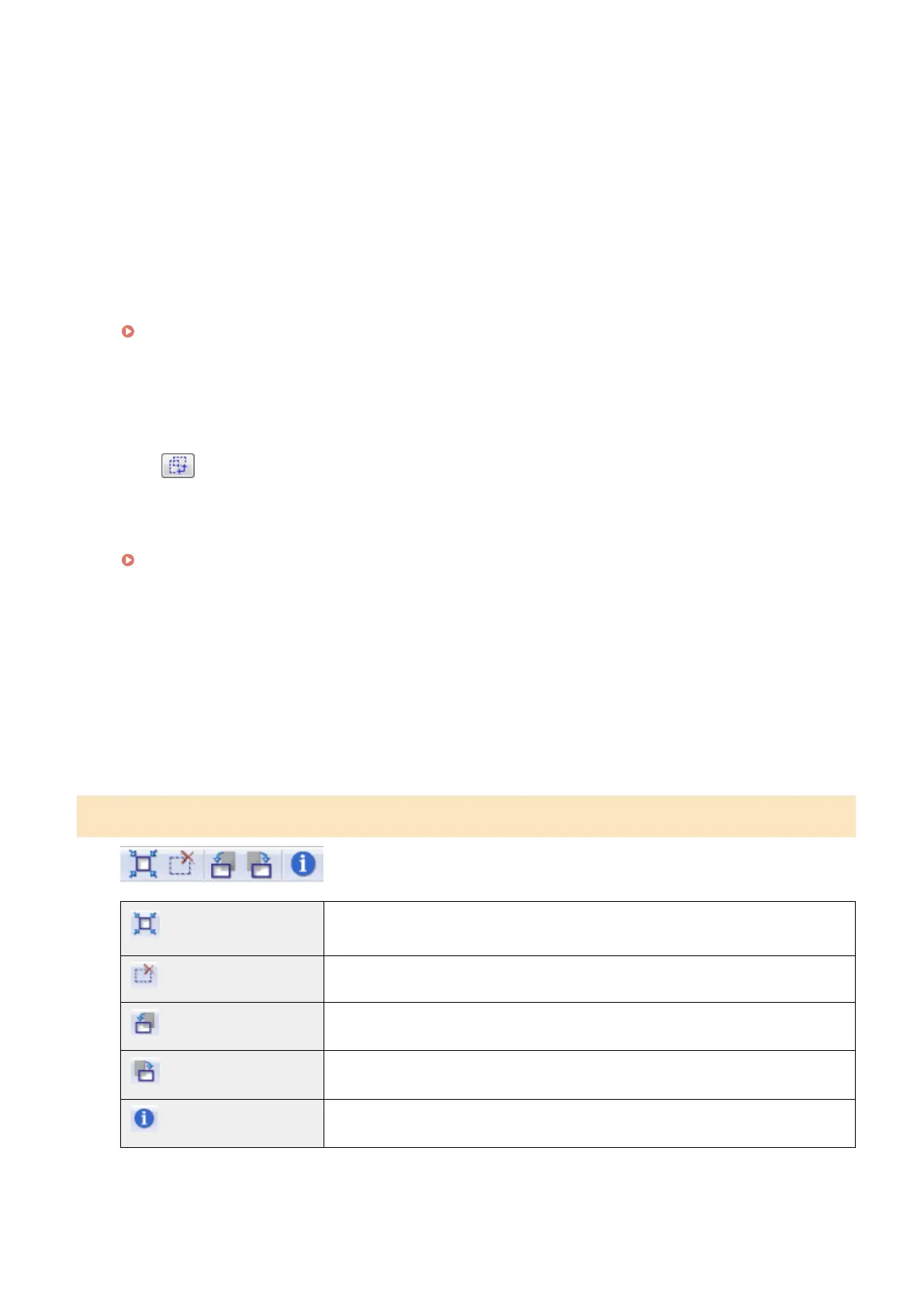
Simple mode toolbar
[ ] (Auto Crop)
Specify scan areas (cropping frames) automatically. See " Dening a Scan Ar
ea
(Cropping Frame)(P. 148) " for more information.
[
] (Remove Cropping Frame)
Delete the selected cropping frames.
[ ] (Left Rotate)
Rotate the image 90 degrees to the left.
[ ] (Right Rotate)
Rotate the image 90 degrees to the right.
[ ] (Information)
Display the information of the scanned image.
Scan
134









 To Next Page