140 Troubleshooting Chapter 13
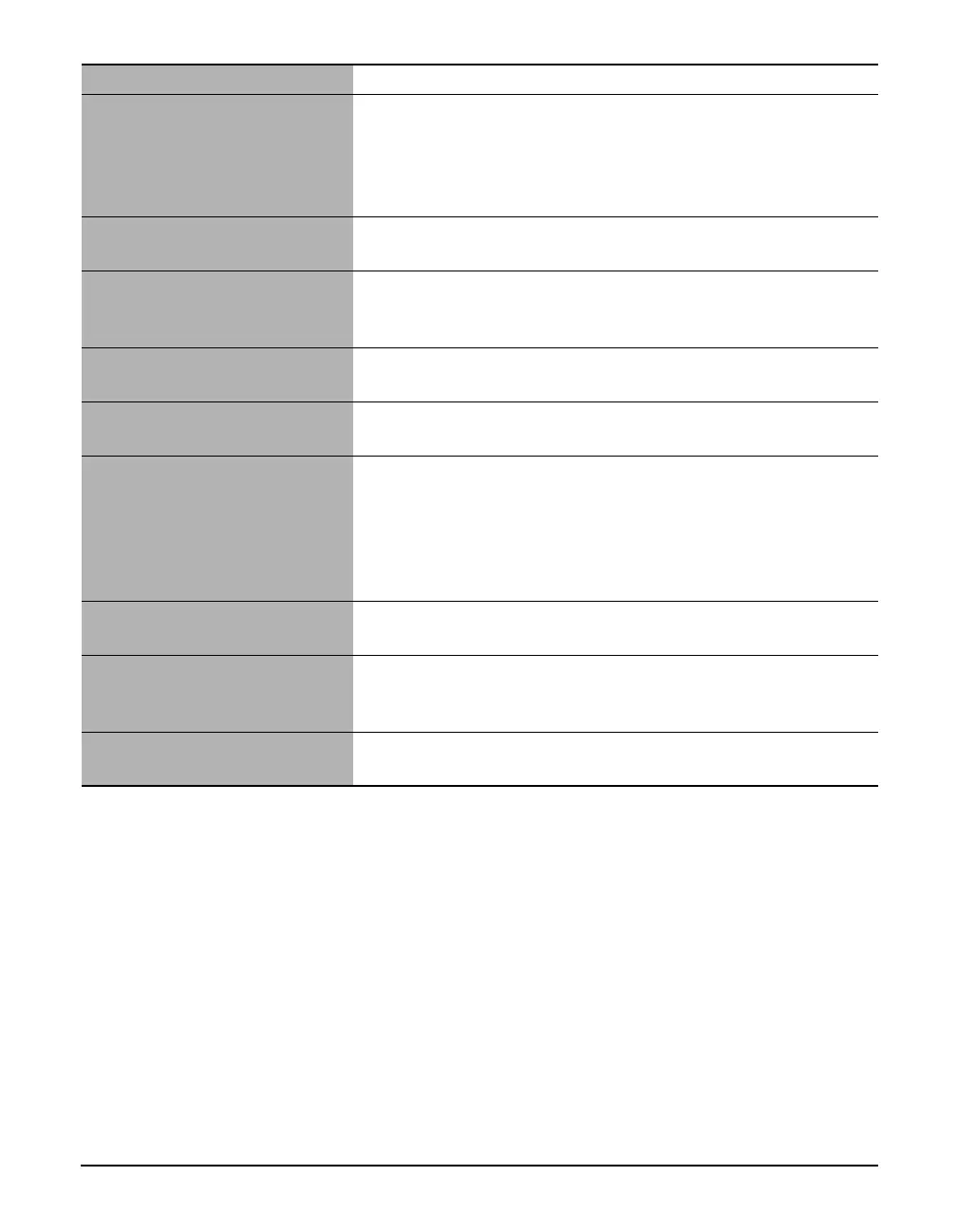
The hard disk does not have
enough available memory.
Check that the hard disk has enough available memory, in particular
when scanning large documents at a high resolution. For example, a
letter-size document scanned at 600 dpi, color requires a minimum
of 300 MB of memory. If you do not have enough available memory,
scan the document at a lower resolution.
The resolution is low. If the image looks pixilated, increase the scan resolution.
(See Software Guide, located on your Setup CD-ROM)
The image is not displayed at
100% magnification in the
application.
Display the image at 100% magnification. Some applications do not
display a small image very well.
There is moire when you scan
printed material.
In ScanGear MP, click [Descreen]. (See Software Guide, located on
your Setup CD-ROM)
The monitor display colors are set
too low.
In [Display Properties] of your computer, set the display colors to
16-bit color, 24-bit color or higher.
The scanning area is not specified. In ScanGear MP, click [Multi-Scan] to automatically specify the
scan area.
If there are white margins around documents such as photographs, or
if you want to trim a document (i.e. you want to scan only one part
of a document), specify the area of the scan manually. (See Software
Guide, located on your Setup CD-ROM)
The scanned area does not cover
the entire document.
Place the document approximately 1/8 in. (3 mm) away from the
front and right edges of the platen glass.
The color tone displayed in the
preview screen differs from that of
the original.
Perform calibration to scan the image with the correct color tone.
(See Software Guide, located on your Setup CD-ROM)
A cause other than the above is
suspected.
Restart the computer.
Cause Action



 To Next Page