Camera Viewer
77
Cropping Video With Digital PTZ Panel
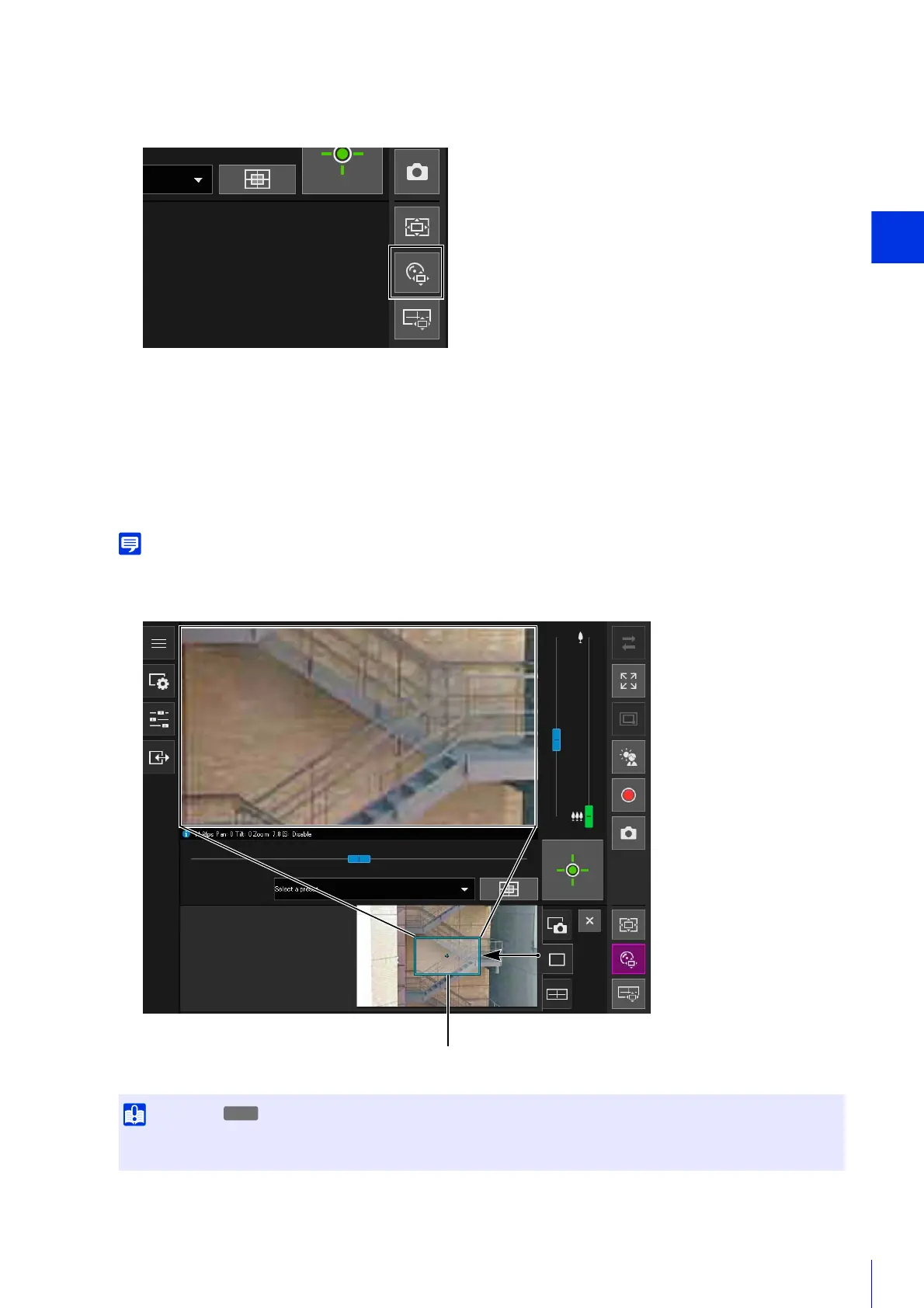
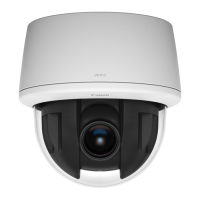
The [Digital PTZ] button changes active (purple), and the Digital PTZ panel is shown in the control display area.
The preview frame operations are the same as with the Viewer PTZ (P. 75).
The preview frame size can be set to any of 5 sizes. The screen sizes according to the setting in [Basic] > [Video]
> [All Videos] > [Video Size Set] (P. 104) on the Setting Page.
• When the aspect ratio 16:9 is selected: 640 x 360, 512 x 288, 384 x 216, 256 x 144, 128 x 72
• When the aspect ratio 4:3 is selected: 640 x 480, 512 x 384, 384 x 288, 256 x 192, 128 x 96
The preview frame will move in steps. Fine-tuned movement is not possible.
The video of the area inside the manipulated preview frame is magnified to fill the video display area.
1
Click the [Digital PTZ] button.
2
In the Digital PTZ panel, move and resize the preview frame.
Even if the camera angle is changed due to a slider operation or preset, the position of the preview frame on the Digital PTZ panel
is fixed.


 To Next Page