Once the values to withdraw are defined, push the button “Accept” for CashDro3 to
dispense change.
10.6 Sale
Sale operation without need to be linked with a sales software. To be displayed this option in
the menu, configure function mode Stand-alone. With this mode, every time that a sale is
finished CashDro3 remains in menu, without exit to Login screen while the user does not
want.
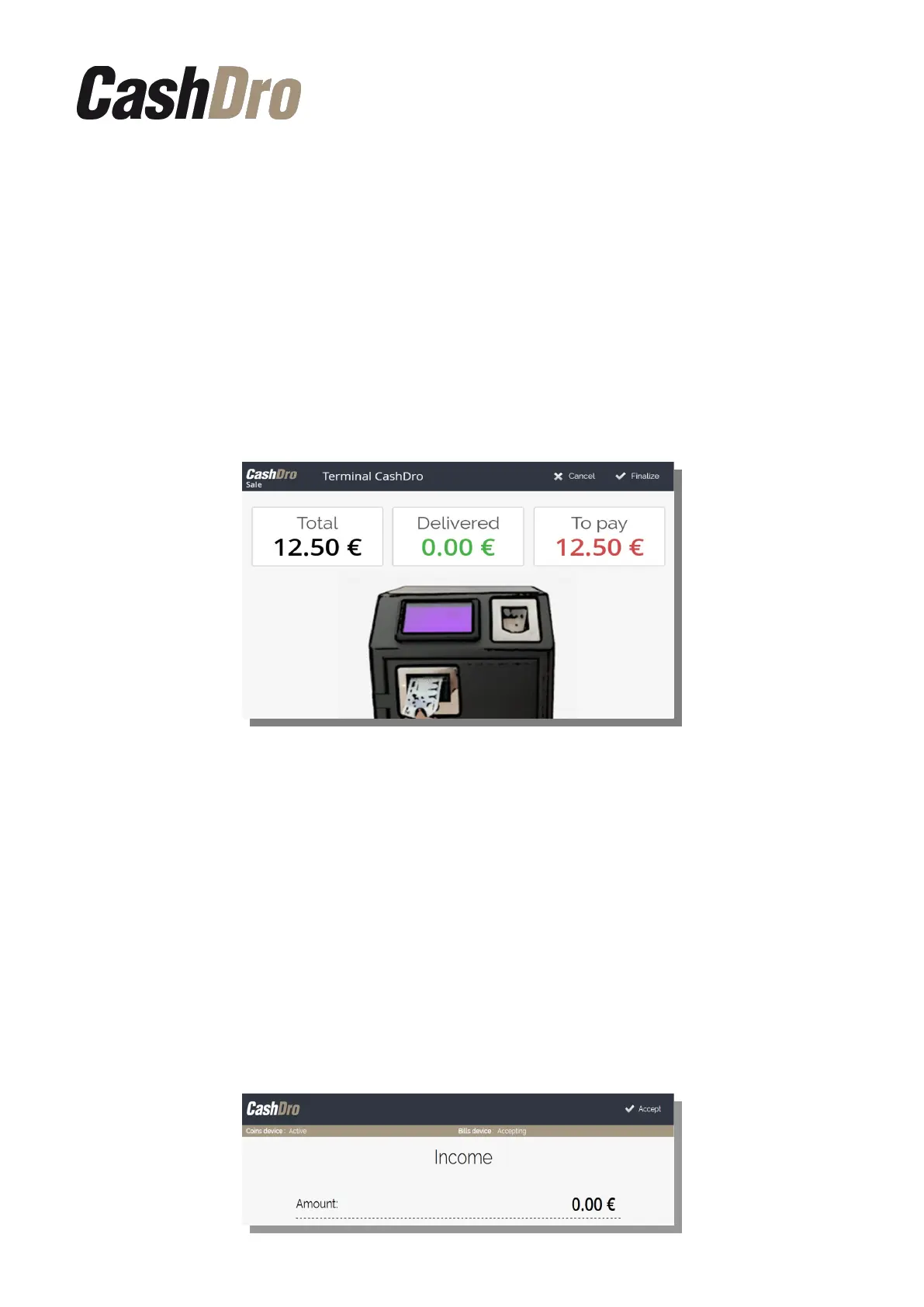
To collect a sale, Introduce the amount of sale and the following screen will appear, the user
will be guided during the payment process and during the change giving process. The
change is given in the minimum number of coins and bills possible.
By pushing button “Cancel” the payment process will be canceled and CashDro3 will give
back the cash introduced before canceling.
By pushing the button “Finalize” CashDro3 will keep the cash introduced before finalizing
and we will be able to finish the payment of the remaining amount with other type of payment.
As soon as the amount entered in CashDro3 exceeds or equals the sale amount, the team
will automatically complete the operation and pay the change if applicable.
10.7 Income
Operation that lets to deposit money in CashDro3. This option can be used by employees to
deposit the collected money into CashDro3 (traveling salesman, waiters with belt pouch, …).
When all the amount is deposited, finish the operation by pushing “Accept”.
Operations | 29


 To Next Page