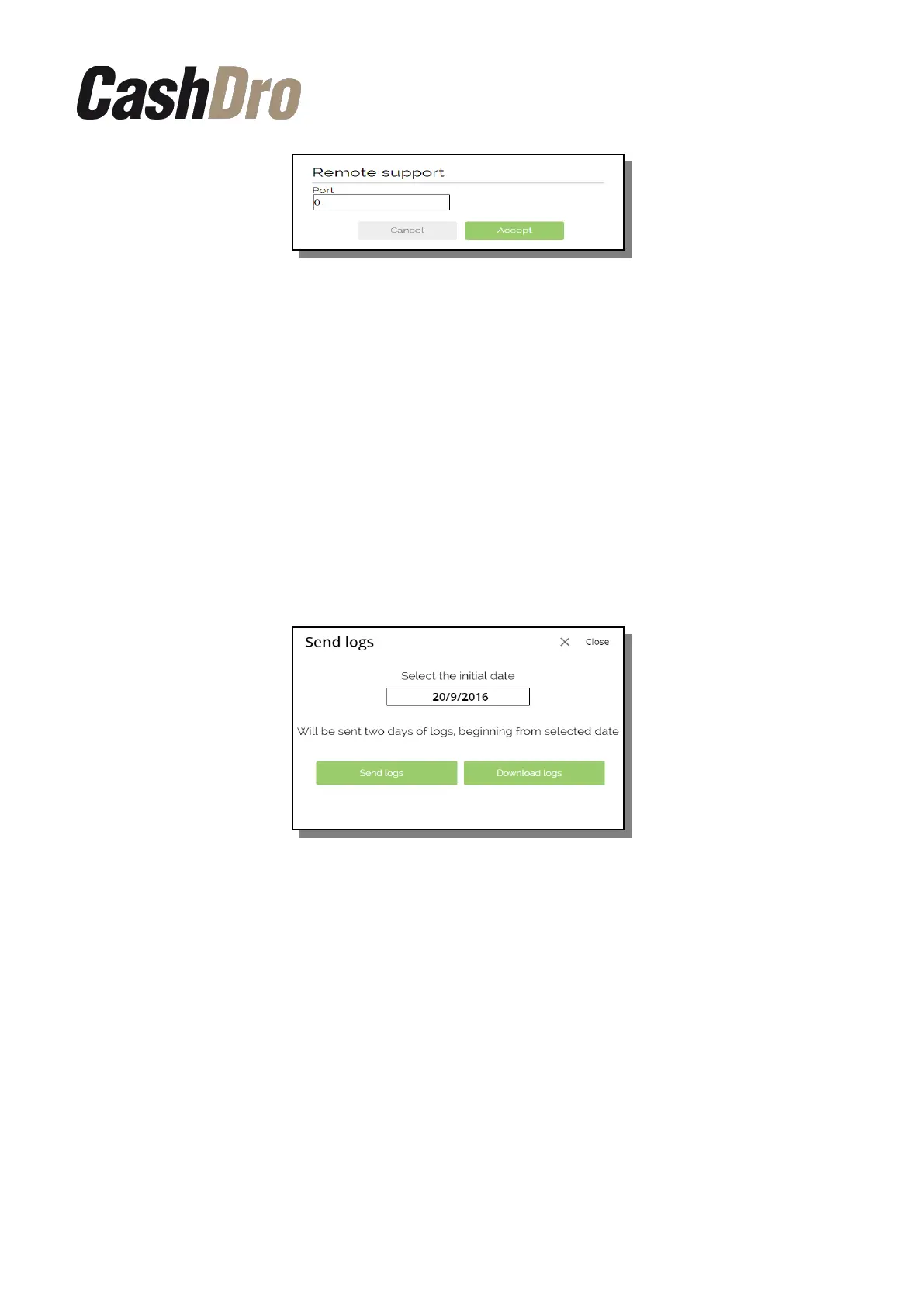
When the equipment is connected to the remote support, an informational text (in green) will
appear at the top of the screen, thus confirming that the connection is active.
11.5.5 Disconnect support
Disconnects the remote support
11.5.6 Download logs
If we want to download the Logs, we must press the "Download Logs" button and the Logs
will be downloaded directly to the computer from which we are performing the action.
We can select the desired date, the Logs of the selected date and the one immediately after
will be generated.
This option must always be done from an external browser, it cannot be done directly on the
CashDro3 touch screen.
Once the logs have been generated, an icon will appear on the Diagnostics screen. By
clicking on the icon, the user can download the log files.
11.5.7 View logs
This action allows display Logs corresponding to the last movements without need to
download them.
11.6 Deposit status
This consult allows to visualize the configured deposit levels and the missing levels without
leaving CashDro disabled for sales collecting. We also can pint a missing list clicking on
‘Print’ button on top of screen.
Consults | 41


 To Next Page