In the left part of the screen called “DATA” write name, password and email data
configuration where we want to send Logs when this user request it.
In the left part of the screen called “RIGHTS” we mark the menu sections that the user will
be able to access.
IMPORTANT: When creating a new user, it can only be assigned rights that creator
has assigned previously.
The user “admin” and the user “support” cannot assign each other the permissions
that each one has by default.
After the user is configured, push the button “Accept” located in the top in order to save the
changes.
Once the device is delivered to the client and the configuration process is completed it is
recommended for the client to modify the user “admin” password in order to know it and to
have control of the non technical users configuration.
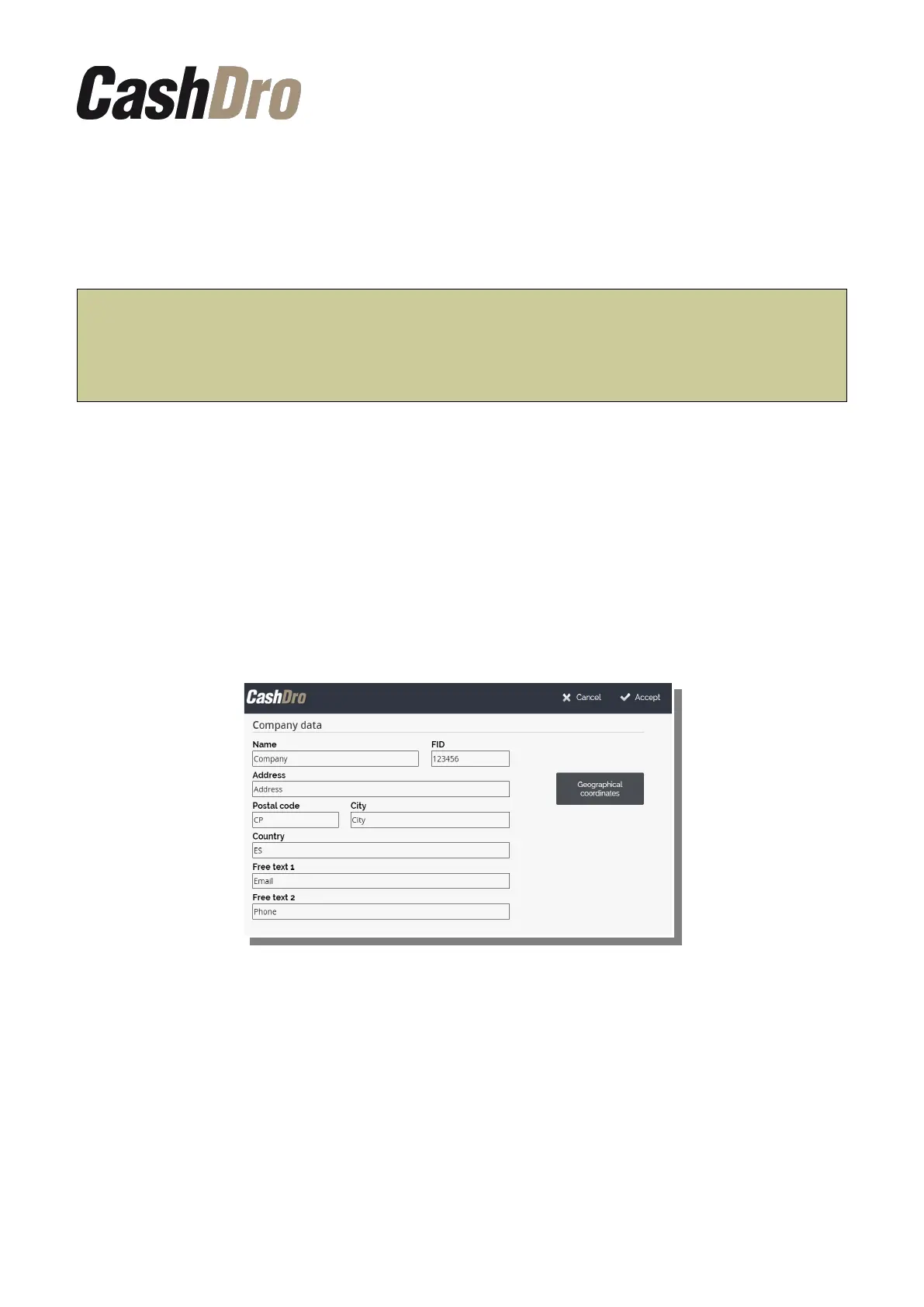
12.2 Company data
These data are shown at the head of the receipts/tickets. They are also included in the Logs.
12.2.1 Geographical coordinates
Once the company data has been entered, it is possible to obtain and save the geographical
coordinates corresponding to that address. Saving this information will allow showing the
CashDro in Controller through a graphic map.
By clicking on the button "Geographical coordinates", the equipment will try to obtain the
coordinates of the address, or failing that, a list of addresses that are as close to the address
entered. The user can choose the address that seems most correct or directly enter the
geographical coordinates.
Configuration menu | 45


 To Next Page