3
Introduction
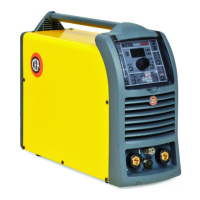
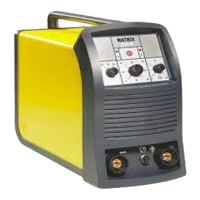
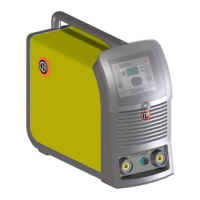
This manual describes the functions on and how to use the following control panels:
• XVISION for MATRIX X220 AC/DC.
• XVISION for MATRIX X300 AC/DC.
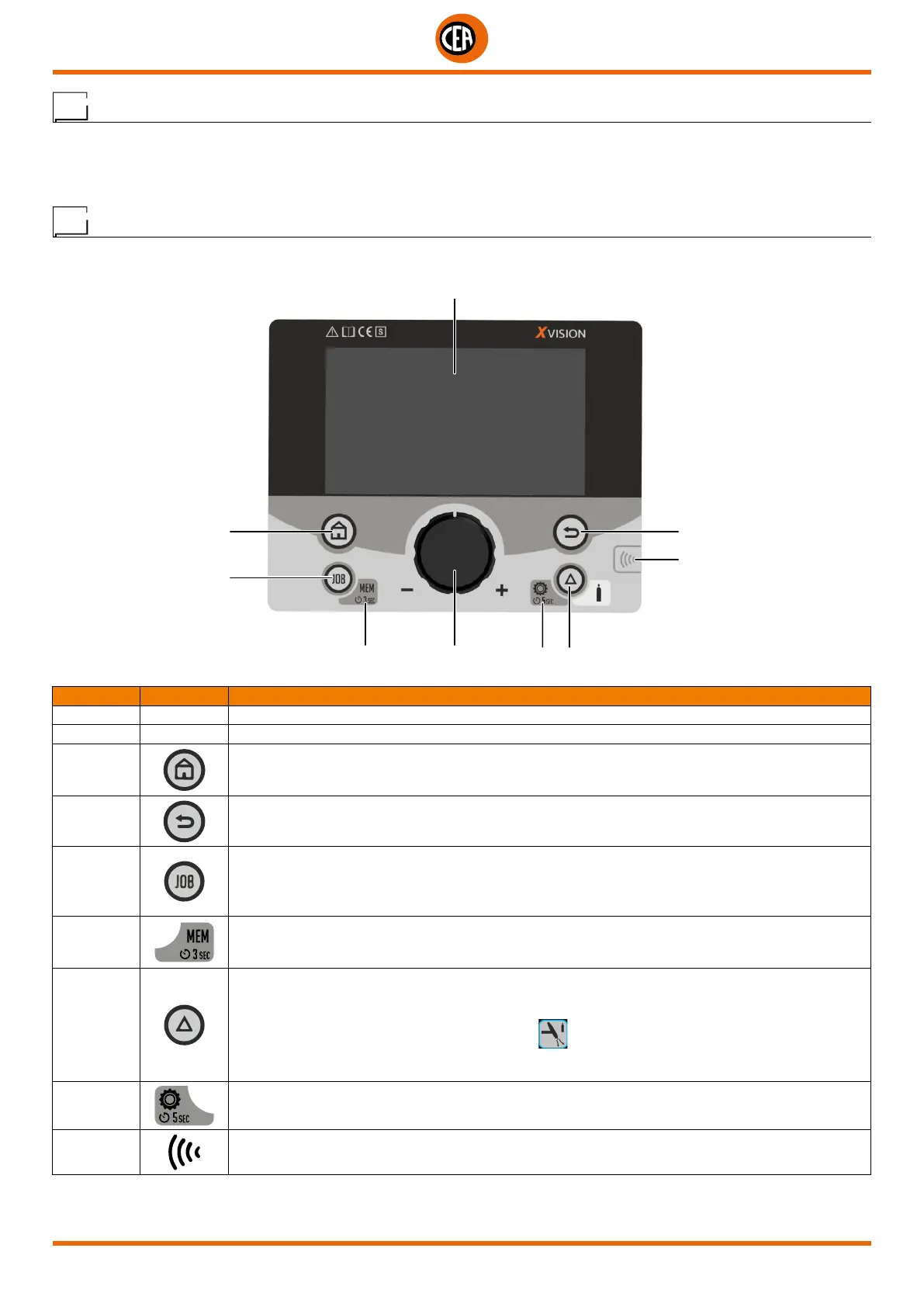
Control panel
1
3
26
8 7
5
4
9
POSITION SYMBOL FUNCTION
1 TFT colour display.
2 Knob / key for regulating, selecting, and confirming parameters
3
HOME Key
From any screen, this key takes you back to the welding page.
If you are already in the welding page, it provides access to the process configuration menu.
4
BACK Key
Used to go back to the previous screen.
5
JOB Key
Used to manage all parameters for recurring welding tasks, and to retrieve them quickly and simply
whenever they are needed.
Push once to access the job list. The knob can be used to select and load a job.
6
3 sec. JOB MEM Symbol
When the JOB key is held down for 3 seconds on the welding panel, the welding settings can be saved
in one of the JOBS.
7
Programmable SET Key
This programmable key can be used to facilitate the user in carrying out some tasks that are more
frequent than others.
Its default programming is as “GAS FLOW TEST”
for checking the welding gas for 15 seconds
(this time can be programmed in the configuration menu). When this key is pushed again the process is
stopped early.
8
Hold the key down for 5 seconds to enter the welding machine configuration menu.
9
NFC area for managing users and locking / unlocking the generator with an NFC card (optional).



 To Next Page