42
Locking the display panel
The SET key can be programmed to act as a shortcut to access the “LOCK PANEL” function.
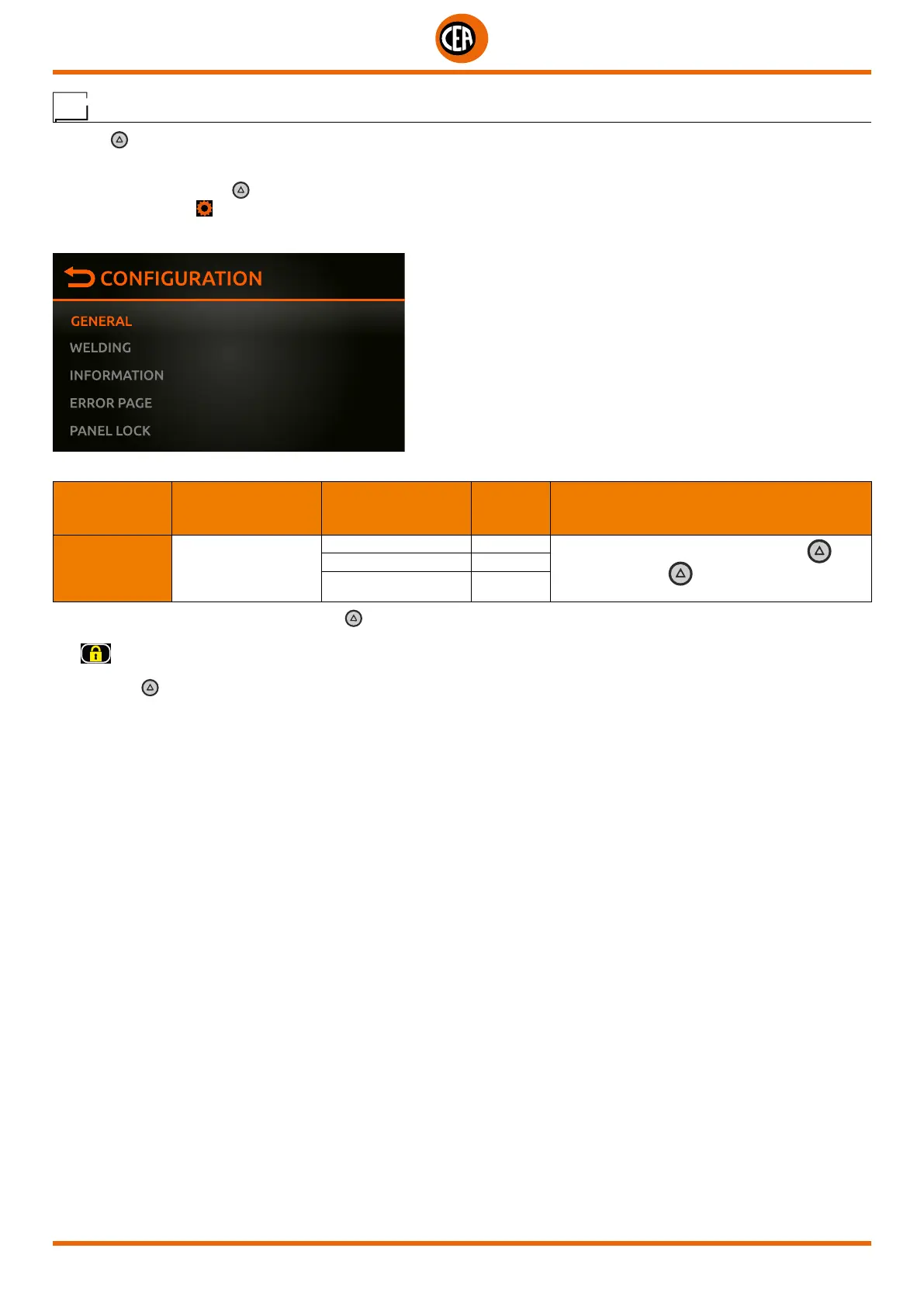
To access this information go to the “CONFIGURATION” menu and select the “GENERAL” menu.
You can access the “CONFIGURATION” menu by:
• Holding down the SET key for 5 seconds.
• By selecting the icon
from the process setting page.
• Select the “GENERAL” menu.
Select the “SET BUTTON” and “LOCK PANEL” option.
MAIN MENU MAIN SUB-MENU
PARAMETERS /
HIGH - LOW LIMIT
DEFAULT
VALUE
NOTE
GENERAL SET BUTTON
GAS FLOW TEST X
Set the chosen option for the SET button
Push the SET key a second time to exit the
option chosen
LOCK PANEL
LOAD JOB
Now, from the “WELDING” page, push the SET
key to access the “LOCK PANEL” function quickly.
The
icon appears on the display, meaning that the display is locked, and the operator cannot change any welding parameter.
Push the SET key again to exit this functi8on, and the display panel will be unlocked.



 To Next Page