39
Saving and uploading the welding machine’s welding
settings and parameters onto a USB stick
The welding settings and parameters can be saved on a “FAT32” USB stick so that they can be moved from one welding machine to an-
other, or recovered if the machine is “reset”.
NOTE: Use a new, dedicated “FAT32” USB stick for this purpose.
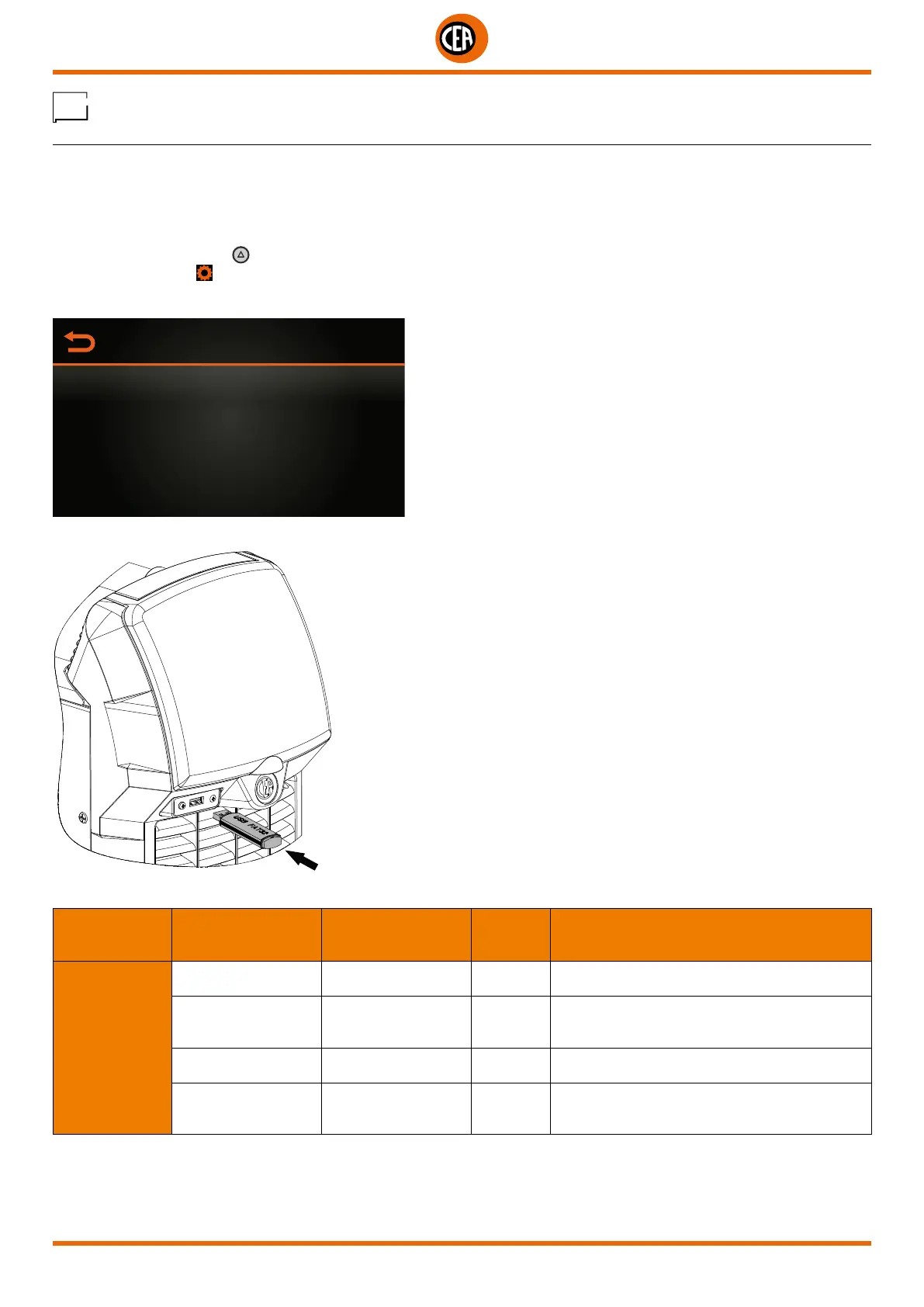
To access this information go to the “CONFIGURATION” menu and select the “USB SAVE RESTORE DATA” menu.
You can access the “CONFIGURATION” menu by:
• Holding down the SET key
for 5 seconds.
• By selecting the icon from the process setting page.
• Select the “USB SAVE RESTORE DATA” menu.
CONFIGURATION
WELDING
INFORMATION
ERROR PAGE
PANEL LOCK
USB SAVE RESTORE DATA
• Insert a new “FAT32” USB stick into the USB socket on the welding machine’s front panel.
• Select the “USB SAVE SETTINGS” or “USB LOAD SETTINGS” sub-menu.
MAIN MENU MAIN SUB-MENU
PARAMETERS /
HIGH - LOW LIMIT
DEFAULT
VALUE
NOTE
USB SAVE
RESTORE DATA
USB SAVE JOBS
Activates the procedure for saving JOBS on a new
“FAT32” USB stick, set aside for this purpose
USB SAVE
SETTINGS
Activates the procedure for saving the settings
on a new “FAT32” USB stick, set aside for this
purpose
USB LOAD JOBS
Activates the procedure for uploading JOBS to a
new “FAT32” USB stick, set aside for this purpose
USB LOAD
SETTINGS
Activates the procedure for uploading the settings
to a new “FAT32” USB stick, set aside for this
purpose
• Follow the guided procedure indicated on the display.



 To Next Page