31
Firmware update
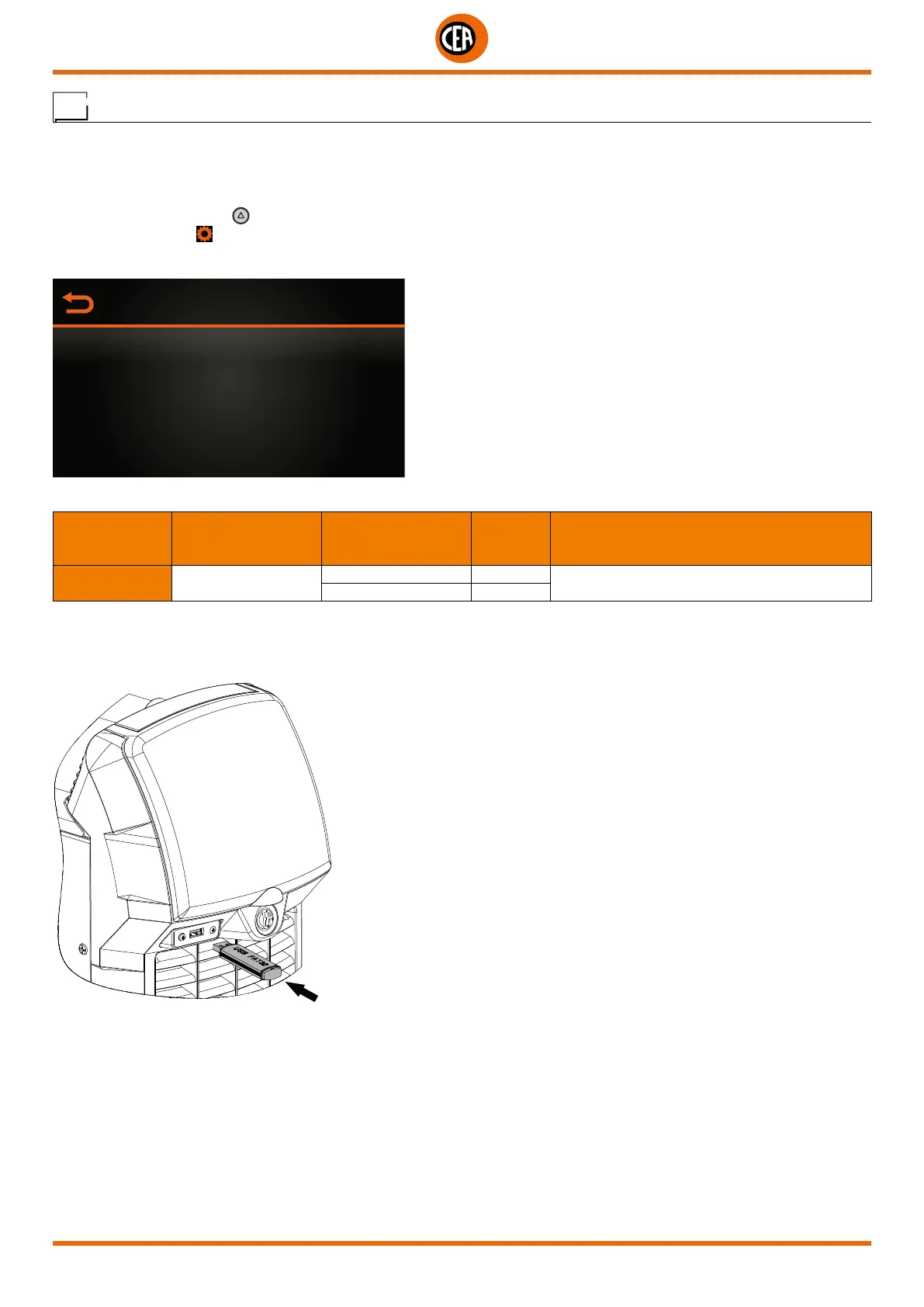
The welding machine’s firmware can be updated, using a “FAT32” USB stick.
NOTE: Use a new, dedicated “FAT32” USB stick for this purpose.
To access this information go to the “CONFIGURATION” menu and select the “UPDATE FW” menu.
You can access the “CONFIGURATION” menu by:
• Holding down the SET key
for 5 seconds.
• By selecting the icon
from the process setting page.
• Select the “INFORMATION” menu.
CONFIGURATION
GENERAL
WELDING
INFORMATION
ERROR PAGE
PANEL LOCK
• Select the “UPDATE FW” sub-menu.
MAIN MENU MAIN SUB-MENU
PARAMETERS /
HIGH - LOW LIMIT
DEFAULT
VALUE
NOTE
INFORMATION UPDATE FW
NO X
It activates the guided firmware updating
procedure, using the USB port
YES
• Select the guided procedure indicated on the display.
When the “CONNECT USB KEY” message appears.
• Insert a new “FAT32” USB stick into the USB socket on the welding machine’s front panel.
• Once updating has been completed, switch the welding machine off and on again.
NOTE: Updating the entire system takes about 7 minutes and involves both the welding machine’s and the display’s software.



 To Next Page