All content © 2020, cmotion GmbH. All specications are subject to change without further notice.
http://www.cmotion.eu
page 60 of 120
6.2.3.3.4.6. Scale calibration
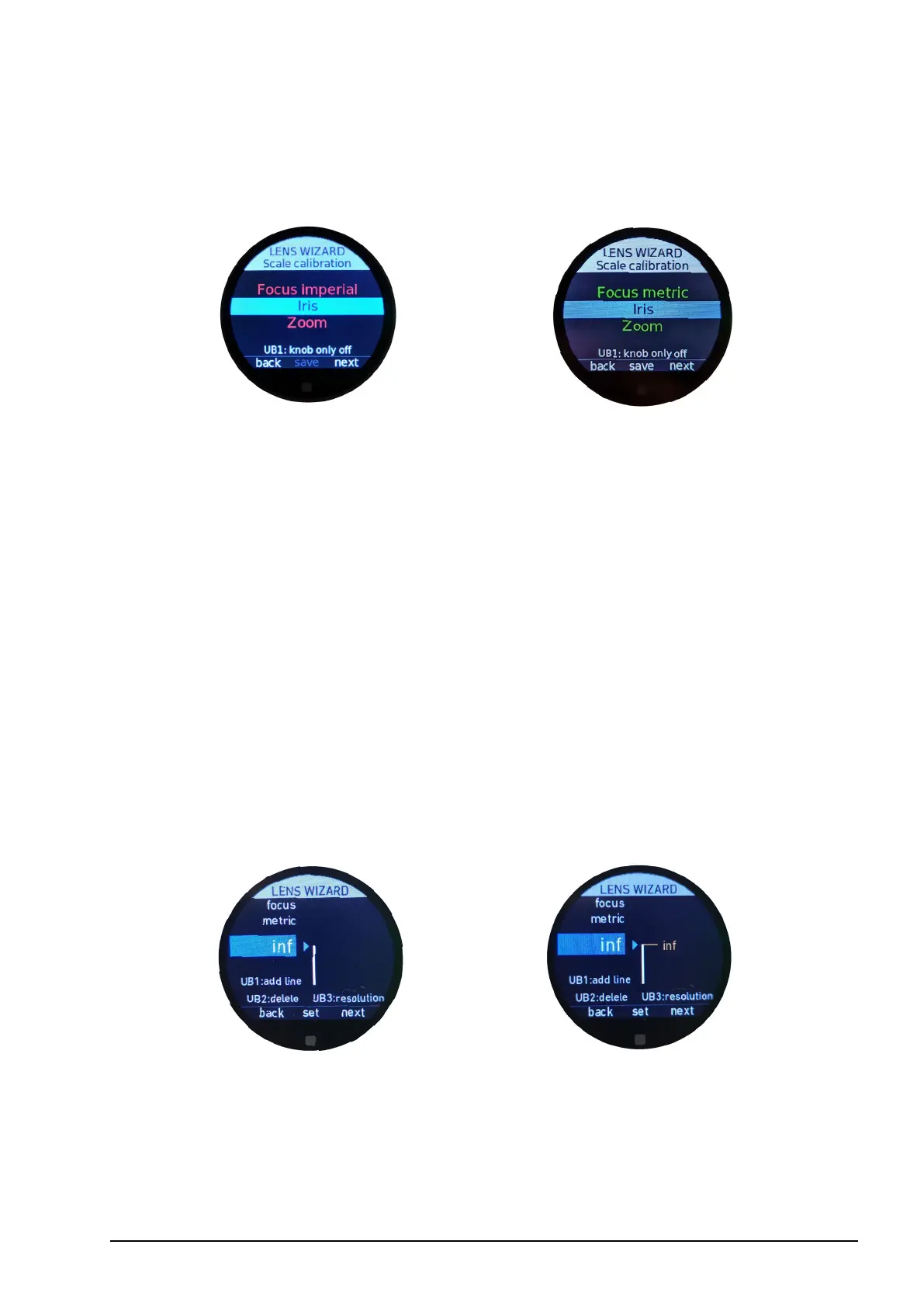
The scale calibration menu allows you to select which scale you want to create. I.e. Focus,
Iris or Zoom. Initially, all scales will be illuminated in red and the “save” function (MB2) will
be grayed out. The scales will only illuminate green after assigning at least one value for
the iris and zoom scale and at least two values for the focus scale. It is only possible to
save the lens le when each axis (with an assigned motor) is green.
Note: If you do not have a motor connected and assigned to iris and zoom, you must enter
at least one value for each corresponding scale. Please enter the open iris value for the iris
scale and the focal length of your prime lens in the zoom scale.
Press UB1 if you want to map your lens scales using only the knob controller. This is not
only more precise but can also save time when creating a new lens le. When knob only is
set to “on” the focus, iris and zoom axis will be assigned to the knob as soon as you enter
the corresponding scale. This is conrmed by pressing “next” (MB3). Set knob only to “o”
if you want to use the assigned controllers to map each lens axis.
6.2.3.3.4.7. Focus scale
In general, you can start creating the focus scale from either direction. In this example
however, the lens is being created from innity to close focus.
Move the control interface assigned to focus (knob as default) until the datum line on your
lens matches innity.
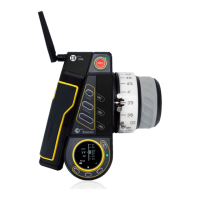
Use the thumb wheel to scroll clockwise or counter-clockwise until you see “inf” in the
blue input box. As an alternative, you can also swipe the touch screen up or down.
Once “inf” is highlighted in the blue input box, press “set” (MB2) and the innity mark will
be set on the gracal scale bar. As an alternative, you can also tap the touch screen to
conrm your selection or press the back button (BB1).


 To Next Page