All content © 2020, cmotion GmbH. All specications are subject to change without further notice.
http://www.cmotion.eu
page 70 of 120
6.2.3.3.11. Export ARRI lens
The export ARRI lens menu allows you to export lens les .cml from the cPRO / cPRO
PLUS or cPRO ONE hand unit’s internal memory as .tap - les for use with ARRI WCU-4.
Note: In order to export lens les (.tap), a USB stick formated in ExFAT or FAT32 needs to
be inserted in the USB slot on the back side of the cPRO / cPRO PLUS or cPRO ONE hand
unit. The USB drive will be recognized and mounted automatically. The “Export ARRI lens”
feature requires a DATA license key. Please also refer to section “6.2.3.9.4. Licenses” on
page 101 in this manual.
To help nd the correct lens le quickly, UB2 allows you to change the display order of
your lens les using the following categories:
• custom text, the name which was assigned to each lens le when it was created.
• focal length or zoom range, the focal length or zoom range which was assigned
to each lens le when it was created.
• T-stop, the open T-stop which was assigned to each lens le when it was created.
UB3 allows you to activate and deactivate advanced lens information. This will display
information about your lens le including manufacturer, serial number, weather the le
was created from a duplicate le, whether it was created as a metric or imperial lens, and
whether it is selected as one of your “favorites”. While viewing advanced lens information,
you can use the thumb wheel to scroll through the lens les.
Press select (MB2) and the selected lens le will turn green. You can select or unselect
multiple lens les one after another or select and unselect all. Press export in order to
export the selected lens les. The lens les will be exported without further conrmation
required.
Note: If a lens le with the same name already exist on the USB drive, a counter will be
added to the lens le name, e.g. (1).
6.2.3.3.12. Lens view
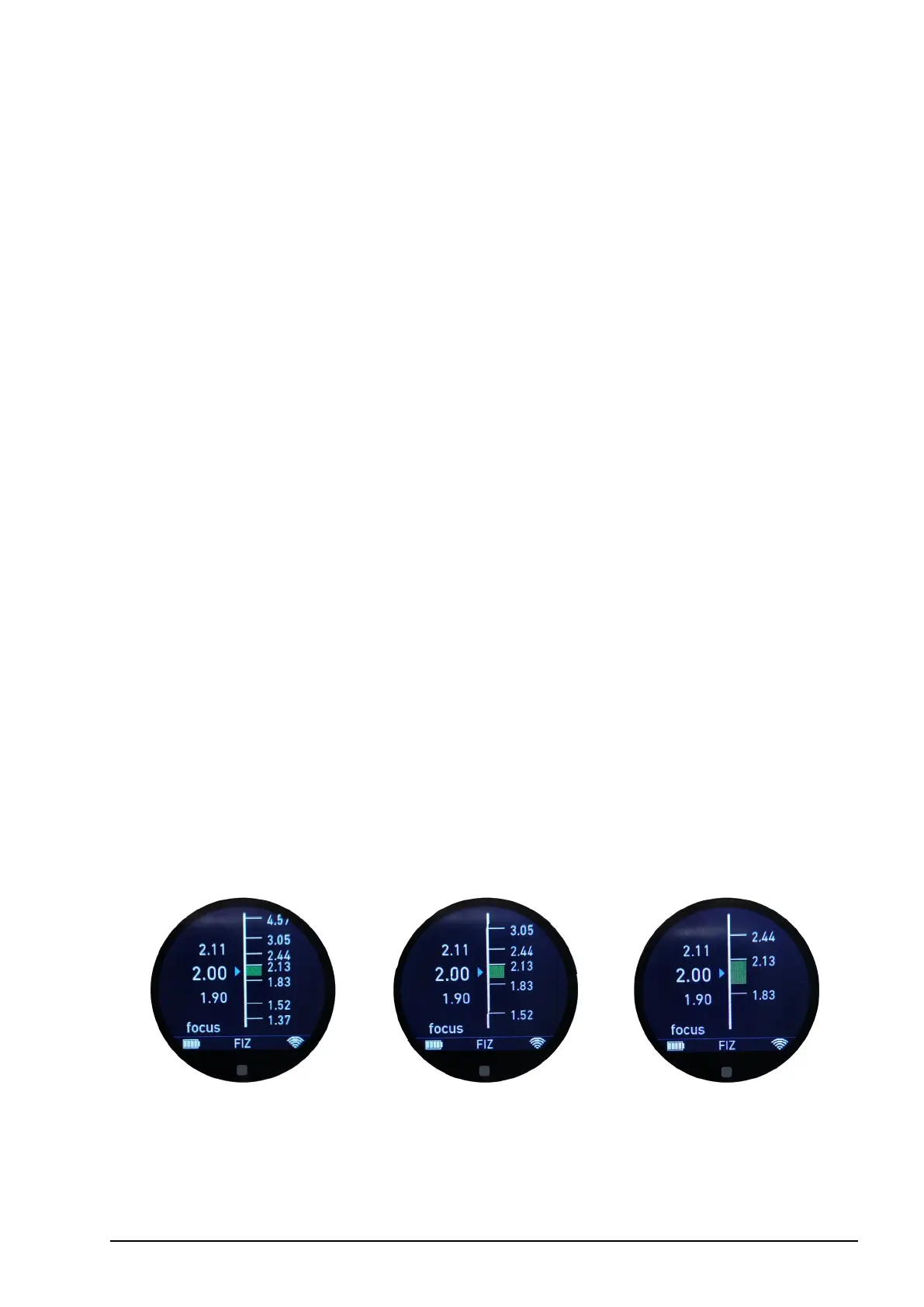
The lens view menu allows you to change the size of the FIZ scales for the GUI in the main
screens to small medium or large.
small medium large


 To Next Page