All content © 2020, cmotion GmbH. All specications are subject to change without further notice.
http://www.cmotion.eu
page 67 of 120
In order to nd the right lens le quickly, UB2 allows you to sort your lens les by:
• custom text, the name which was assigned to each lens le when it was created.
• focal length or zoom range, the focal length or zoom range which was assigned
to each lens le when it was created.
• T-stop, the open T-stop which was assigned to each lens le when it was created.
UB3 allows you to activate and deactivate advanced lens information. This will display
information about your lens le including manufacturer, serial number, weather the le
was created from a duplicate le, whether it was created as a metric or imperial lens, and
whether it is selected as one of your “favorites”. While viewing advanced lens information,
you can use the thumb wheel to scroll through the lens les.
Press “next” (MB3) to select the lens le you want to edit. Press “back” (MB1) if you want
to return to the previous page.
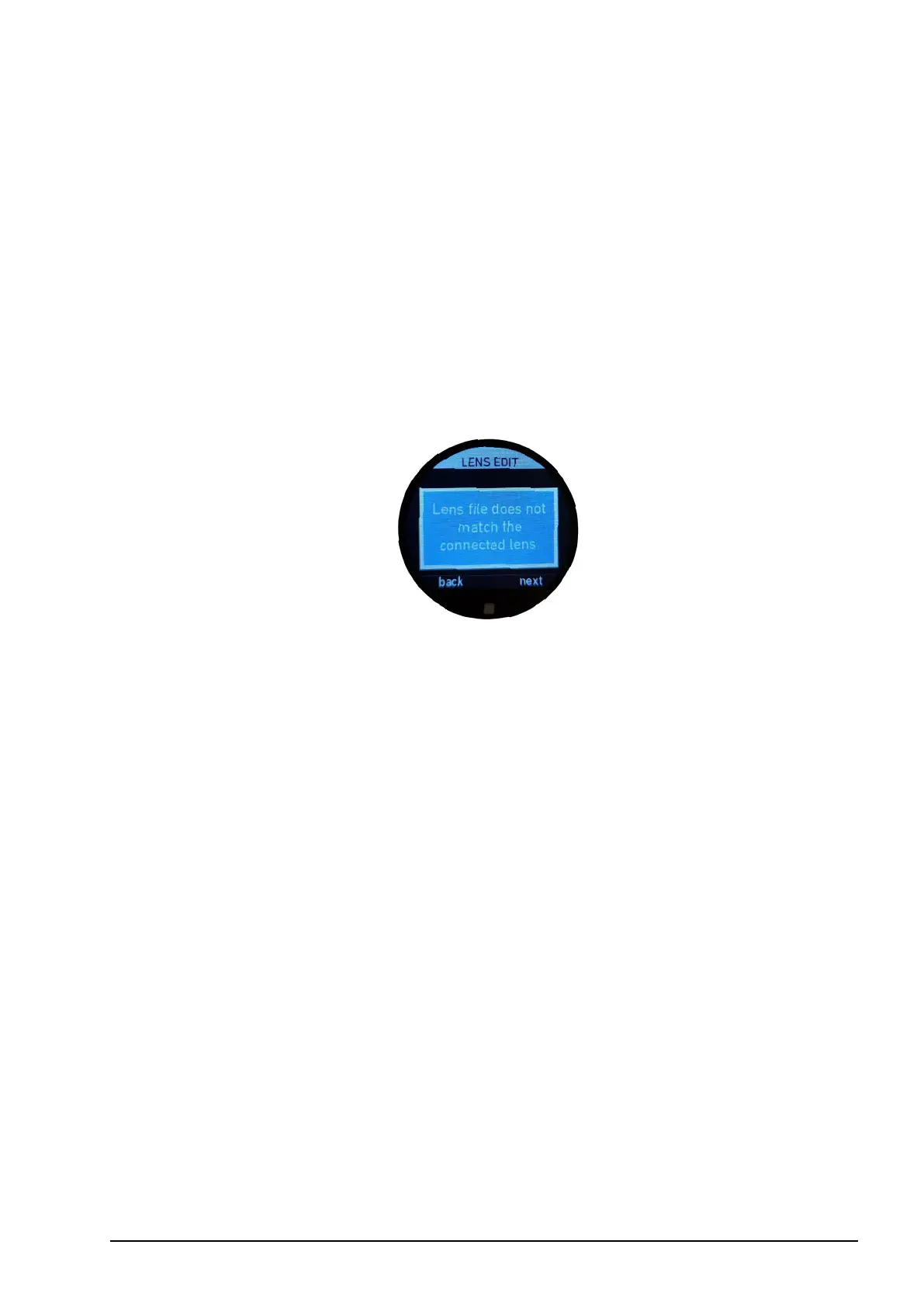
If the lens le you have selected does not match the motor calibration range, or e.g. you
select a prime lens and you have 3 motors connected, or a zoom lens with only one motor
connected, a warning message will appear. Press “next” (MB3) to continue, or press
“back” (MB1) to select a dierent lens le.
6.2.3.3.6. Duplicate
The duplicate function allows you to create lens les for a set of lenses quickly and
eciently. Simply duplicate your chosen lens le and then “edit” it to match the new lens.
In “edit” mode, you can rename the lens, input any missing lens scales, and even shift
focus positions if required. This can help save time compared with creating each lens le
from scratch. Please also refer to section “6.2.3.3.5. Edit” on page 66 in this manual.
In order to nd the duplicate lens le easily, go to the lens list and press UB3 to activate
the advanced lens information. Then, use the thumb wheel to scroll through the lens list.
The duplicate lens le will show “COPY” instead of the serial number from the original
lens. Once you have found the correct lens le, press UB3 to return to the lens list again.
UB2 allows you to sort your lens les by
• custom text, the name which was assigned to each lens le when it was created.
• focal length or zoom range, the focal length or zoom range which was assigned
to each lens le when it was created.
• T-stop, the open T-stop which was assigned to each lens le when it was created.


 To Next Page