9-14 Troubleshooting
9. If the top cover is open, close it.
After a few seconds, the Status screen displays and printing
resumes if jobs are queued.
Clearing a Jam from the Printing Area
NOTE:
When a jam occurs, the imager disengages all motors to allow you to safely pull out
the sheet.
1. Open the top cover (which has already been partially opened by
the imager).
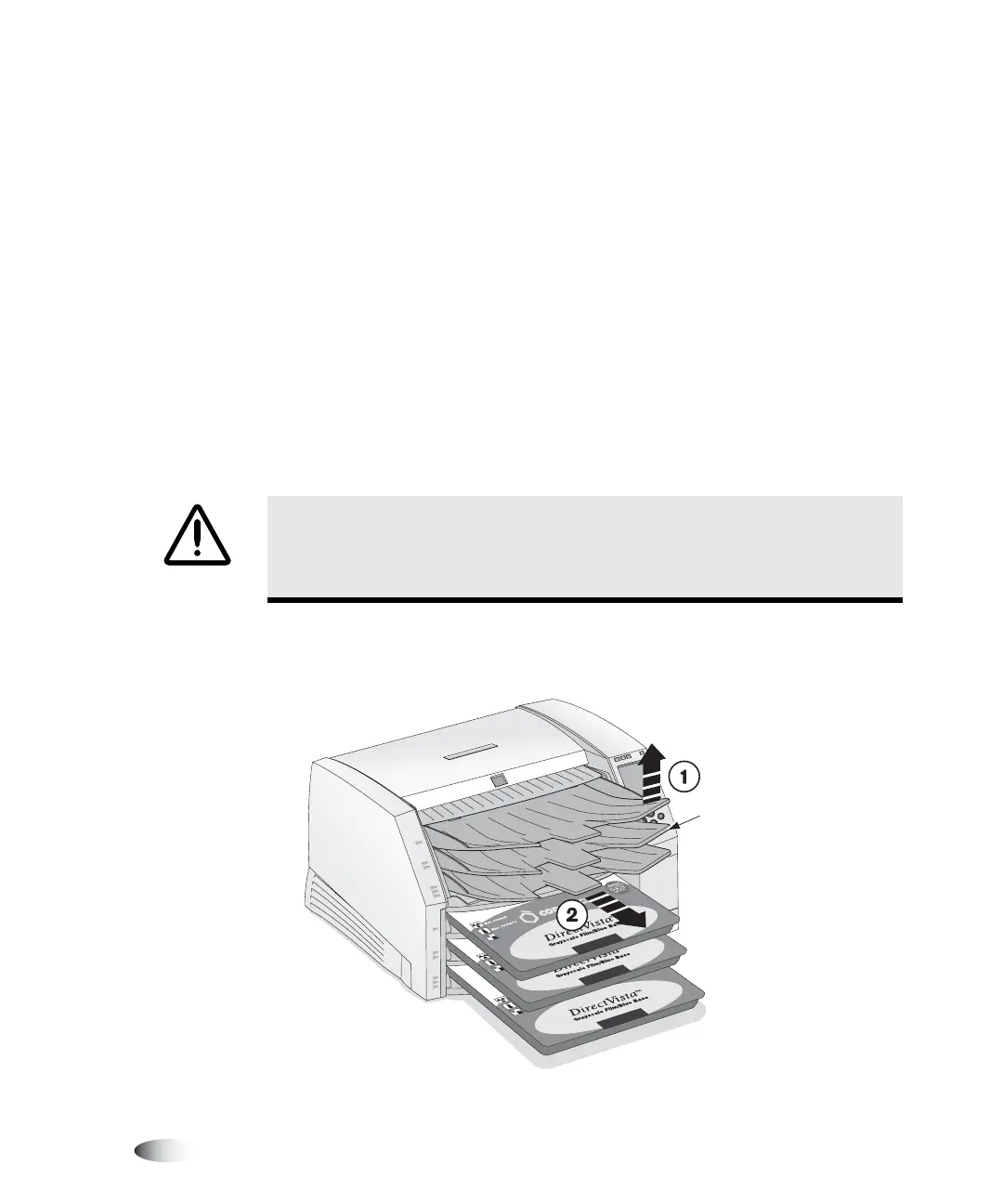
2. Remove the receive trays, as shown in the following figure.
WARNING With the top cover open, touch only those internal components that
are colored green (except for the pick tires, refer to the figure on page xx).
Remove rings, ties, jewelry, and other items, and tie back hair, so that they do
not fall into or get caught in the imager.
3
8
To clear a jam
indicated by
“Clear jam
from the
printing area
14"
x
1
7"
A
S
iz
e
8"
x
10"
Receive trays


 To Next Page